{"section":"tutorials","requestedLocale":"en","requestedSlug":"smart-pricing-mercado-libre","locale":"en","slug":"smart-pricing-mercado-libre","path":"docs/en/tutorials/integrations/integration-settings/smart-pricing-mercado-libre.md","branch":"main","content":"**Smart Pricing** in the [Mercado Libre integration](/en/docs/tracks/mercado-libre-integration-set-up) provides two features: **Price suggestions** and **Automatic price adjustment.** See below to learn about each feature and how to use it.\n\nBoth features are available only to clients using the **Mercado Libre Premium** integration.\n\n## Price suggestions\n\nThe **Price suggestions** feature sends alerts to the seller with suggestions to adjust prices in their offers. These suggestions are made based on similar products from other sellers.\n\nTo activate **Price suggestions,** follow the steps below:\n\n1. Go to **VTEX Admin > Marketplace > Mercado Libre > Preferences > Smart Pricing**, or type **Smart Pricing** in the search bar at the top of the page.\n2. In the **Price suggestions** section, click the button. A confirmation pop-up will appear.\n3. Click the `Confirm` button.\n\nAfter activating the feature, the seller must track the suggestions in the [Price module](/en/tracks/precos-101--6f8pwCns3PJHqMvQSugNfP). To do so, go to **Marketplace > Connections > Price** in the VTEX Admin.\n\nYou can identify all price suggestions in the Price module by their **ID** following this structure: `186-Automation`, as shown in the image below:\n\n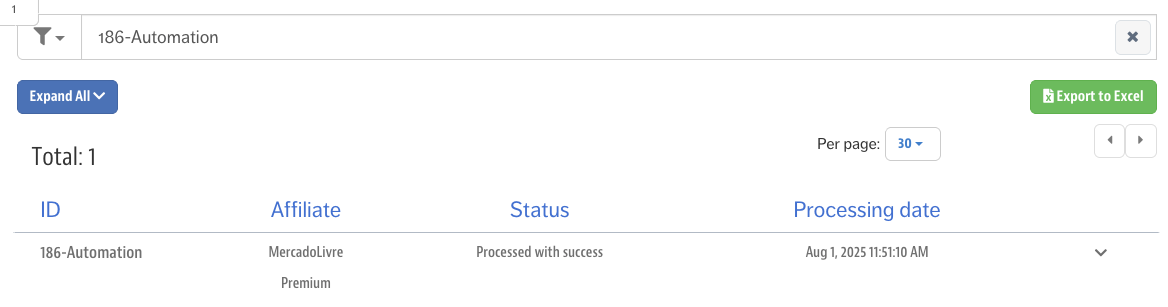\n\n## Automatic price adjustment\n\nThe **Automatic price adjustment** feature allows sellers to set rules that automatically update the prices of active offers based on the lowest prices found in similar offers on Mercado Libre and other sites.\n\nTo activate **Automatic price adjustment**, follow the steps below:\n\n1. In the VTEX Admin, go to **Marketplace > Mercado Libre > Preferences > Smart Pricing**, or type **Smart Pricing** in the search bar.\n2. In the **Automatic price adjustment** section, click the ` Create rule` button, and a new drawer will open.\n3. Complete the `General information` and `Compare with prices` fields. \n4. Click the `Next` button.\n5. Select the category you want to link to this rule.\n6. Click the ` Download SKUs for setup` button and complete the **minimum price** and **maximum price** fields for each SKU.\n7. Upload the spreadsheet.\n8. Click the `Confirm` button.\n9. Click the `Activate rule` button to create and apply the new rule.\n\n### Managing rules\n\nAll existing rules can be **edited, paused** or **deleted.**\n\n#### Editing rules\n\nTo edit a rule, follow the steps below:\n\n1. In the desired rule, click the button. \n2. Click the button to download the spreadsheet. \n3. Edit the desired prices in the spreadsheet. \n4. Upload the updated spreadsheet. \n5. Click `Confirm changes`. \n\n#### Pausing rules\n\nTo pause a rule, follow the steps below:\n\n1. In the desired rule, click the button. \n2. Click the button.\n3. Click the `Deactivate` button.\n\n#### Deleting rules\n\nTo delete a rule, follow the steps below:\n\n1. In the desired rule, click the button.\n2. Click the button.\n3. Click the `Delete` button."}