{"section":"tutorials","requestedLocale":"en","requestedSlug":"setting-up-the-notify-me-option","locale":"en","slug":"setting-up-the-notify-me-option","path":"docs/en/tutorials/orders/orders-management-settings/setting-up-the-notify-me-option.md","branch":"main","content":"> ⚠️ This article explains how to set up the **Notify me** feature in stores that use [CMS Portal (Legacy)](/en/docs/tracks/legacy-cms-portal). For stores using [VTEX IO](https://developers.vtex.com/vtex-developer-docs/docs/what-is-vtex-io), the setup follows the steps described in the [Availability Notify](https://developers.vtex.com/docs/apps/vtex.availability-notify) guide.\n\nWhen a product is out of [stock](/en/docs/tutorials/managing-stock-items), the retailer may choose to make the **Notify me** feature available to the customer. This feature allows interested customers to be notified by email when the item is available again.\n\nSee below an example of how the **Notify me** option is displayed in a store. To receive a notification when the item is back in store, the customer must type in the name and the email in the marked fields and then click on the `Send` button.\n\n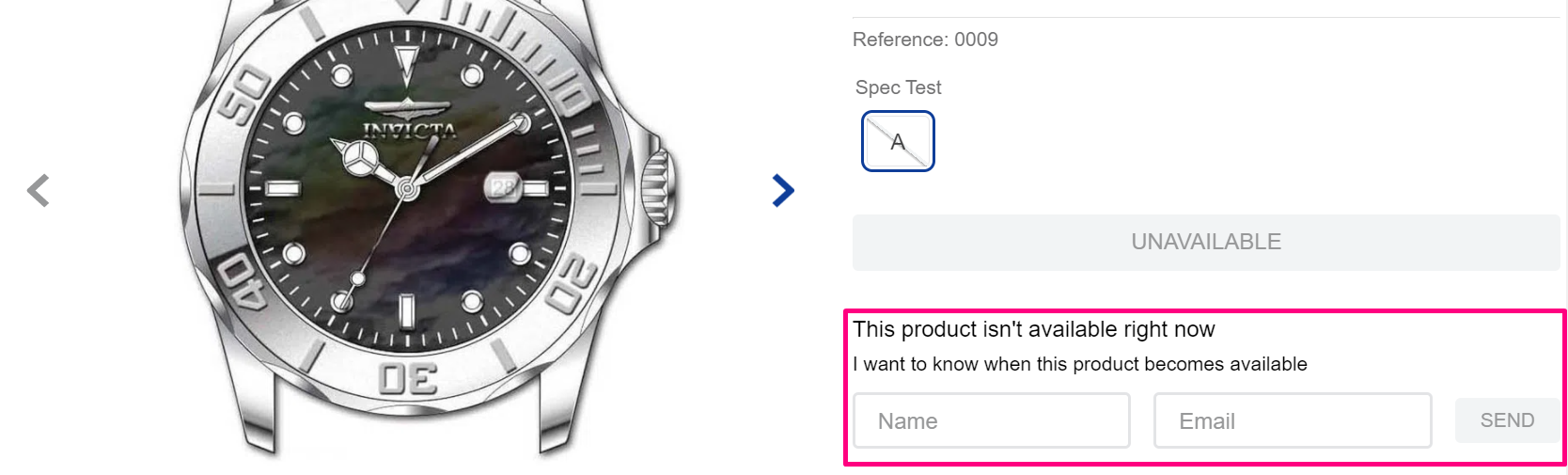\n\nAs soon as the item is back in stock, the system automatically sends an email to the customer informing them that the product is available for purchase again.\n\nIn this article, we will go through the necessary steps for setting up the **Notify me** feature:\n\n- [Displaying the \"Notify me\" option](#displaying-the-notify-me-option)\n - [Setting up the product page template](#setting-up-the-product-page-template)\n- [Setting up the notification email template](#setting-up-the-notification-email-template)\n- [Learn more](#learn-more)\n\n## Displaying the \"Notify me\" option\n\nTo enable the display of the **Notify me** feature, follow the steps below:\n\n1. In the VTEX Admin, go to **Store Settings > Storefront > Settings**, or type *Storefront* in the search bar at the top of the page and select *Store Settings / Storefront*.\n2. Click on the **General** tab.\n3. Check the option `Show “Notify me” when out of stock`.\n4. Click `Save`.\n\n### Setting up the product page template\n\nNext, you must set up the product page template for displaying the **Notify me** option. Follow the instructions below.\n\n1. In the VTEX Admin, go to **Storefront > Layout**, or type **Layout** in the search bar at the top of the page.\n2. Click the **CMS** folder.\n3. Click the **HTML Templates** folder.\n4. Click the **Product** template.\n5. Use the control `vtex.cmc:BuyButton` on the **Product** page template as described below:\n\n```html\n\n \n
\n```\n\n## Setting up the notification email template\n\nTo set up the **Notify me** template for the emails which will be sent to the customers, follow the instructions below.\n\n1. In the VTEX Admin, go to **Store Settings > Email Templates > Templates**, or type **Templates** in the search bar at the top of the page.\n2. Type \"Let me know\" in the search field.\n3. Select the **Let me know** template.\n4. Go to the **HTML** text box and edit the code as you want.\n5. Click `Save`.\n\n## Learn more\n\n- [Exporting customers who signed up for the availability notification (Notify me)](/en/docs/tutorials/exporting-customers-who-signed-up-for-the-availability-notification-notify-me)\n- [Inserting images in the \"Notify me\" email](/en/docs/tutorials/inserting-images-into-let-me-know-email)\n- [What to do when the \"Notify me\" option is not displayed](/en/faq/what-to-do-when-the-notify-me-option-is-not-displayed)"}