{"section":"tutorials","requestedLocale":"en","requestedSlug":"releases-module-beta","locale":"en","slug":"releases-module-beta","path":"docs/en/tutorials/beta/releases-beta/releases-module-beta.md","branch":"main","content":"> ℹ️ The **Releases** module is currently in beta version, which means we are working to improve it. This feature is only available for stores using FastStore.\n\nManaging an ecommerce operation requires the retailer to perform several updates and changes in the store, which are often interconnected — for example, carrying out a publicity campaign in which different storefront elements need to be configured.\n\nThe **Releases** module allows the retailer to manage connected groups of changes to coordinate the stores changes’ planning, creating, scheduling and publishing. In the beta phase, the changes that can be grouped together must be related to the [CMS](/en/docs/tracks/cms-vtex-io). Other modules of the VTEX platform are not yet included.\n\nThe main benefits of the module are:\n\n- Optimizing the platform performance: publishing grouped changes eliminates processing queues.\n- Simplifying the experience of managing connected changes, which increases the operation's efficiency.\n- Better control when testing and reviewing changes before publishing.\n- Easier scheduling or deleting grouped changes.\n\n> ℹ️ To use the **Releases** module, you must configure the CMS. Learn more in [Installing Releases on VTEX Headless CMS (Legacy)](https://www.faststore.dev/how-to-guides/cms/vtex-headless-cms/Installing%20Releases%20on%20VTEX%20Headless%20CMS).\n\nThis article will cover the following topics:\n\n- [Create releases](#creating-releases)\n- [View releases](#viewing-releases)\n- [Search releases](#searching-releases)\n- [Schedule releases](#scheduling-releases)\n- [Publish releases](#publishing-releases)\n- [Delete releases](#deleting-releases)\n\n## Creating releases\n\nThere are two ways to create a new release:\n\n- Using the **Pages** section.\n- Using the **Releases** module.\n\n### How to create a release using the Pages section\n\nTo create a release, follow the step-by-step instructions below: \n\n1. In the VTEX Admin, access **Store Settings > CMS (beta) > Pages (beta)**.\n2. Click on the `CREATE NEW` button. \n3. Click the desired type of change:\n - Home page \n - PLP\n - Global SEO Settings\n - Institutional page\n4. After making the desired changes on the page you created, click the `PUBLISH` button.\n5. Select the option `Add a release`.\n6. Click `Create a release`.\n7. In the _Name_ field, write a name for the release.\n\n > ℹ️ In this stage, the fields **Day to publish** and **Time** are not required. This information can be decided upon later, as described in [Scheduling releases](/en/docs/tutorials/releases-module-beta#scheduling-releases).\n\n8. Click `Create`.\n\n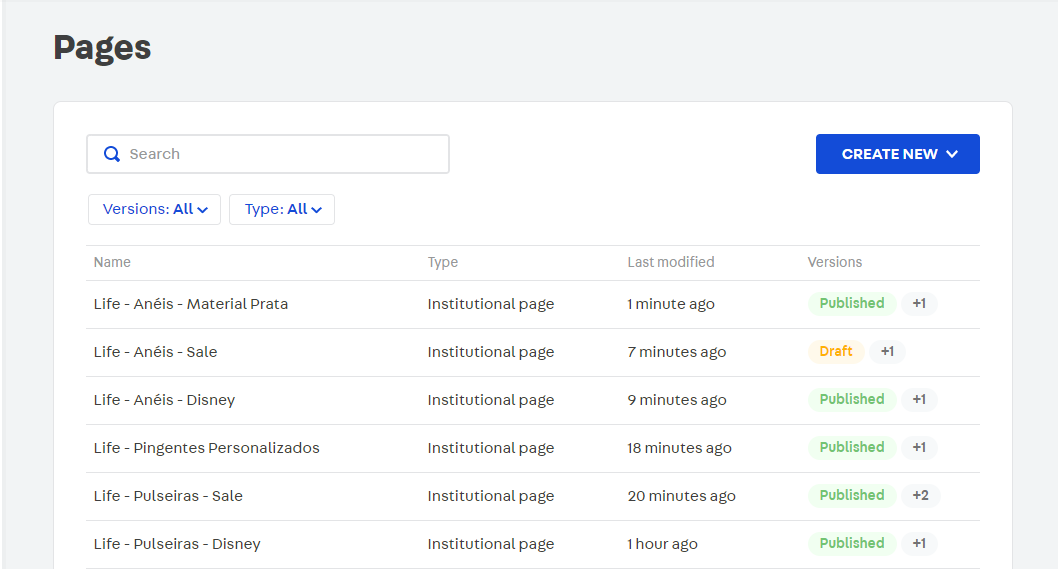\n\n### How to create a release using the Releases module\n\nTo create a release, follow the step-by-step instructions below: \n\n1. In the VTEX Admin, access **Store Settings > Releases**.\n2. Click the `Create` button.\n3. In the _Name_ field, write a name for the release.\n\n > ℹ️ In this stage, the fields **Day to publish** and *Time* are not required. This information can be decided upon later, as described in Scheduling releases.\n\n4. Click `Create`.\n\n## Viewing releases\n\nAll the releases are listed in the VTEX Admin, in **Store Settings > Releases**. The page displays two tabs, `SCHEDULED` and `UNSCHEDULED`, depending on whether the release has been created with a set publish date. \n\n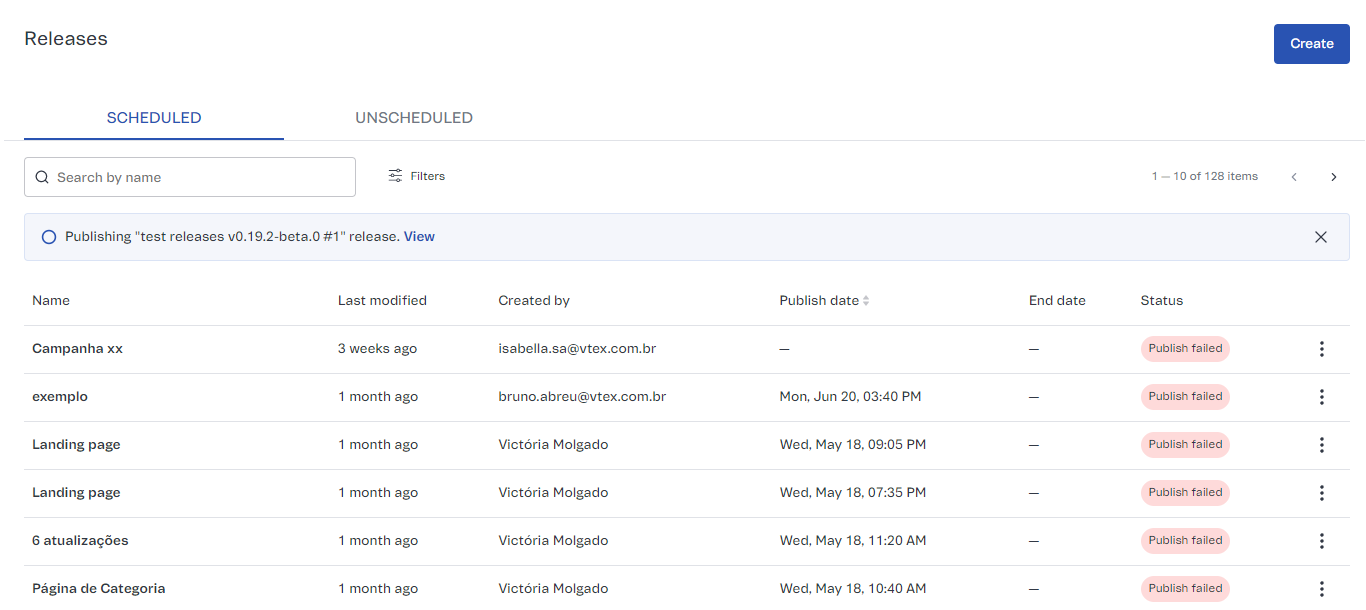\n\nOn the `SCHEDULED` tab, each column is described as follows:\n\n| Column | Description |\n| ---------- | ---------- |\n| Name | Name identifying the release, set in the creation stage. You can edit the name anytime since the release has not already been published. |\n| Last modified | The amount of time since the last change was made to the release, such as updating, adding, or deleting content. |\n| Created by | Identification of the user who created the release. |\n| Publish date | Date and time set for publishing the release. |\n| End date | When a release has an end date scheduled, the date will be displayed in this column. After the end date, the release updates are undone. |\n| Status | There are five possible statuses for a release: - **Scheduled:** A date is set for publishing the release.
- **Queued:** This means the release publishing is being deployed. No action is needed for the release to get to the next status, *Publishing*.
- **Publishing:** The VTEX platform is processing the release publishing request.
- **Published:** The release’s content is published and available to the customer in the storefront.
- **Publish failed:** An error occurred and the release has not been published. When you click on the release name, a page with the release details is displayed, showing more information on the error type and how to fix it.
|\n\nIn the `UNSCHEDULED` tab, there are only three columns with the same meaning as the ones previously described:\n\n- Name\n- Last modified\n- Created by\n\nFor more information on a specific release, you can click it.\n\n## Searching releases\n\nOn the **Releases** page, you can find a release by its name using the search field. The results appear as you type. A misspelled name will return no search results.\n\nAnother way to search for releases is to use the filters available only in the `SCHEDULED` tab. To do that, click **Filters** and select the desired combination between a release status and/or the time set for publishing.\n\n## Scheduling releases\n\nWhen creating a release, you can set the publish date or not, which is why there are three possible actions for scheduling:\n\n- **Schedule:** Set a publish date for a release in case it is not specified.\n- **Unschedule:** Cancel the publish date, which will put the release in the `Unscheduled` status.\n- **Reschedule:** Set a new date for a release with a date defined.\n\n> ℹ️ When you schedule or reschedule a release publication, you can select the option **Add end date** to set a deadline for the release to be unpublished. The end date does not mean deleting the release but archiving it to be republished at any time.\n\n### Scheduling\n\nWhen the release is in the `Unscheduled` status, you can set a publish date in two ways. Scheduling via the **Releases** module:\n\n1. In the VTEX Admin, access **Store Settings > Releases**.\n2. Click `UNSCHEDULED` or [search](#searching-releases) using the search bar and the filters to find the desired release.\n3. On the line corresponding to the release, click the menu icon. \n4. Select the `Schedule` option.\n5. Set a date using the calendar and an hour for the release.\n6. If you wish, select a date to unpublish the release by clicking `Add end date`.\n7. Click `Schedule`.\n\nScheduling using the release details page:\n\n1. On the **Releases** page, click the name of the release you want to schedule.\n2. On the release details page, click the `Schedule` button.\n3. Set a date using the calendar and an hour for the release.\n4. If you wish, select a date to unpublish the release by clicking `Add end date`.\n5. Click `Schedule`.\n\n### Unscheduling or rescheduling\n\nWhen the release is `Scheduled`, you can:\n\n- Reschedule and set a new publish date.\n- Unschedule and put the release in the `Unscheduled` status. \n\nFor each of these options, follow the instructions in the [Scheduling](#scheduling-releases) section. The only difference being that the available configuration options will be `reschedule` or `Unschedule`.\n\n## Publishing releases\n\nReleases with the following statuses allow publication:\n\n- `Unscheduled`\n- `Scheduled`\n- `Publish failed`\n\nTo publish a release using the **Releases** module and make the changes visible in the storefront, follow the step-by-step instructions below: \n\n1. In the VTEX Admin, access **Store Settings > Releases.**\n2. On the line corresponding to the desired release, click the menu icon.\n3. Click `Publish now`.\n4. Click `Publish`.\n\nAnother way to publish is to go to the release details page, following the steps below:\n\n1. On the **Releases** page, click the name of the release you want to publish.\n2. On the release details page, click `More`.\n3. Click `Publish now`.\n4. Click `Publish`.\n\n## Deleting releases\n\nTo delete a release, follow the step-by-step instructions below: \n\n> ❗ Deleted releases cannot be recovered. The updates included in the release remain, but they are no longer grouped together.\n\n1. In the VTEX Admin, access **Store Settings > Releases**.\n2. On the line corresponding to the desired release, click the menu icon. \n3. Click `Delete`.\n4. Click `Delete`.\n\nAnother way to delete a release is to go to the release details page, following the steps below:\n\n1. On the **Releases** page, click the name of the release you want to delete.\n2. On the release details page, click **More**.\n3. Click `Delete`.\n4. Click `Delete`."}