{"section":"tutorials","requestedLocale":"en","requestedSlug":"regular-promotion-with-reward-value","locale":"en","slug":"regular-promotion-with-reward-value","path":"docs/en/tutorials/promotions-and-taxes/promotions/regular-promotion-with-reward-value.md","branch":"main","content":"The [Regular Promotion](/en/docs/tutorials/regular-promotion) offers discounts in a flexible way, combining multiple conditions, restrictions and benefits. One of the possibilities of this type of promotion is to provide a reward value to your customers, i.e. a credit that acts as cashback to be used in future store purchases. The purpose of this type of discount is to generate loyalty through recurrence of purchases, i.e. to offer an incentive for customers to return to shop in the store.\n\nIn this article, we explain:\n- [Types of reward values](#types-of-reward-values)\n- [How to set up restrictions](#how-to-set-up-restrictions)\n- [How reward values work](#how-reward-values-work)\n\n## Types of reward values\n\nYou can create a [regular promotion](/en/docs/tutorials/regular-promotion) in **Promotions & Taxes > Promotions > New Promotion > Regular Promotion**. When choosing the type and value of the discount, there are two options available for offering a reward value:\n\n- [Nominal reward value](#nominal-reward-value)\n- [Percentage reward value](#percentage-reward-value)\n\n### Nominal reward value\n\nThe **nominal reward value** adds a fixed credit amount to the user's account in your store. To set up this type of reward value, you must fill in the following fields on the [regular promotion form](/en/docs/tutorials/regular-promotion#1-promotion-overview):\n\n* **Nominal value for rewards program:** Credit amount that will be added to the customer's account in your store.\n* **Apply reward credit when the order status changes to:** Field to define from which order status the credit will be made available. The options are **Invoiced** or **Payment Approved**.\n\nIn the following example, the customers will earn R$10,00 in store credit when the order status changes to **Invoiced**.\n\n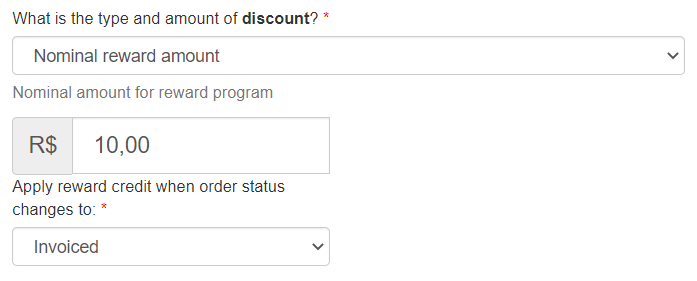\n\n### Percentage reward value\n\nThe **percentage reward value** adds a percentage credit amount based on the price of the product purchased. To set up this type of reward value, you must fill in the following fields on the [regular promotion form](/en/docs/tutorials/regular-promotion#1-promotion-overview):\n\n* **Percentage value for rewards program:** Percentage of the value of the order that will be added as credit to the customer's account in your store.\n* **Apply reward credit when the order status changes to:** Field to define from which order status the credit will be made available. The options are **Invoiced** or **Payment Approved**.\n\nIn the following example, customers will earn 20% of the purchase value when the order status changes to **Payment Approved**.\n\n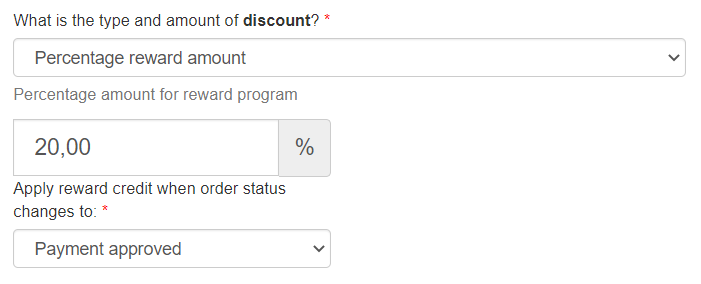\n\n## How to set up restrictions\n\nIn addition to defining the reward value, you must configure the other data and restrictions of your promotion, i.e. define the items to which the promotion will be applied and the conditions for it to be valid.\n\nThe following are some examples of configurable restrictions so that regular promotions with reward values may be applied to specific scenarios:\n\n* Purchases from a specific amount.\n* Purchases of specific products from a particular collection.\n* Delivery addresses that are part of a given range of Postal Codes.\n* One purchase per customer.\n\nYou can make these settings in **Promotions & Taxes > Promotions > New Promotion > Regular Promotion**. To do so, follow the instructions described in the article [Regular Promotion](/en/docs/tutorials/regular-promotion).\n\n## How reward values work\n\nThe credit is made available to the customer who places an order compatible with the [restrictions set out in the promotion](#how-to-set-up-restrictions). This happens after the order is changed to the defined status, which may be **Invoiced** or **Payment Approved**.\n\nCredits are cumulative, i.e., if customers place further orders within the promotion criteria, they will receive more credits that will be added to the previous ones that have not been used. Credits have no expiration date.\n\nYou can view the applied value in [Orders management](#orders-management).\n\nOnce the credit is made available, the customer can view and use the applied value for future purchases during [checkout](#checkout). \n\nRead the following sections for more details on reward values in other contexts:\n\n- [Orders management](#orders-management)\n- [Checkout](#checkout)\n\n### Orders management\n\nWhen a customer places an order which is eligible to receive a reward credit, you can view the applied promotion and value in the VTEX Admin under **Orders management > All Orders** on the Order details page.\n\nThe name of the promotion applied to the order appears in the **Sales and marketing** section:\n\n Order details\n\n\n
 Order details\n (Beta)\n\nIn the **Order flow** section, you can check the reward value applied:\n\n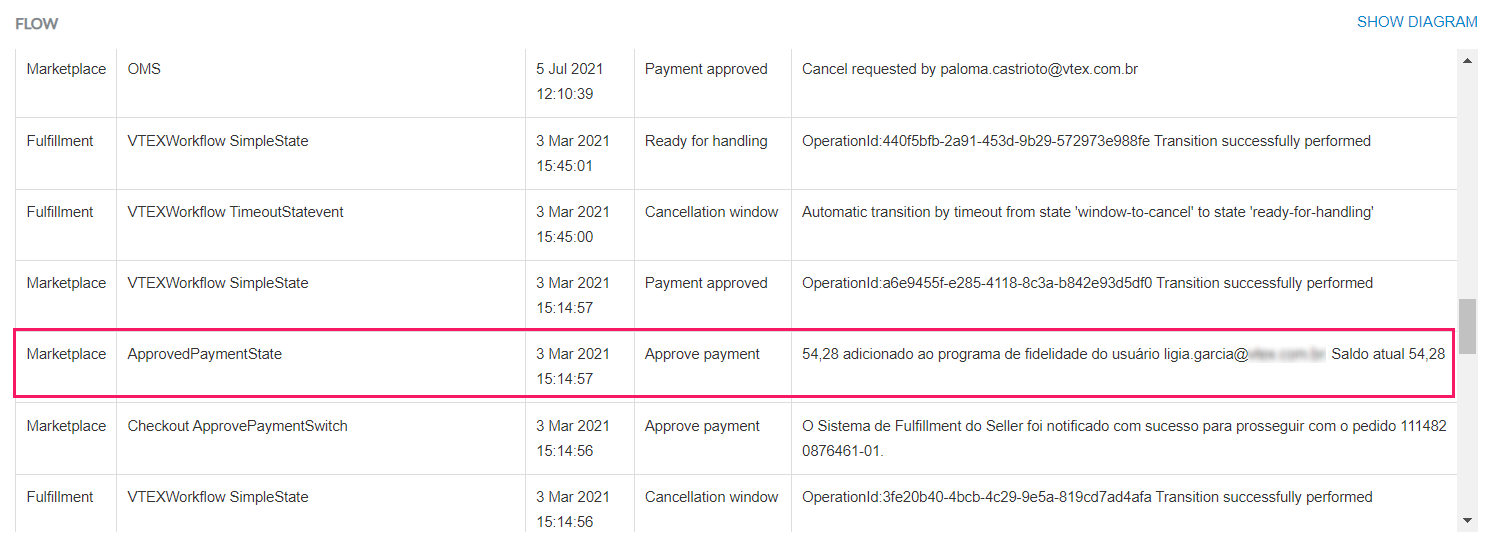\n\nIf you use the new [Order details (Beta)](/en/docs/tutorials/order-details-page) interface, go to `See interactions` to check the applied value:\n\n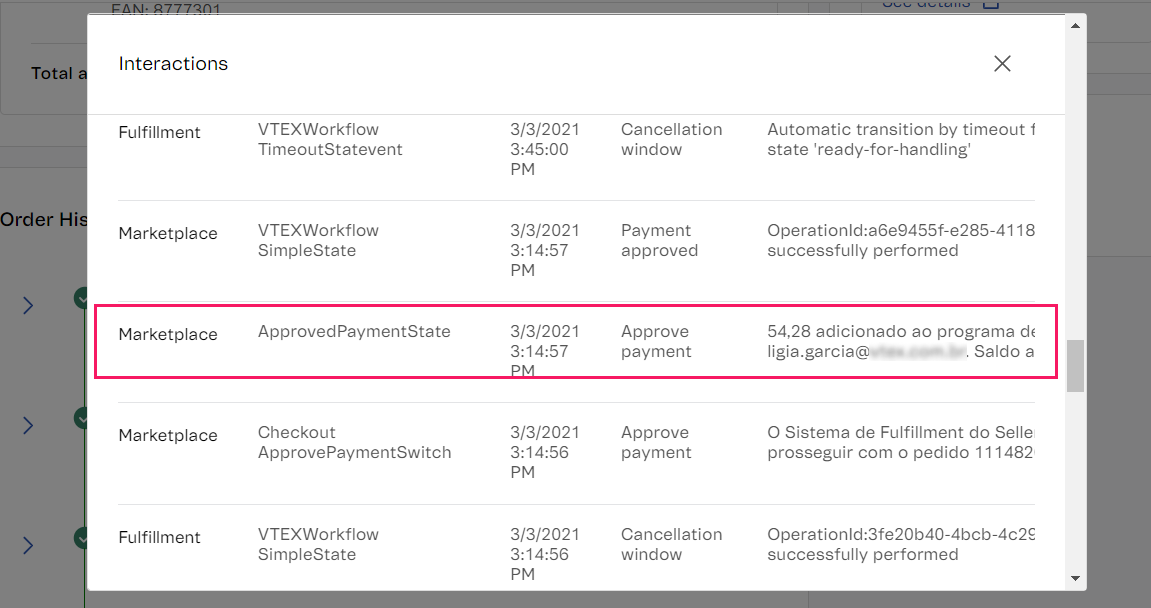\n\nConsider that the promotion applied to the order illustrated offers a **percentage reward value** of **50%**. Therefore, the client earned a credit of `R$ 54.28` for future purchases, which is equivalent to **50%** of `R$ 108.55`, the total value of the order.\n\n### Checkout\n\nThe reward value available for use is displayed to your store customers at the **Payment** stage during checkout, as shown below.\n\n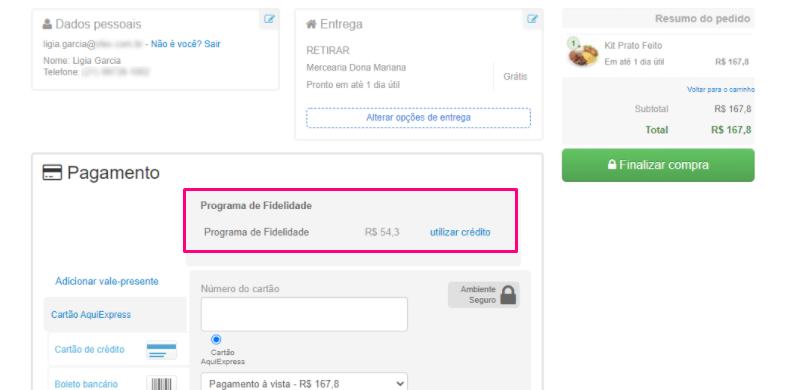\n\nThe applied value can be used to calculate the payment. To do so, the customer must click on `use credit` and then enter the value they want to use.\n\nNote that the value will be discounted from the other method of payment selected. In the following example, the _boleto_ shows the amount of `R$ 113.50`, which corresponds to `R$ 167.80` minus the reward value used (`R$ 54.30`).\n\n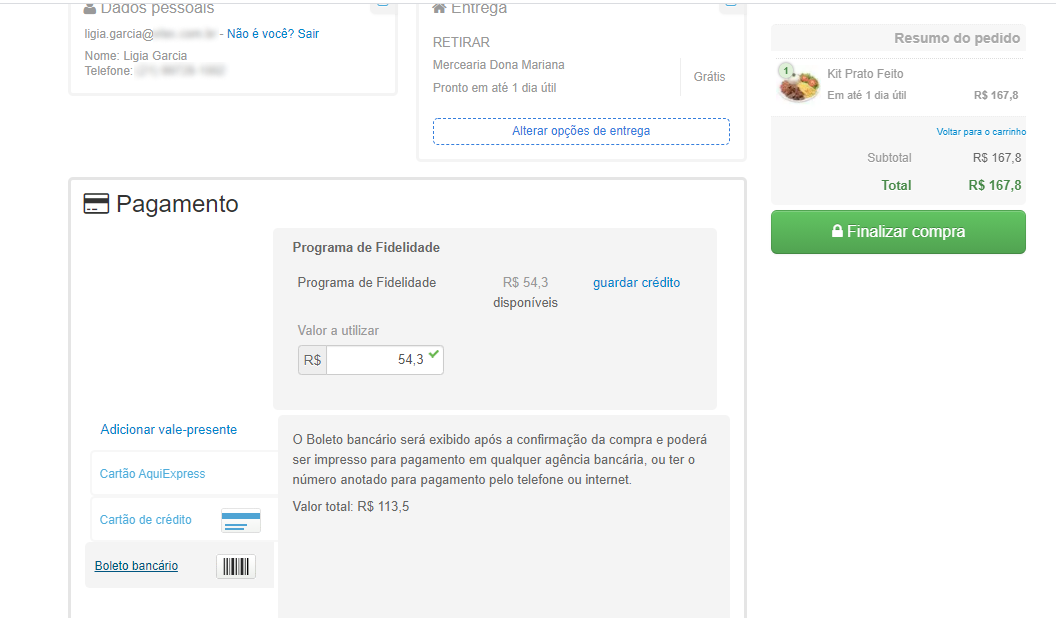\n\n## Learn more\n\n* [Regular Promotion](/en/docs/tutorials/regular-promotion)"}
Order details\n (Beta)\n\nIn the **Order flow** section, you can check the reward value applied:\n\n\n\nIf you use the new [Order details (Beta)](/en/docs/tutorials/order-details-page) interface, go to `See interactions` to check the applied value:\n\n\n\nConsider that the promotion applied to the order illustrated offers a **percentage reward value** of **50%**. Therefore, the client earned a credit of `R$ 54.28` for future purchases, which is equivalent to **50%** of `R$ 108.55`, the total value of the order.\n\n### Checkout\n\nThe reward value available for use is displayed to your store customers at the **Payment** stage during checkout, as shown below.\n\n\n\nThe applied value can be used to calculate the payment. To do so, the customer must click on `use credit` and then enter the value they want to use.\n\nNote that the value will be discounted from the other method of payment selected. In the following example, the _boleto_ shows the amount of `R$ 113.50`, which corresponds to `R$ 167.80` minus the reward value used (`R$ 54.30`).\n\n\n\n## Learn more\n\n* [Regular Promotion](/en/docs/tutorials/regular-promotion)"}