{"section":"tutorials","requestedLocale":"en","requestedSlug":"received-skus-beta","locale":"en","slug":"received-skus-beta","path":"docs/en/tutorials/integrations/products/received-skus-beta.md","branch":"main","content":"The Received SKUs page provides a way for [marketplaces](/en/docs/tutorials/marketplace-overview) to view, prioritize, and catalog items sent by the sellers. This way, they can create new products and link them to existing SKUs or products to make them available for sale. You can access this page on the VTEX Admin by going to Marketplace > Received SKUs or typing Received SKUs in the Admin search bar. \n\nCataloging can be done manually or automatically [using one or more matchers](/en/tutorial/entendendo-a-pontuacao-do-vtex-matcher) or [autoApprove](https://developers.vtex.com/docs/api-reference/marketplace-apis-suggestions/#put-/suggestions/configuration/autoapproval/toggle). You can also use third-party tools to do this. \n\nThis article provides an overview in the sections [Page structure](#page-structure), [Cataloging priority](#cataloging-priority), and [Cataloging items](#cataloging-items). \n\n## Page structure \n\nThe Received SKUs page is divided in tabs that correspond to the different offer statuses: \n\n- [Pending](#pending) \n- [Issues](#issues) \n- [Approved](#approved) \n- [Processing](#processing) \n- [Blocked](#blocked) \n\nEach tab displays a SKU list, offer SKU specifications, and the percentage of offers that have that status. Additionally, the tab has filter options that you can apply to the offers. \n\n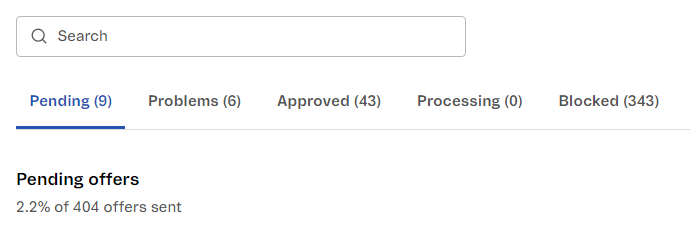\n\n### Pending\n\nIn the **Pending** tab, you can see a list of all offers sent by a seller that haven't been approved yet. Offers can be filtered by **Seller, Category, Brand, and Inventory.** Offer actions in this tab include: **Create new product, Link to product or SKU, Reject for correction, or Reject and block.** \n\nEach row in the list represents a product and contains the following information: \n\n- **Offer:** Name of the product. \n- **Product ID:** Identification number of the product. \n- **Seller:** Name of the seller who sent the offer. \n- **Category:** Category the product is linked to, if it's already mapped. Otherwise, it will show as Unmapped. \n- **Price:** Price of the product sent by the seller. \n- **Inventory:** Number of products available in stock. \n\nTo check all the specifications of a product, click the name of the product. This will open a window that contains all the product information. \n\n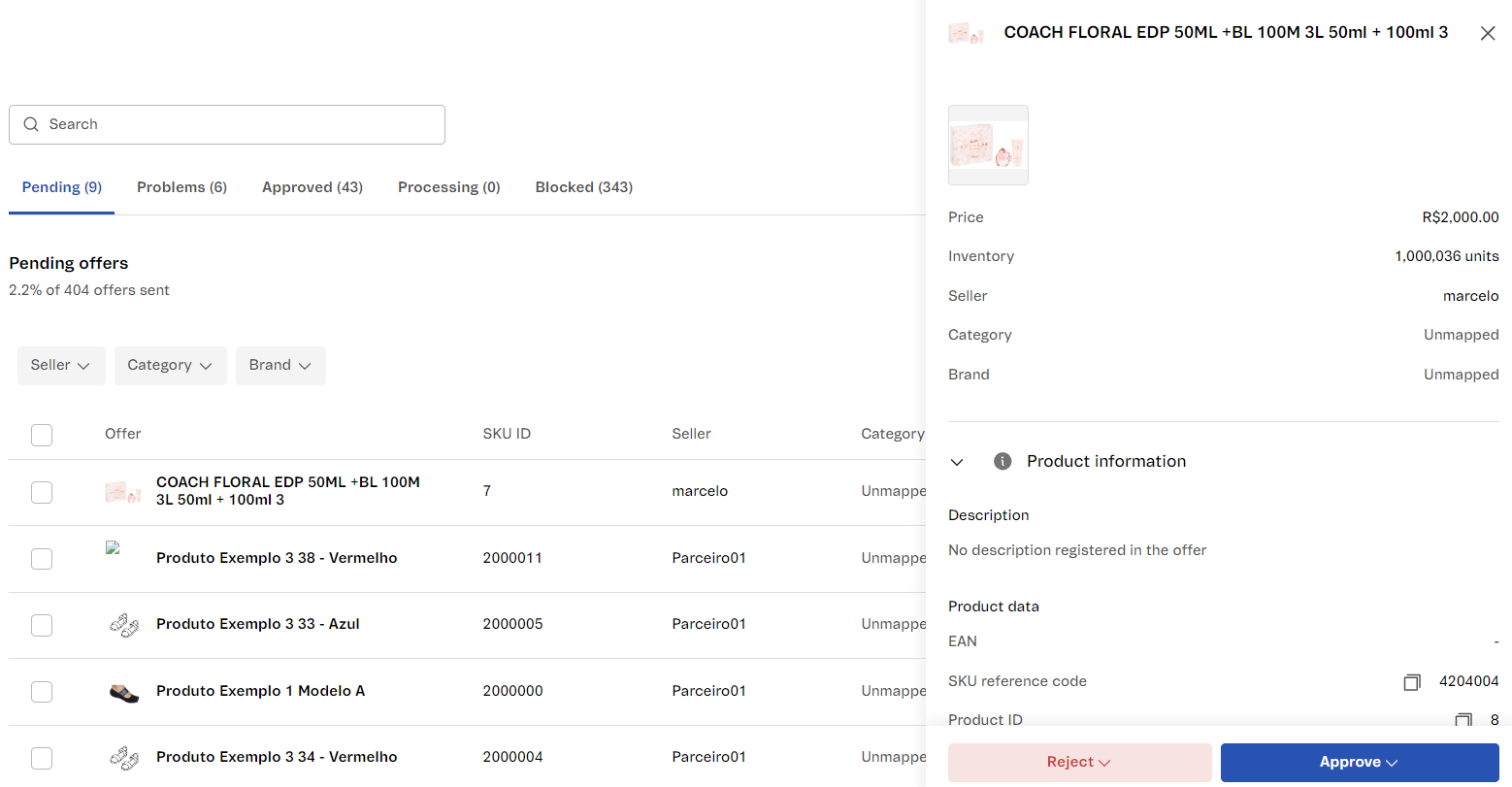\n\n### Issues \n\nThe **Issues** tab contains all the offers that haven't been approved because they have issues that need to be corrected by the seller. The filters, actions, and identification fields of the Issues tab are similar to the ones in the **[Pending](#pending)** tab. \n\n> ℹ️ The **Issues** tab doesn't have the option to request a correction. \n\nTo identify the issue of an offer, click the name of the product. This will open a window with the product information, an error message, and the offer reviewer. \n\n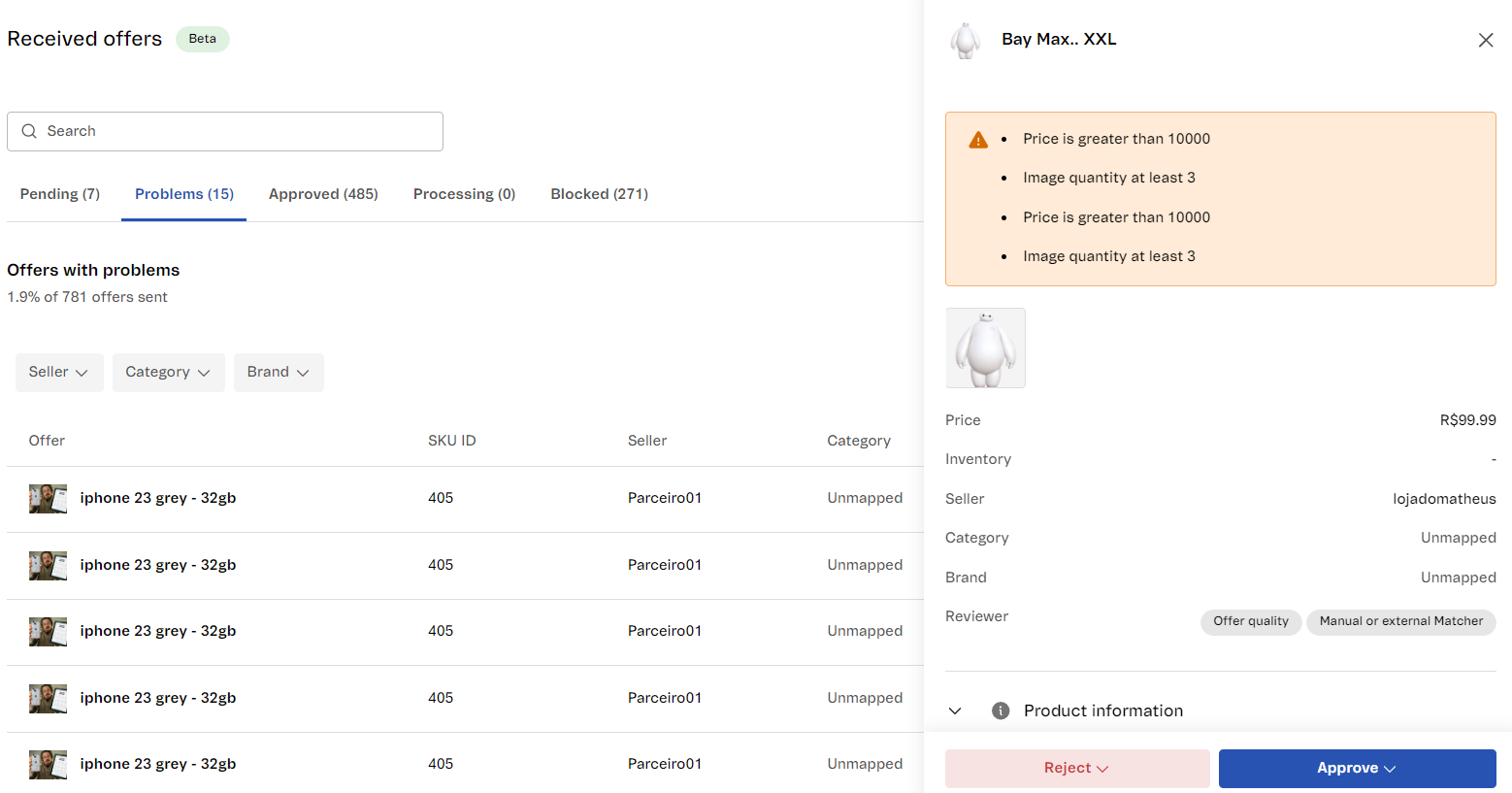\n\n### Approved \n\nThe **Approved** tab shows the received and approved offers. You can **Edit the product, View the product page,** and **Filter products by Seller, Category, and Brand.** \n\nEach row in the list represents a product and contains the following information: \n\n- **Offer:** Name of the product. \n- **Product ID:** Identification number of the product. \n- **Seller:** Name of the seller who sent the offer. \n- **Category:** The category the product belongs to. \n\n### Processing \n\nThe **Processing** tab contains Received SKUs that are being evaluated by the VTEX system. This is only a view tab. You can filter by **Seller** and **Submitted Date.**\n\nEach row in the list represents a product and contains the following information: \n\n- **Offer:** Name of the product. \n- **Product ID:** Identification number of the product. \n- **Seller:** Name of the seller who sent the offer. \n- **Submitted Date:** Date when the offer was sent to the marketplace. \n\n> ℹ️ The offers in this tab are being evaluated by Matcher and Offer Quality or autoApprove, if they're configured. After evaluation, the offer can be sent to the **Pending, Issues, Approved, or Blocked** tabs, depending on the requirements. \n\n### Blocked \n\nIn the **Blocked** tab, you can see the offers that were sent by the seller that have been blocked by the marketplace. You can **Unblock** an offer, as well as filter by **Seller** or **Reviewer.** \n\nEach row in the list represents a product and contains the following information: \n\n- **Offer:** Name of the product. \n- **Product ID:** Identification number of the product. \n- **Seller:** Name of the seller who sent the offer. \n- **Reviewer:** Name of the agent that reviewed the offer. \n\n## Cataloging priority \n\nThe Received SKUs list was developed to prioritize and streamline cataloging items. When you click any SKU in the list, you will see an overview of the SKU details in a sidebar, without leaving the list page. The sidebar also includes the match percentage assigned to the SKU by the matcher installed in your store. \n\nSome features that help prioritization are: \n\n### Filters \n\nEach tab described in the section above allows combining filters to create a SKU view. \n\nFor example, if you select brand \"ABC\" and the \"Socks\" category, the view will display all SKUs of brand \"ABC\" that belong to the \"Socks\" category. \n\nKeep in mind that filter options are based on the SKUs available in the list. Suppose, for example, that the marketplace is connected to Seller A, B, and C, but there are only pending SKUs from Seller B and C. This means that the applied filters in the [Pending](#pending) tab will only show results from Seller B and C. \n\n### Sorting \n\nBy default, the items that were submitted most recently are displayed at the top. However, you can also sort them by **Price** and **Inventory**. \n\nIn this case, the items will be sorted in ascending or descending order when you click the **Price** or **Inventory** column headers. \n\n\n\n## Cataloging items \n\nAll the SKUs displayed in the list are available for cataloging. However, we recommend [mapping the categories and brands](/en/docs/tutorials/mapping-categories-and-brands-for-the-marketplace-beta) before this step to streamline the cataloging process. \n\n> ⚠️ The offers in the Pending tab are only available for 30 days. After this period, they automatically expire and the seller will need to submit them again. \n\n### Cataloging options\n\nTo catalog an offer, access the **Received SKUs** page on the VTEX Admin by going to **Marketplace > Received SKUs** or typing **Received SKUs** in the Admin search bar. \n\n> ℹ️ All the offers on the Pending tab can be cataloged individually or in bulk. \n\nThe available cataloging actions are: \n\n#### Create a single product with multiple SKUs\n\nCreates a new product in the catalog by associating all the selected SKUs. We recommend using this option to approve multiple SKUs of the same product at once. To apply this action, follow the steps below:\n\n1. Select the desired SKUs. \n2. Click on the `Create single product` button. \n3. Select which SKU from the list will originate the product. \n4. Complete the Category and Brand fields for each product. If the mapping was previously completed, the fields will be filled automatically. \n5. Click on `Approve`. \n\n> ℹ️ This action can be applied in the offer tabs **Issues**\n\n#### Create new product \n\nCreates a new SKU in the catalog and, consequently, a new product. We recommend using this option when a product doesn't exist in the marketplace catalog. To apply this action, follow the steps below: \n1. Select the desired SKUs. \n2. Click the `Create new product` button. \n3. Complete the **Category** and **Brand** fields for each product. If the mapping was previously completed, the fields will be filled automatically. \n4. Click `Approve`. \n\n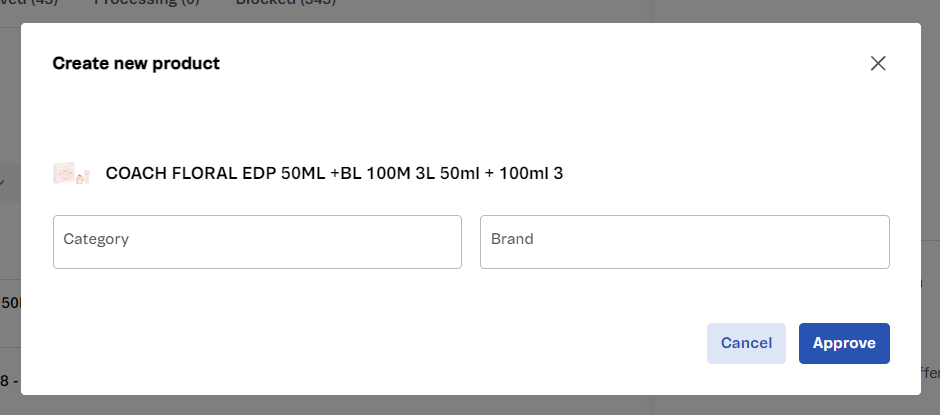\n\n> ℹ️ This action can be applied in the offer tabs **Pending** and **Issues**.\n\n#### Link to an existing product \n\nCreates a relationship between the seller product and a product in the marketplace catalog. To apply this action, follow the steps below: \n\n1. Select the desired SKUs. \n2. Click the `Link to product` button. \n3. Enter the product ID you want to associate them with. \n4. Click `Approve`. \n\n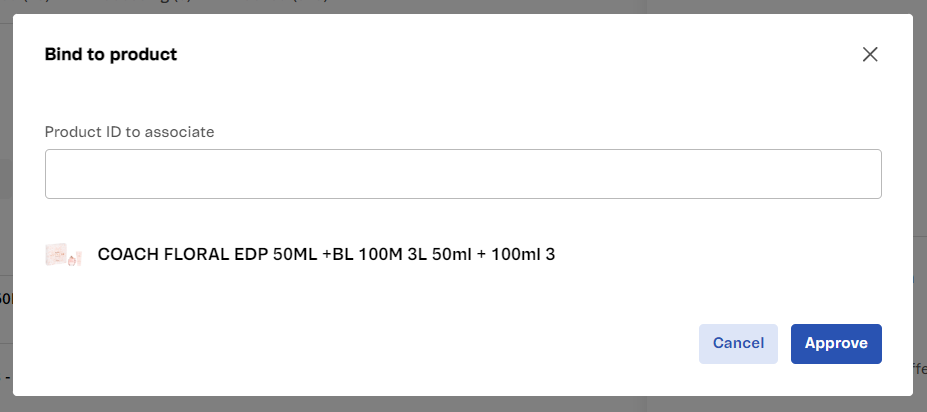 \n\n**Use case** \n\nImagine that a marketplace already has the White Shirt SKU in S, M, and L, and a seller recently submitted sizes XS and XL for the same White Shirt. \n\nCreating a new link groups the new sizes with the existing ones. After this, the product will have XS, S, M, L, and XL as available sizes. \n\n> ℹ️ This action can be applied in the offer tabs **Pending** and **Issues**. \n\n#### Link to an existing SKU \n\nCreates a relationship between the new seller SKU and a SKU in the marketplace catalog. To apply this action, follow the steps below: \n1. Select the desired products. \n2. Click the `Link to SKU` button. \n3. Enter the **SKU ID** that you want to link for each SKU you're approving. \n4. Click `Approve`. \n\n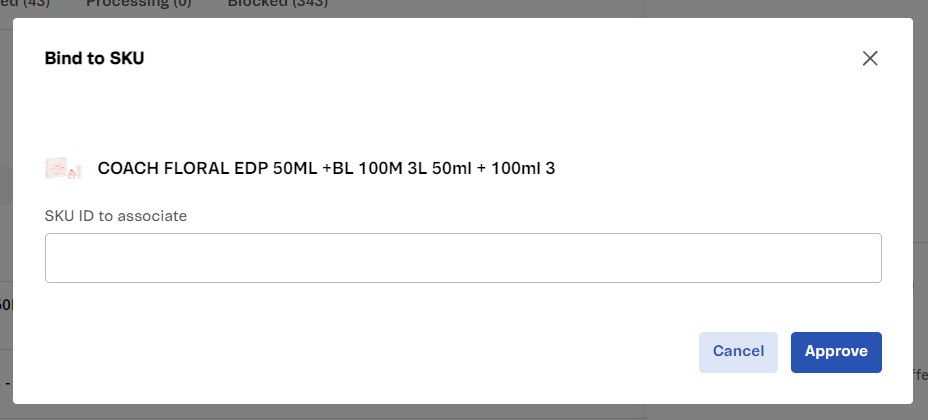\n\n**Use case** \n\nA possible use case would be a marketplace that has Phone XYZ with a 128 GB memory from Seller 1. \n\nNow, let's say the marketplace received the same 128 GB SKU from Seller 2. To avoid duplicates in the catalog, the marketplace would have to link these two SKUs. \n\n> ℹ️ This action can be applied in the offer tabs **Pending** and **Issues**. \n\n#### Block \n\nBlocks the selected offers. This will prevent them from being automatically processed again. To apply this action, follow the steps below: \n\n1. Select the desired products. \n2. Click the `Reject and block` button. \n3. Complete the **Block reason** field. This field is optional. \n4. Click `Reject`. \n\n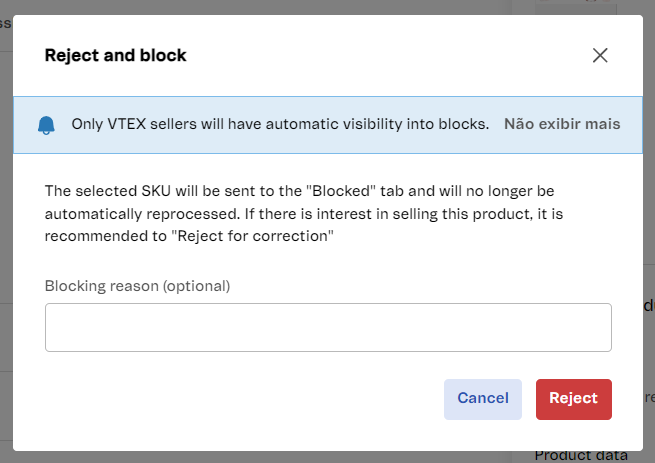\n\nWhen the marketplace blocks a SKU, it won't be included with other submitted offers the next time that the seller sends products. A SKU can be unblocked using a REST API if the marketplace wants to receive it as a suggestion from the seller. To learn more about SKU approval, see [Send SKU Suggestion](https://developers.vtex.com/docs/api-reference/marketplace-apis-suggestions#put-/suggestions/-sellerId-/-sellerSkuId-). \n\n> ℹ️ This action can be applied in the offer tabs **Pending** and **Issues**. Blocked offers can be viewed in the **Blocked** tab. \n\n#### Reject for correction \n\nRejects the offer and sends an information correction request to the seller. To apply this action, follow the steps below: \n\n1. Select the desired SKUs. \n2. Click the `Reject for correction` button. \n3. Enter the information that needs correction in the Corrections field. \n4. Click `Reject`. \n\n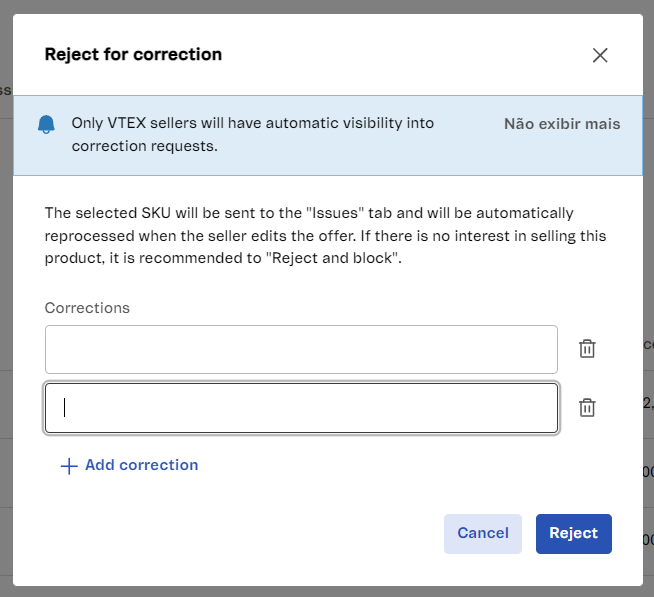\n\n> ℹ️ This action can be applied in the offer tab **Pending**. The offers that need correction will show in the **Issues** tab. \n\n#### Automatic approval \n\nYou can also set up automatic approval for SKUs from a specific seller regardless of their Matcher score. This action can only be applied through a REST API. To learn more, see [Suggestions](https://developers.vtex.com/docs/api-reference/marketplace-apis-suggestions)."}