{"section":"tutorials","requestedLocale":"en","requestedSlug":"products-and-skus","locale":"en","slug":"products-and-skus","path":"docs/en/tutorials/catalog/products-and-skus/products-and-skus.md","branch":"main","content":"The **Products and SKUs** page allows you to view and manage the list of all products in your store, including information about SKUs, last update, and status. To access it, go to **Catalog > Products and SKUs**.\n\n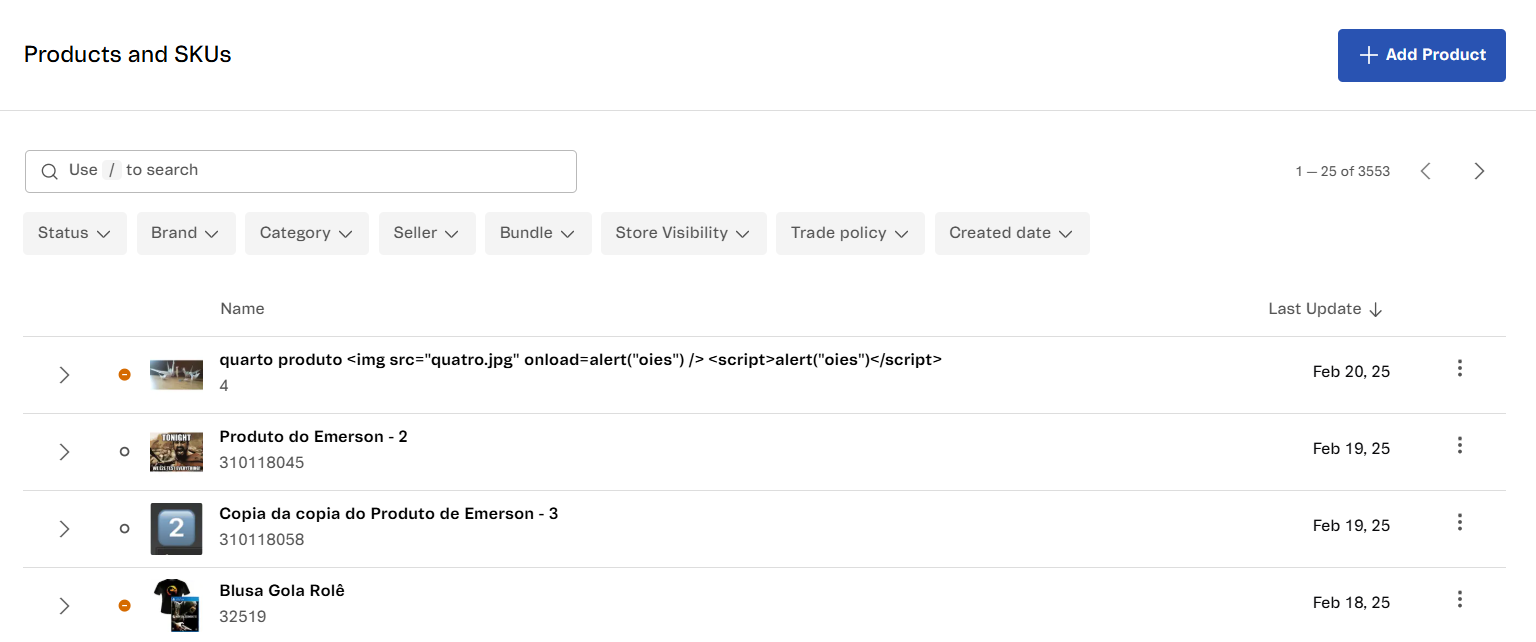\n\nThis page allows you to: \n\n- [Create a product](#creating-a-product)\n- [Search for products](#searching-for-a-product)\n- [Filter products](#filtering-products)\n- [Track product availability](#tracking-product-availability)\n- [View SKU list](#viewing-the-sku-list)\n- [Edit products](#editing-products)\n- [Access the action menu](#accessing-the-action-menu)\n- [View indexing information](#viewing-indexed-information)\n\nFrom the product list, you can find the following information: \n\n| Column | Description |\n|----|----|\n| **Name** | The product name, set when adding it. Below the name, the page displays the product ID, which is the product's unique identifier code. Next to the name, each row displays an arrow to [view the list of SKUs](#viewing-the-sku-list) associated with the product, an icon that represents [product availability](#tracking-product-availability) and the product image. |\n| **Last Update** | Date of the most recent product [indexing](/en/docs/tutorials/understanding-how-indexation-works). For more details about this process, go to the [Viewing indexed information](#viewing-indexed-information) section. |\n\n## Creating a product\n\nWhen you click the `Add Product` button, the page for [adding a new product](/en/docs/tutorials/adding-or-editing-products) to the catalog opens. For details on how to complete each field, see the article [Filling in product registration fields](/en/docs/tutorials/adding-or-editing-products).\n\n## Searching for a product\n\nTo find a specific product, you can type one of the following in the search bar:\n\n* Product ID\n* SKU ID\n* SKU EAN\n* Product name\n* SKU name\n* Product reference code\n* SKU reference code\n\nAfter entering information in the search bar, it expands to display existing criteria. Clicking the desired option immediately triggers the search and returns the results. To clear the search, click the X icon in the search bar.\n\n> ℹ️ Search results are sorted by the most recent updates: the more recently a product or SKU was updated, the higher it appears in the results.\n\n## Filtering products\n\nYou can filter the product list using the options below. Select the desired filters and click `Apply`. To cancel a selection, click the selected filter and then click `Clear`.\n\n* [Status](#filtering-by-status)\n* [Brand](/en/docs/tracks/brands-concept-definition)\n* [Category](/en/docs/tracks/categories-concept-definition)\n* [Seller](/en/docs/tutorials/what-is-a-seller)\n* [Kit](/en/docs/tutorials/what-is-a-bundle)\n* [Store Visibility](/en/docs/tutorials/adding-or-editing-products)\n* [Sales channel](/en/docs/tutorials/how-trade-policies-work)\n* Created date\n\n> ⚠️ To quickly find recently created products, use the `Created date` filter. You can filter by products created `Today` or in the `Last 7 days`.\n\n### Filtering by status\n\nThe table below explains the filtering options for `Status`:\n\n| Status type | Description |\n| --- | --- |\n| Active | The product becomes active when the merchant enables this setting, meaning they want to sell it. Activation alone doesn't guarantee availability — the product also needs to meet other conditions, like price and inventory. Learn more in [Why is the product not visible on the website?](/en/faq/why-is-the-product-not-visible-on-the-website). |\n| Inactive | The product becomes inactive when the merchant disables this setting, meaning they don't want to sell it at the moment. All inactive products are unavailable for sale. |\n\nThe same availability icons also apply to SKUs, as explained in the next section.\n\n## Tracking product availability\n\nOn the **Products and SKUs** page, each product has a colored icon that indicates its availability for sale. When you hover over the icon, additional information is displayed. See more details in the table below:\n\n| Icon color | Name | Meaning |\n| --- | --- | --- |\n| Green | `Available for sale` | The product is enabled with an active status and is available for sale in the store, associated with at least one [sales channel](/en/docs/tutorials/how-trade-policies-work). |\n| Orange | `Unavailable product` | The product is unavailable for sale, even though it is active. This means the seller marked the product as available for sale, but it is currently not sellable. Several reasons may cause a product to be unavailable, such as pricing, inventory, logistics, or others. For more information, check the article [Why is the product not showing on the website?](/en/faq/why-is-the-product-not-visible-on-the-website) |\n| White | `Inactive in the catalog` | The product is disabled and has an inactive status. When a seller disables a product, it means they do not intend to sell it. In this case, availability tracking does not apply. |\n\nThe availability icons for the product also apply to SKUs, as shown in the following section.\n\n## Viewing the SKU list\n\nWhen you click the arrow in the product row, the platform displays a list with all the SKUs of that product, as shown in the image below: \n\n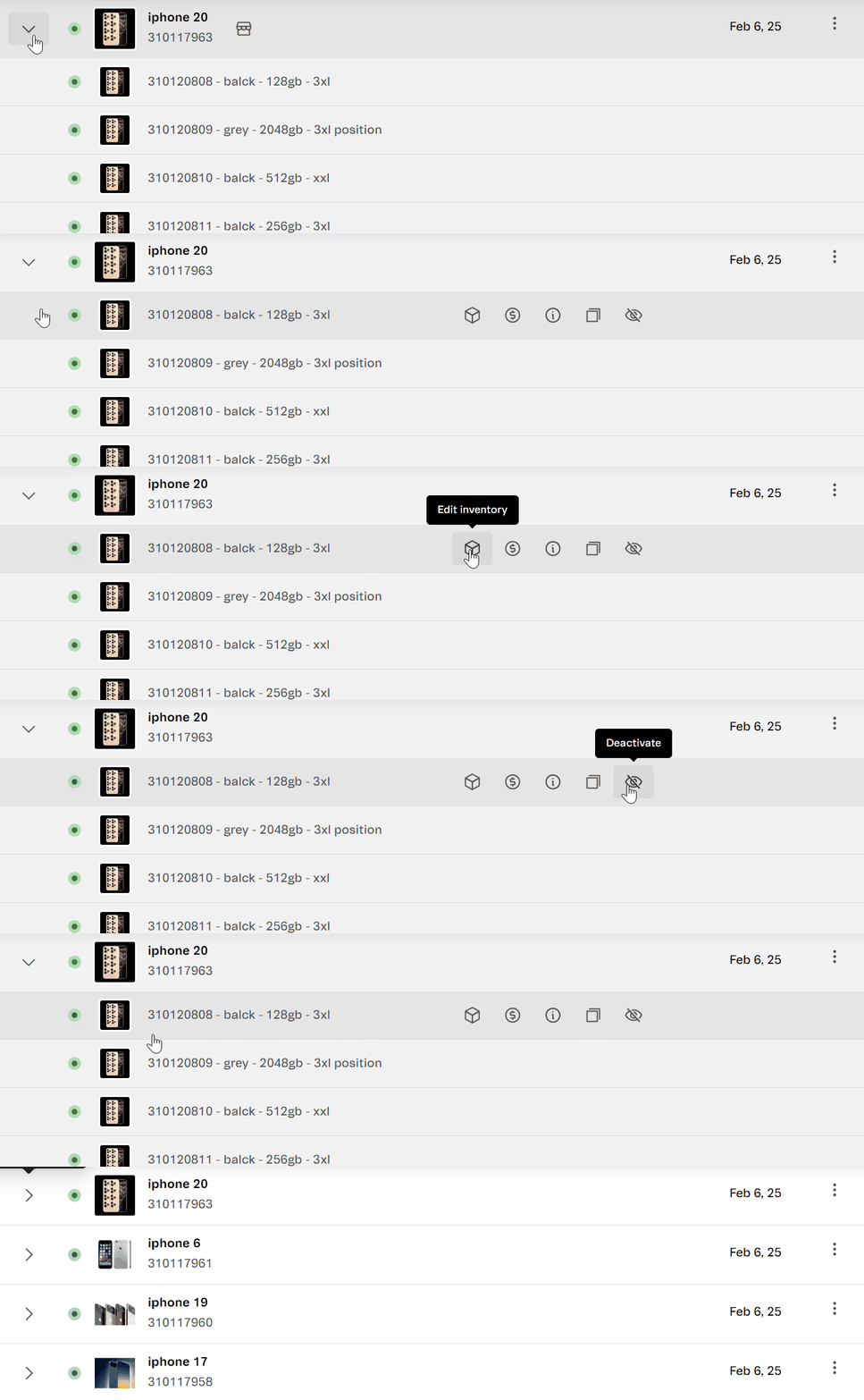\n\nIn the SKU list, you'll find the following information:\n\n* **Colored icon:** Current status of the SKU's availability for sale. These icons have the same meaning as those used for products, as explained in [Tracking product availability](#tracking-product-availability).\n* **Image:** Main image associated with the SKU.\n* **ID:** Unique numeric identification code for the SKU.\n* **Name:** SKU name.\n\nHovering over a SKU row displays icons that allow you to perform different actions:\n\n* **Edit inventory:** Takes you to the inventory management page in VTEX Admin, where you can change the quantity of the SKU available in stock. Check out the [Inventory management](/en/docs/tutorials/managing-stock-items) article for more information.\n* **Edit prices:** Takes you to the **Price list** in the VTEX Admin to change the prices of the SKU.\n* **Information:** Opens a modal displaying the SKU price, inventory, and sales channel details.\n* __Copy SKU Code:__ Copies the SKU ID to the clipboard.\n* __Activate__ / __Deactivate:__ Opens a window that allows you to activate or deactivate the SKU in the store.\n\n## Editing products\n\nTo change product information, click anywhere in the product row. Then, access the page for adding products and change the desired information.\n\nYou can also edit the product from the [action menu](#accessing-the-action-menu) > `Edit product`.\n\n## Accessing the action menu\n\nBy clicking the menu icon in a product, you can:\n\n* **Edit product:** Takes you to the page for [adding a product](/en/docs/tutorials/adding-or-editing-products) to change product details.\n* **View SKU list:** It takes you to the SKU list screen.\n* **Edit similar category:** It takes you to the similar category configuration screen, which allows you to associate another category to the product. For more information, read the [How to set up similar categories](/en/docs/tutorials/setting-up-similar-categories) article. \n* **Edit prices:** Takes you to the **Price list** in the VTEX Admin to change the prices of the product and its SKUs.\n* **Edit inventory:** Takes you to the inventory management screen in the VTEX Admin to change the quantity of each product SKU available in stock. Check the [Inventory management](/en/docs/tutorials/managing-stock-items) article for more information.\n* **View in store:** Takes you to the product detail page (PDP) on the [storefront](/en/docs/tutorials/storefront-overview).\n* **View indexed info:** Opens a modal with product and SKU indexing information. See the [Viewing indexed information](#viewing-indexed-information) section for more details. \n\n## Viewing indexed information\n\nThe **Products and SKUs** page lets you track the product and SKU [indexing](/en/docs/tutorials/understanding-how-indexation-works) logs. To do this, find the desired product row, click the [action menu](#accessing-the-action-menu), and select `View indexing information`. This will open the Indexing Log modal, as shown in the image below:\n\n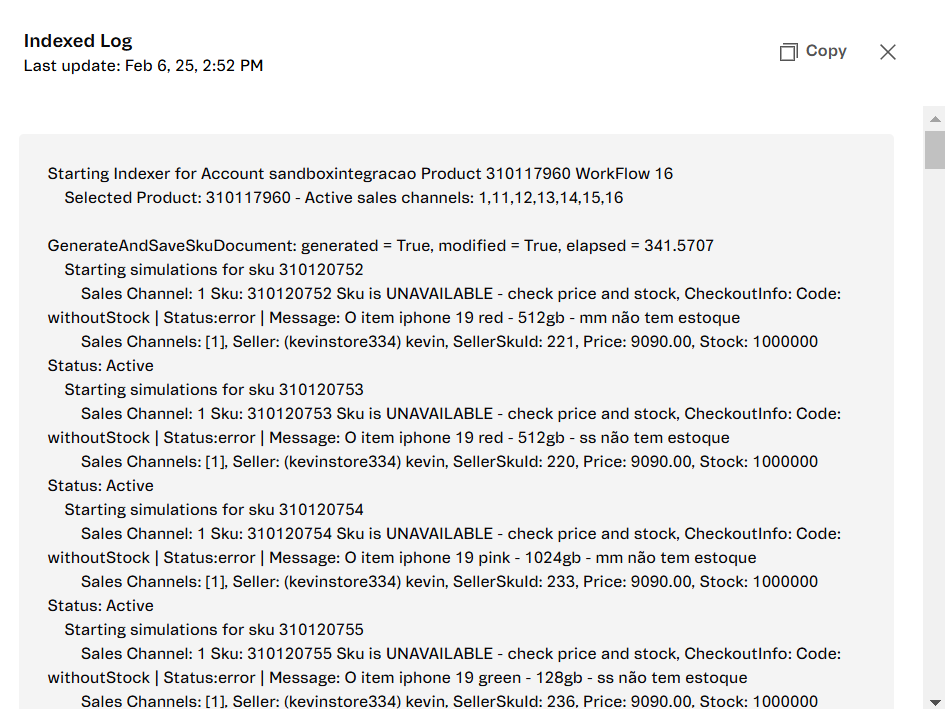\n\nIn the top right corner of the modal, you can copy the content to the clipboard by clicking `Copy`. To close the modal, click the icon or anywhere outside the modal.\n\n## Learn more\n\n* [Adding or editing products](/en/docs/tutorials/adding-or-editing-products)\n* [Adding or editing SKUs](/en/docs/tutorials/adding-or-editing-skus)\n* [Filling in product registration fields](/en/docs/tutorials/adding-or-editing-products)\n* [Why is the product not visible on the website?](/en/faq/why-is-the-product-not-visible-on-the-website)\n* [Which logistics settings can impact the product availability in the cart?](/en/docs/tutorials/which-logistics-settings-can-impact-the-product-availability-in-the-cart)"}