{"section":"tutorials","requestedLocale":"en","requestedSlug":"offer-status","locale":"en","slug":"offer-status","path":"docs/en/tutorials/integrations/offer-management/offer-status.md","branch":"main","content":"The **Offer Status** module allows sellers to track the sending and syncing of their offers on all sales channels integrated with the store. On VTEX, an offer is an SKU from a seller sent to a sales channel whose price and inventory information have been configured. \n\n**Offer Status** allows you to track offers sent only to VTEX marketplaces. To access the module, in the VTEX Admin, go to **Marketplace > Connections > Offer Status**, or type **Offer Status** in the search bar.\n\n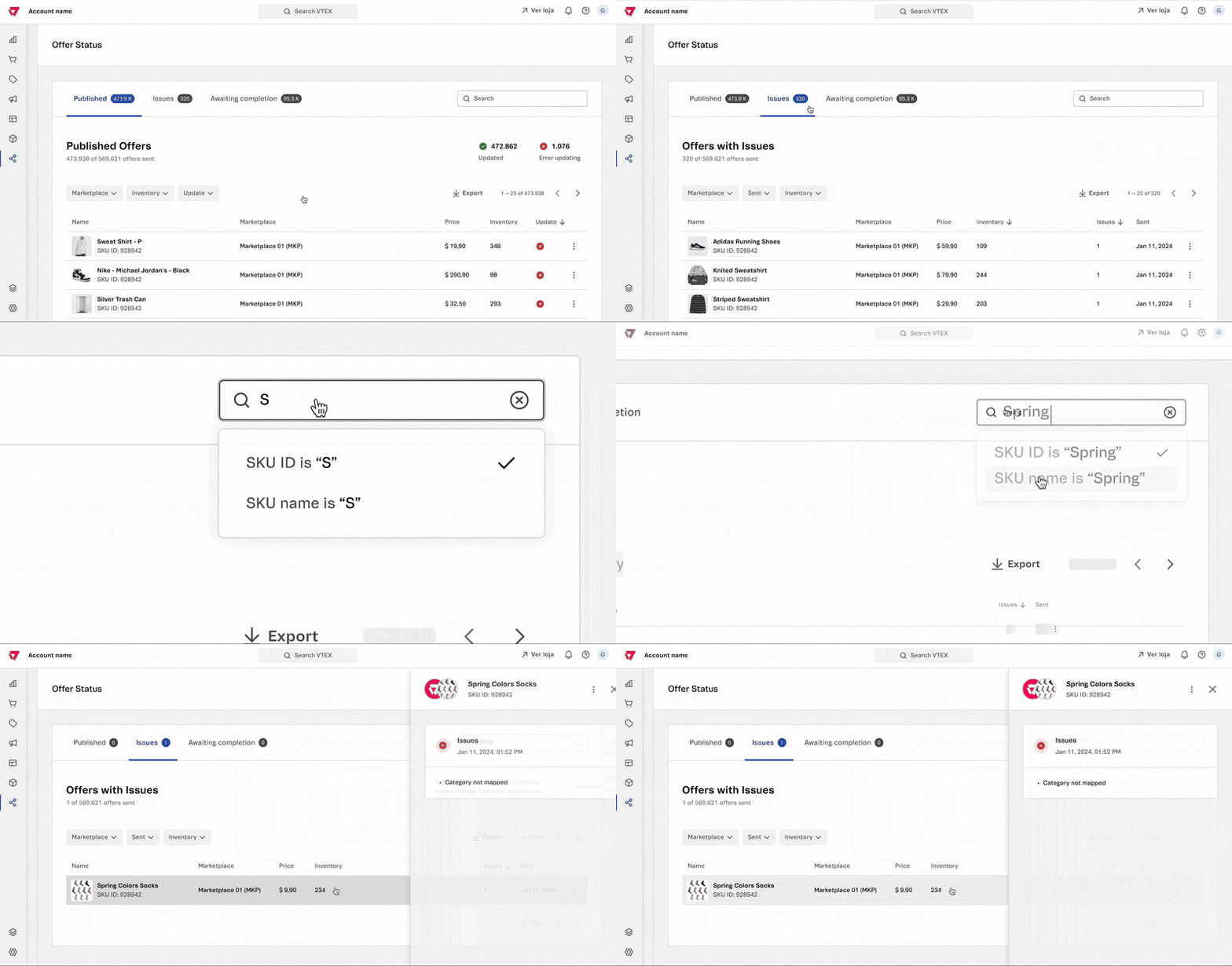\n\nThe **Offer Status** page comprises three tabs: [**Published**](#published-tab), [**Issues**](#issue-tab), and [**Awaiting Completion**](#awaiting-completion-tab), all listing your offers according to their status. You can access and view details of each offer, such as their status, inventory, price, update date, and reasons for being rejected by the marketplace.\n\n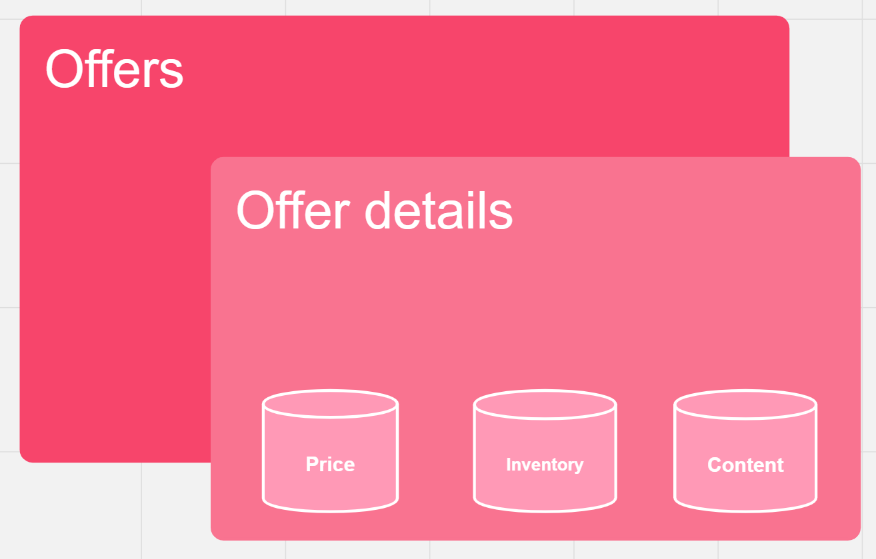\n\n## Published tab\n\nIn the **Published** tab, you can track the offers sent and approved by the marketplace. In this tab, you can: \n\n- [Search for and filter offers](#searching-for-and-filtering-offers) \n- [View offer details](#viewing-offer-details) \n- [Edit offer details](#editing-offer-details)\n- [Export published offer list](#export-published-offer-list) \n\n### Searching for and filtering offers\n\nAt the top right of the page, there is a search bar with a magnifying glass. You can use this bar to search by **offer name.**\n\nAdditionally, you can filter the search results using the following criteria:\n\n- **Marketplace:** Sales channel to which the offer was sent.\n- **Inventory:** Number of products available in stock, which can be:\n - `Minimum:` Minimum number of items in stock for a product.\n - `Maximum:` Maximum number of items in stock for a product.\n- **Update:** Price and inventory update status of published offers.\n\nTo filter the offers by **Marketplace**, click the down arrow, select the desired marketplaces, and then click **Apply**.\n\nTo filter the offers by **Inventory**, click the down arrow, enter the minimum and/or maximum inventory, and click **Apply**.\n\n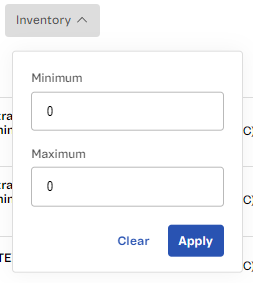\n\nTo filter the offers by **Update**, click the down arrow, select one of the options, and then click **Apply.**\n\nSee below the options available for this filter:\n\n- **Updated**: Offers that had their price and/or inventory updated by the seller and have been processed successfully.\n- **Error updating:** Offers that had inconsistencies and failed to update.\n\n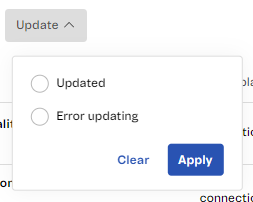\n\nYou can use a single filter or combine them in a single search. The filters are not selected by default, so the home page displays the total number of existing offers.\n\n### Viewing offer details\n\nAt the top of the **Offer Status** page, there is an overview of the seller's offers with the following information:\n\n- Number of offers published versus offers sent.\n- Number of offers with **Updated** status.\n- Number of offers with **Error updating** status.\n\nThe offer list contains columns with the following information:\n\n| Column | Description |\n|---|---|\n| **Name** | Displays the SKU image, the offer name on the sales channel, and the SKU ID on VTEX. |\n| **Marketplace** | Sales channel to where the offer was sent. |\n| **Price** | SKU offer price. |\n| **Inventory** | Number of items in [stock](/en/docs/tutorials/warehouse) for the offer SKU. |\n| **Update** | Update processing status, which can be Updated or Error updating. |\n\nYou can click the column names to sort the offers in ascending or descending order. For example, by clicking the **Price** column, you can sort offers by price, from the lowest to highest or vice versa.\n\n### Editing offer details\n\nWhen you click an offer, a window will open with the following offer details:\n\n- **Price:** The offer's current price, when it was last updated, and whether the update was successful or not.\n- **Inventory:** The current availability of the offered item, when it was last updated, and whether the update was successful or not.\n- **Content:** When the content was last updated and whether the update was successful or not.\n\nTo update any details of an already published offer, you must do the following:\n\n1. In the **Published tab,** click the desired offer.\n2. Click the action icon in the top right corner.\n3. Click one of the options: \n- **Edit Price**\n- **Edit Inventory**\n- **Edit Content**\n\nYou will be redirected to the corresponding page to make the necessary changes.\n\n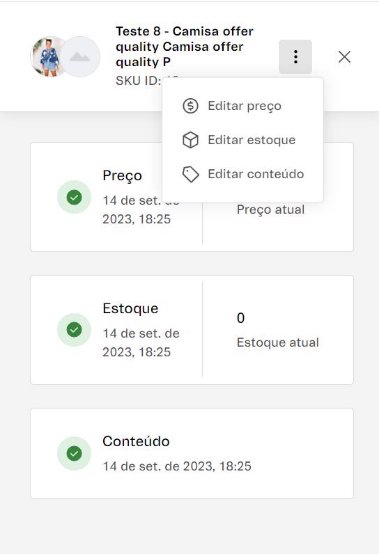\n\n### Export published offer list\n\nTo export the published offer list in XLSX format, click the down arrow icon at the top of the interface. The file will be sent to the email of the logged-in user. The export time depends on the volume of offers exported and on the processing circumstances of the VTEX platform.\n\n> ℹ️ The exported content refers to all items in the offer list at the moment of exporting. If any of the filters are active, only the selected offers will be exported.\n\n## Issues tab\n\nIn the **Issues** tab, you can track the offers that have been sent but were rejected by the marketplace. In this tab, you can also do the following:\n\n- [Search for and filter offers with issues](#searching-for-and-filtering-offers-with-issues)\n- [View issue details](#viewing-issue-details)\n- [Edit offer details](#editing-offer-details)\n- [Export issues offer list](#export-issues-offer-list)\n\n### Searching for and filtering offers with issues\n\nAt the top right of the page, there is a search bar with the magnifying glass icon, where you can search an offer by:\n\n- Offer name\n- SKU ID\n\nAdditionally, you can filter the search results using the following criteria:\n\n- **Marketplace:** Sales channel to which the offer was sent.\n- **Sent:** When the offer was sent to the marketplace. You can choose from the predefined ranges: **Today,** **Last 7 days,** or **Last month.**\n- **Inventory:** Number of products available in stock, which can be:\n- Minimum: Minimum number of items in stock for a product.\n- Maximum: Maximum number of items in stock for a product.\n\nTo filter the offers by **Marketplace**, click the down arrow, select the desired marketplaces, and then click **Apply**. \n\nTo filter the offers by **Sent**, click the down arrow, select one of the options, and then click **Apply.** \n\nTo filter the offers by **Inventory**, click the down arrow, enter the minimum and/or maximum inventory, and click **Apply**. \n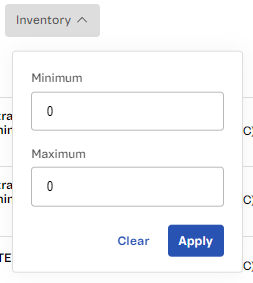\n\nYou can use a single filter or combine them in a single search. The filters are not selected by default, so the home page displays the total number of existing offers. \n\n### Viewing issue details\n\nThe offer list contains columns with the following information:\n\n| Column | Description |\n|---|---|\n| **Name** | Displays the SKU image, the offer name on the sales channel, and the SKU ID on VTEX. |\n| **Marketplace** | Sales channel to where the offer was sent. |\n| **Price** | SKU offer price. |\n| **Inventory** | Number of items in stock for the offer SKU. |\n| **Issues** | Number of issues found in the offer. |\n| **Sent** | When the offer was sent to the marketplace. |\n\n### Editing offer details\n\nWhen you click an offer, a window will open with the following offer details:\n\n- **Possible errors** \n - **Offer denied in marketplace:** Occurs when the marketplace has rejected the offer because it does not meet their specified requirements. \n - **Inventory update:** Occurs when the offer SKU has no inventory configured. \n - **Price update:** Occurs when the offer price was not configured. \nTo update any details of an offer with issues, please follow the steps below: \n\n1. In the **Issues** tab, click the desired offer. \n2. Click the action icon in the top right corner. \n3. Click one of the options: \n - **Edit Price**\n - **Edit Inventory**\n - **Edit Content**\n\nYou will be redirected to the corresponding page to make the necessary changes.\n\n### Export issues offer list\n\nTo export the issues offer list in XLSX format, click the down arrow icon at the top of the interface. The file will be sent to the email of the logged-in user. The export time depends on the volume of offers exported and on the processing circumstances of the VTEX platform.\n\n> ℹ️ The exported content refers to all items in the offer list at the moment of exporting. If any of the filters are active, only the selected offers will be exported.\n\n## Awaiting Completion tab\n\nIn the **Awaiting Completion** tab, you can track the offers that are awaiting review from the marketplace. In this tab, you can also do the following: \n\n- [Search for and filter offers under review](#searching-for-and-filtering-offers-under-review)\n- [Edit offer details](#editing-offer-details)\n- [Export awaiting completion offer list](#export-awating-completion-offer-list)\n\n### Searching for and filtering offers under review\n\nAt the top right of the page, there is a search bar with a magnifying glass. You can use this bar to search by:\n\n- Offer name\n- SKU ID\n\nAdditionally, you can filter the search results using the following criteria:\n\n- **Marketplace:** Sales channel to which the offer was sent.\n- **Sent:** When the offer was sent to the marketplace. You can choose from the predefined ranges: **Today, Last 7 days**, or **Last month**. \n\nTo filter the offers by **Marketplace**, click the down arrow, select the desired marketplaces, and then click **Apply**. \n\nTo filter the offers by **Sent**, click the down arrow, select one of the options, and then click **Apply.** \n\nYou can use a single filter or combine them in a single search. The filters are not selected by default, so the home page displays the total number of existing offers. \n\n### Editing offer details\n\nThe **Awaiting Completion** tab contains columns with the following information:\n\n| Column | Description |\n|---|---|\n| **Name** | Displays the SKU image, the offer name on the sales channel, and the SKU ID on VTEX. |\n| **Marketplace** | Sales channel to where the offer was sent. |\n| **Sent** | When the offer was sent to the marketplace. |\n\nYou can click the column names to sort the offers in ascending or descending order. To update any details of an offer under review, please do the following:\n\n1. In the **Awaiting Completion** tab, click the desired offer.\n2. Click the action icon in the top right corner.\n2. Click one of the options:\n - **Edit Price**\n - **Edit Inventory**\n - **Edit Content**\n\nYou will be redirected to the corresponding page to make the necessary changes.\n\n### Export awaiting completion offer list\n\nTo export the awaiting offer list in XLSX format, click the down arrow icon at the top of the interface. The file will be sent to the email of the logged-in user. The export time depends on the volume of offers exported and on the processing circumstances of the VTEX platform.\n\n> ℹ️ The exported content refers to all items in the offer list at the moment of exporting. If any of the filters are active, only the selected offers will be exported."}