{"section":"tutorials","requestedLocale":"en","requestedSlug":"merchandising-rules-list","locale":"en","slug":"merchandising-rules-list","path":"docs/en/tutorials/intelligent-search/relevance/merchandising-rules-list.md","branch":"main","content":"On VTEX Admin, the page **Storefront** > **Intelligent Search** > **Merchandising Rules** allows you to do the following actions: \n\n* [Create](#creating-merchandising-rules)\n* [Search](#searching-merchandising-rules)\n* [Edit](#editing-merchandising-rules)\n* [Delete](#deleting-merchandising-rules)\n\n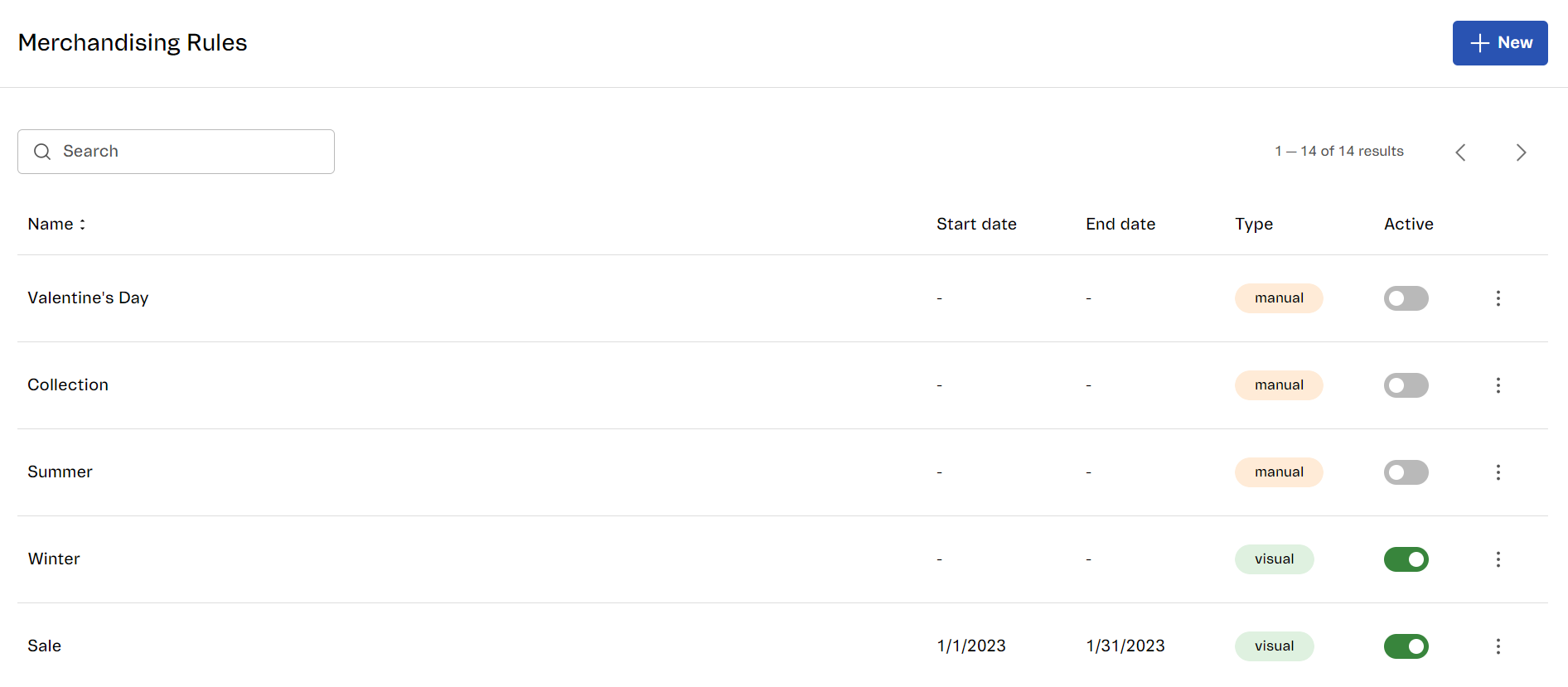\n\nThe page displays the following information: \n\n| Column | Description |\n| - | - |\n| __Name__ | Name that identifies the merchandising rule, defined in the \"[Creating merchandising rules](#creating-merchandising-rules)\" section. |\n| __Start date__ | Date that sets the date the merchandising rule becomes available. |\n| __End date__ | Date that sets the date the merchandising rule is no longer available. |\n| __Type__ | Indicates the [type of editing](#type-of-editing) used in the merchandising rule. |\n| __Active__ | Option that enables or disables a merchandising rule. |\n| __Actions__ | Menu with actions to `Edit` or `Delete` a merchandising rule. |\n\n## Creating merchandising rules\n\nTo add a new merchandising rule, click `+ New`. Learn more about all the information needed to create a merchandising rule in the sections below.\n\n### Types of editing\n\nThere are two types of editor to create or modify Merchandising rules: the [Manual Editor](/en/docs/tutorials/creating-merchandising-rules-manual-editor) and the [Visual Editor](/en/docs/tutorials/creating-merchandising-rules-visual-editor).\n\nBelow are the features of each editor:\n\n| Feature | Description | Manual Editor | Visual Editor |\n|---|---|---|---|\n| Trigger rules | Set conditions for the merchandising rule to be triggered. | Yes | Yes |\n| Customization Rules | Control search results using specific conditions. | Yes | No |\n| Preview | Preview how search results will be displayed to customers while navigating the store. | No | Yes |\n| Reorder search results | Change the order of the items listed as search results. | No | Yes |\n| Pin products to the top positions | Determine that a given item in a search result will always be displayed in the top position among search results. | No | Yes |\n\n## Searching for merchandising rules\n\nEnter the name of the merchandising rule in the search bar to search for a merchandising rule.\n\n## Editing merchandising rules\n\nYou can edit the information in a merchandising rule by following the steps below.\n\n1. Click the menu in the row of the merchandising rule, then click `Edit`.\n2. Change the information you want in the merchandising rule.\n3. Click `Save`.\n\n## Deleting merchandising rules\n\nYou can delete a merchandising rule by clicking the menu in the row of the merchandising rule, then `Delete`."}