{"section":"tutorials","requestedLocale":"en","requestedSlug":"mercado-libre-promotions-center","locale":"en","slug":"mercado-libre-promotions-center","path":"docs/en/tutorials/integrations/integration-settings/mercado-libre-promotions-center.md","branch":"main","content":"On the **Promotions,** page in the Mercado Libre menu in the VTEX Admin, [sellers](/en/docs/tutorials/marketplace-strategies-at-vtex#sendo-seller-vtex) can view a list of all promotional campaigns offered by Mercado Libre. The page displays the **campaign name, type, ID, deadline to include offers, duration,** and **status.** \n\nBy clicking a promotion from the list, the seller can use the search bar to find listed offers using the **MercadoLibre-ID** or the **Name** of each one. \n\nTo access the **Promotions** page in the VTEX Admin, go to **Marketplace > Mercado Libre > Promotions.** \n\n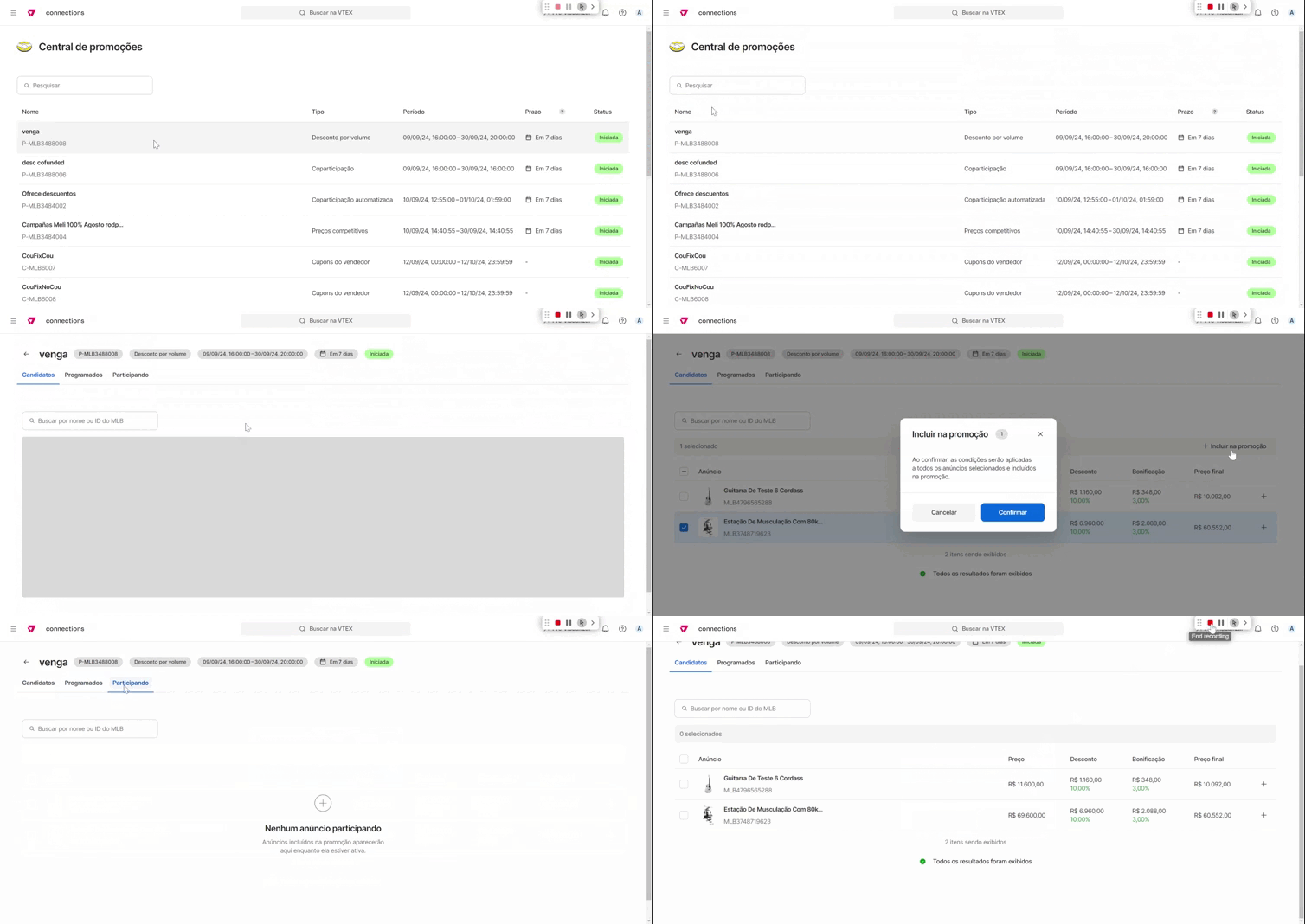\n\n## Promotion types\n\nThere are different types of campaigns on the **Mercado Libre Promotions** page, as follows: \n\n- [Traditional](#traditional) \n- [Co-funded](#co-funded) \n- [Pre-negotiated discount](#pre-negotiated-discount) \n- [Volume discount](#volume-discount) \n- [Deals of the day](#deals-of-the-day) \n- [Lightning deals](#lightning-deals) \n- [Automated co-participation](#automated-coparticipation) \n- [Competitive pricing](#competitive-pricing) \n- [Full stock sale](#full-stock-sale) \n- [Seller campaign](#seller-campaign) \n- [Seller coupons](#seller-coupons) \n\n### Traditional\n\nIn this type of campaign, the seller sets the percentage discount they want to apply to the selected offers based on the limits defined by Mercado Libre. Mercado Libre provides the **promotion**, the **offers eligible to participate** and the **minimum and maximum discount limits** allowed. \n\nBy selecting a **Traditional** promotion, three sections will be displayed: \n\n#### Candidates\n\nIn this section, the seller will select the offers they want to include in the **Traditional** promotion. To add offers to the campaign, follow the steps below: \n\n1. In the **Candidates** section, select the checkbox for the offers you want to include in the campaign. \n2. At the top of the screen, click the `Include in the promotion` button. \n3. Complete the **Discount** and **Meli+ discount (optional)** fields. \n4. Click the `Confirm` button. \n\nIf the promotional campaign has the **Started** status, the selected and configured offers in the **Candidates** section will move to the **Participating** section and active discounts on Mercado Libre. If the campaign has the **Available** status, the offers will move to **Scheduled.** \n\n#### Scheduled\n\nIn the **Scheduled** section, the offers configured to participate in a campaign with the **Available** status will be listed. \n\nWhen the campaign status changes to **Started,** all the offers listed in this section will move to the **Participating** section. \n\n#### Participating\n\nIn the **Participating** section, the offers configured to participate in a campaign with the **Started** status will be listed. \n\nTo remove a product from the campaign, follow the steps below: \n\n1. Select the checkbox next to the **Offer** you want to remove from the campaign. \n2. Click the icon. \n3. In the confirmation pop-up, click the `Confirm` button. \n> ℹ️ Offers removed from the campaign will be listed in the **Candidates** section and can be included again.\n\n### Co-funded\n\nIn this type of campaign, Mercado Libre covers a percentage of the discount offered on the platform. The marketplace offers X% off, and the seller offers Y%. So customers receive a total discount of X+Y%. \nMercado Libre defines the discount percentage that each party should provide for a product. The seller can choose whether to include the product in the promotion.\n\n> ℹ️ The discount percentage can't be changed. \n\nWhen you click a **Co-funded** campaign, three sections are displayed: \n\n#### Candidates\n\nIn this section, the seller will select the offers they want to include in the **Co-funded** promotion. To add offers to the campaign, follow the steps below: \n\n1. In the **Candidates** section, select the checkbox for the offers you want to include in the campaign. \n2. At the top of the screen, click the `Include in the promotion` button. \n3. In the confirmation pop-up, click the `Confirm` button. \n\nIf the campaign has the **Started** status, the selected and configured offers in the **Candidates** section will move to the **Participating** section. If the campaign has the **Available** status, the offers will move to **Scheduled**. \n\n#### Scheduled\n\nIn the **Scheduled** section, the offers configured to participate in a campaign with the **Available** status will be listed. \nWhen the campaign status changes to **Started,** all the offers listed in this section will move to the **Participating** section. \n\n#### Participating\n\nIn the **Participating** section, the offers configured to participate in a campaign with the **Started** status will be listed. \n\nTo remove a product from the campaign, follow the steps below: \n\n1. Select the checkbox next to the **Offer** you want to remove from the campaign.\n2. Click the icon. \n3. In the confirmation pop-up, click the `Confirm` button. \n\n### Pre-negotiated\n\nIn this type of campaign, the seller pre-agrees on discounts for certain offers with a Mercado Libre sales agent. If your store has a sales agent, contact them to activate this campaign. \n\nIn this pre-negotiation, the price, the offered discount, and the benefit to be granted are established. After defining the negotiation with the Mercado Libre sales agent, the promotion will be available for management on the Mercado Libre Promotions page. \n\nThe campaign's candidate offers are selected by the marketplace. By selecting the **Pre-negotiated** campaign type, two different sections are displayed: \n\n#### Candidates\n\nIn this section, the seller will select the offers they want to include in the **Pre-negotiated** promotion. To add offers to the campaign, follow the steps below: \n\n1. In the **Candidates** section, select the checkbox for the offers you want to include in the campaign. \n2. At the top of the screen, click the `Include in the promotion` button. \nIn the confirmation pop-up, click the `Confirm` button. \n\nIf the campaign has the **Started** status, the selected and configured offers in the **Candidates** section will move to the **Participating** section. If the campaign has the **Available** status, the offers will move to **Scheduled**.\n\n#### Scheduled\n\nIn the **Scheduled** section, the offers configured to participate in a campaign with the **Available** status will be listed. \n\nWhen the campaign status changes to **Started,** all the offers listed in this section will move to the **Participating** section. \n\n#### Participating\n\nIn the **Participating** section, the offers configured to participate in a campaign with the **Started** status will be listed. \n\nTo remove a product from the campaign, follow the steps below: \n\n1. Select the checkbox next to the **Offer** you want to remove from the campaign. \n2. Click the icon. \n3. In the confirmation pop-up, click the `Confirm` button. \n\nOffers removed from the campaign can't be included again. \n\n### Volume discount\n\nIn this type of campaign, sellers can offer discounts when a certain quantity of the same product is purchased (for example, **buy 2, get 3 or 50% off the second item**). Mercado Libre covers part of the percentage discount offered. \n\nTo change the price of a product participating in this campaign, remove the product from the campaign, change the product price, and add the product again. \n\nThe campaign's candidate offers are selected by the marketplace. By selecting the **Volume discount** campaign type, three different sections are displayed: \n\n#### Candidates\n\nIn this section, the seller will select the offers they want to include in the **Volume discount** promotion. To add offers to the campaign, follow the steps below: \n\n1. In the **Candidates** section, select the checkbox for the offers you want to include in the campaign. \n2. At the top of the screen, click the `Include in the promotion` button. \n3. In the confirmation pop-up, click the `Confirm` button. \n\nIf the campaign has the **Started** status, the selected and configured offers in the **Candidates** section will move to the **Participating** section. If the campaign has the **Available** status, the offers will move to **Scheduled**.\n\n#### Scheduled\n\nIn the **Scheduled** section, the offers configured to participate in a campaign with the **Available** status will be listed. \n\nWhen the campaign status changes to **Started,** all the offers listed in this section will move to the **Participating** section. \n\n#### Participating\n\nIn the **Participating** section, the offers configured to participate in a campaign with the **Started** status will be listed. \n\nTo remove a product from the campaign, follow the steps below: \n\n1. Select the checkbox next to the **Offer** you want to remove from the campaign. \n2. Click the icon. \n3. In the confirmation pop-up, click the `Confirm` button. \n\n### Deals of the day\n\nThe **Deals of the day** campaign lasts for 24 hours, and sellers can accept the offers that Mercado Libre recommends and set a discount for each participating product. \n\nBy selecting this type of campaign, three different sections are displayed: \n\n#### Candidates\n\nIn this section, the seller will select the offers they want to include in the **Deals of the day** promotion. To add offers to the campaign, follow the steps below: \n\n1. In the **Candidates** section, select the checkbox for the offers you want to include in the campaign. \n2. At the top of the screen, click the `Include in the promotion` button. \n3. Enter the discount you want to offer.\n4. In the confirmation pop-up, click the `Confirm` button.\n\nIf the campaign has the **Started** status, the selected and configured offers in the **Candidates** section will move to the **Participating** section. If the campaign has the **Available** status, the offers will move to **Scheduled**. \n\n#### Scheduled\n\nIn the **Scheduled** section, the offers configured to participate in a campaign with the **Available** status will be listed. \nWhen the campaign status changes to **Started,** all the offers listed in this section will move to the **Participating** section. \n\n#### Participating\n\nIn the **Participating** section, the offers configured to participate in a campaign with the **Started** status will be listed.\n\n> ℹ️ In this type of campaign, offers can't be removed.\n\n### Lightning deals\n\nIn **Lightning deals** campaigns, the promotion lasts only a few hours, as defined by Mercado Libre. \nBy selecting this type of campaign, three different sections are displayed: \n\n#### Candidates\n\nIn this section, the seller will select the offers they want to include in the **Lightning deals** promotion. To add offers to the campaign, follow the steps below: \n\n1. In the **Candidates** section, select the checkbox for the offers you want to include in the campaign.\n2. At the top of the screen, click the `Include in the promotion` button. \n3. In the confirmation pop-up, click the `Confirm` button. \n\nIf the campaign has the **Started** status, the selected and configured offers in the **Candidates** section will move to the **Participating** section. If the campaign has the **Available** status, the offers will move to **Scheduled**.\n\n#### Scheduled\n\nIn the **Scheduled** section, the offers configured to participate in a campaign with the **Available** status will be listed. \nWhen the campaign status changes to **Started,** all the offers listed in this section will move to the **Participating** section. \n\n#### Participating\n\nIn the **Participating** section, the offers configured to participate in a campaign with the **Started** status will be listed. \n\n> ℹ️ In this type of campaign, offers with the **Started** status can't be removed.\n\n### Automated co-participation\n\nIn the **Automated co-participation** campaign, Mercado Libre determines the participating offers and the discounts to be applied by the seller and the marketplace. It's up to the seller to accept it or not. \n\nBy selecting this type of campaign, three different sections are displayed: \n\n#### Candidates\n\nIn this section, the seller will select the offers they want to include in the **Automated co-participation** promotion. To add offers to the campaign, follow the steps below: \n\n1. In the **Candidates** section, select the checkbox for the offers you want to include in the campaign. \n2. At the top of the screen, click the `Include in the promotion` button. \n3. In the confirmation pop-up, click the `Confirm` button. \n\nIf the campaign has the **Started** status, the selected and configured offers in the **Candidates** section will move to the **Participating** section. If the campaign has the **Available** status, the offers will move to **Scheduled**. \n\n#### Scheduled\n\nIn the **Scheduled** section, the offers configured to participate in a campaign with the **Available** status will be listed. \nWhen the campaign status changes to **Started,** all the offers listed in this section will move to the **Participating** section. \n\n#### Participating\n\nIn the **Participating** section, the offers configured to participate in a campaign with the **Started** status will be listed. \n\nTo remove a product from the campaign, follow the steps below: \n\n1. Select the checkbox next to the **Offer** you want to remove from the campaign. \n2. Click the icon. \n3. In the confirmation pop-up, click the `Confirm` button. \n\n### Competitive prices\n\nIn the **Competitive prices** campaign, Mercado Libre determines the participating offers and the discounts to be applied by the seller. It's up to the seller to accept it or not. \n\nBy selecting this type of campaign, three different sections are displayed: \n\n#### Candidates\n\nIn this section, the seller will select the offers they want to include in the **Competitive prices** promotion. To add offers to the campaign, follow the steps below: \n\n1. In the **Candidates** section, select the checkbox for the offers you want to include in the campaign. \n2. At the top of the screen, click the `Include in the promotion` button. \n3. In the confirmation pop-up, click the `Confirm` button. \n\nIf the campaign has the **Started** status, the selected and configured offers in the **Candidates** section will move to the **Participating** section. If the campaign has the **Available** status, the offers will move to **Scheduled**. \n\n#### Scheduled\n\nIn the **Scheduled** section, the offers configured to participate in a campaign with the **Available** status will be listed. \n\nWhen the campaign status changes to **Started,** all the offers listed in this section will move to the **Participating** section. \n\n#### Participating\n\nIn the **Participating** section, the offers configured to participate in a campaign with the **Started** status will be listed. \n\nTo remove a product from the campaign, follow the steps below: \n\n1. Select the checkbox next to the **Offer** you want to remove from the campaign. \n2. Click the icon. \n3. In the confirmation pop-up, click the `Confirm` button. \n\n### Full stock sale\n\nIn the **Full stock sale** campaign, Mercado Libre determines the participating offers and the discounts the seller will offer, based on the quantity available in stock. It's up to the seller to accept it or not. \n\nBy selecting this type of campaign, three different sections are displayed: \n\n#### Candidates\n\nIn this section, the seller will select the offers they want to include in the **Full stock sale** promotion. To add offers to the campaign, follow the steps below: \n\n1. In the **Candidates** section, select the checkbox for the offers you want to include in the campaign. \n2. At the top of the screen, click the `Include in the promotion` button. \n3. In the confirmation pop-up, click the `Confirm` button. \n\nIf the campaign has the **Started** status, the selected and configured offers in the **Candidates** section will move to the **Participating** section. If the campaign has the **Available** status, the offers will move to **Scheduled**. \n\n#### Scheduled\n\nIn the **Scheduled** section, the offers configured to participate in a campaign with the **Available** status will be listed. \nWhen the campaign status changes to **Started,** all the offers listed in this section will move to the **Participating** section. \n\n#### Participating\n\nIn the **Participating** section, the offers configured to participate in a campaign with the **Started** status will be listed. \nTo remove a product from the campaign, follow the steps below: \n\n1. Select the checkbox next to the **Offer** you want to remove from the campaign. \n2. Click the icon. \n3. In the confirmation pop-up, click the `Confirm` button. \n\n> ℹ️ In this type of campaign, if an offer is removed, it can't be included again.\n\n### Seller campaigns\n\nIn **Seller campaigns**, the seller defines the discount type, duration, and amount. \n\nTo create a **Seller campaign,** follow the steps below: \n\n1. \tIn the VTEX Admin, go to **Marketplace > Mercado Libre > Promotions,** or type **Promotions** in the search bar at the top of the page. \n2. \tClick the `Create promotion` button. \n3. \tClick the **Seller campaign** option. \n4. \tComplete the promotion fields described below. \n5. \tClick the Save button. \n\n| Field | Description |\n|---|---|\n| Name | Enter a name for your campaign. |\n| Discount | Choose the type of discount: **Different by offer** or **Same for all offers.** |\n| Duration | Set the start and end date of the campaign. |\n\nAfter creating the campaign, it will be displayed in the **Promotions** module. You'll then need to add products to the campaign. \nBy selecting the created campaign, three different sections are displayed: \n\n#### Candidates\n\nIn this section, the seller will select the offers to include in the promotion. To add offers to the campaign, follow the steps below: \n\n1. In the **Candidates** section, select the checkbox for the offers you want to include in the campaign. \n2. At the top of the screen, click the `Include in the promotion` button. \n Complete the **Discount** and the **Meli+ Discount (optional).** This step will only appear for flexible percentage discounts. \n4. In the confirmation pop-up, click the `Confirm` button. \n\nIf the campaign has the **Started** status, the selected and configured offers in the **Candidates** section will move to the **Participating** section. If the campaign has the **Available** status, the offers will move to **Scheduled**. \n\n#### Scheduled\n\nIn the **Scheduled** section, the offers configured to participate in a campaign with the **Available** status will be listed. \n\nWhen the campaign status changes to **Started,** all the offers listed in this section will move to the **Participating** section. \n\n#### Participating\n\nIn the **Participating** section, the offers configured to participate in a campaign with the **Started** status will be listed. \n\nTo remove a product from the campaign, follow the steps below: \n\n1. Select the checkbox next to the **Offer** you want to remove from the campaign. \n2. Click the icon. \n3. In the confirmation pop-up, click the `Confirm` button. \n\n ### Seller coupons\n\nIn **Seller coupons**, the seller creates a discount coupon, defines the participating offers, and chooses whether the coupon can be used by anyone buying those offers or only by those with the coupon code. \n\nTo create a **Seller coupon,** follow the steps below: \n\n1. In the VTEX Admin, go to **Marketplace > Mercado Libre > Promotions,** or type **Promotions** in the search bar at the top of the page. \n2. Click the `Create promotion` button. \n3. Click the **Seller coupons** option. \n4. Complete the promotion fields described below. \n5. Click the Save button. \n\n| Field | Description |\n|---|---|\n| Name | Enter a name for your campaign. |\n| Audience | Choose which audience can use the coupon. |\n| Coupon code | Create a code for the coupon. |\n| Discount | Choose the type of discount: **Percentage** or **Fixed amount**. |\n| Minimum purchase amount: Set the minimum order amount for the coupon to be applied. |\n| Available budget | Define the amount to spend on this campaign. |\n| Duration | Set the start and end date of the campaign. |\n\nAfter creating the campaign, it will be displayed in the **Promotions** module. You'll then need to add products to the campaign. \nBy selecting the created campaign, three different sections are displayed: \n\n#### Candidates\n\nIn this section, the seller will select the offers to include in the promotion. To add offers to the campaign, follow the steps below: \n\n1. In the **Candidates** section, select the checkbox for the offers you want to include in the campaign. \n2. At the top of the screen, click the `Include in the promotion` button. \n3. In the confirmation pop-up, click the `Confirm` button. \n\nIf the campaign has the **Started** status, the selected and configured offers in the **Candidates** section will move to the **Participating** section. If the campaign has the **Available** status, the offers will move to **Scheduled**. \n\n#### Scheduled\n\nIn the **Scheduled** section, the offers configured to participate in a campaign with the **Available** status will be listed. \nWhen the campaign status changes to **Started,** all the offers listed in this section will move to the **Participating** section. \n\n#### Participating\n\nIn the **Participating** section, the offers configured to participate in a campaign with the **Started** status will be listed. \nTo remove a product from the campaign, follow the steps below: \n\n1. Select the checkbox next to the **Offer** you want to remove from the campaign. \n2. Click the icon. \n3. In the confirmation pop-up, click the `Confirm` button."}