{"section":"tutorials","requestedLocale":"en","requestedSlug":"managing-shipping-policies","locale":"en","slug":"managing-shipping-policies","path":"docs/en/tutorials/shipping/shipping-strategy/managing-shipping-policies.md","branch":"main","content":"[Shipping policy](/en/docs/tutorials/shipping-policy) is a set of rules and settings that define the shipping options displayed to customers at checkout. The relationship between shipping policy, [warehouse](/en/docs/tutorials/warehouse), and [loading dock](/en/docs/tutorials/loading-dock) makes up your [shipping strategy](/en/docs/tutorials/shipping-strategy) on VTEX, as shown in the image below:\n\n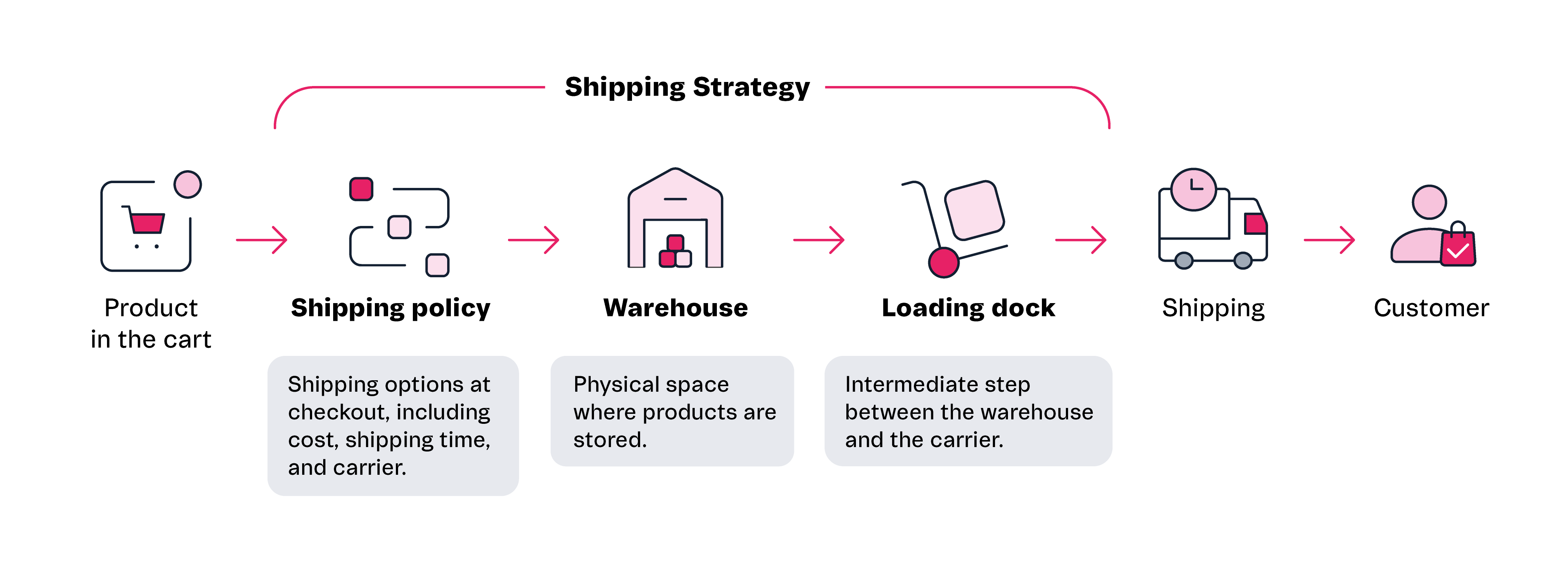\n\nThis article explains how to monitor and manage your shipping policies. In the VTEX Admin, under **Shipping > Shipping Strategy**, the **Shipping Policies** tab is where you can do the following:\n\n* [View the shipping policy list](#viewing-the-shipping-policy-list)\n* [Search for shipping policies](#searching-for-shipping-policies)\n* [Filter shipping policies](#filtering-shipping-policies)\n* [View the carrier dashboard (optional)](#viewing-the-carrier-dashboard-optional)\n* [Edit shipping policies](#editing-shipping-policies)\n* [Activate or deactivate shipping policies](#activating-or-deactivating-shipping-policies)\n* [Delete shipping policies](#deleting-shipping-policies)\n\nYou can also create shipping policies. Read the instructions in the [Creating a shipping policy](/en/docs/tutorials/creating-a-shipping-policy) article.\n\n## Viewing the shipping policy list\n\nIn the VTEX Admin, by going to **Shipping > Shipping Strategy** in the **Shipping Policies** tab, you will see a list as shown in the image below:\n\n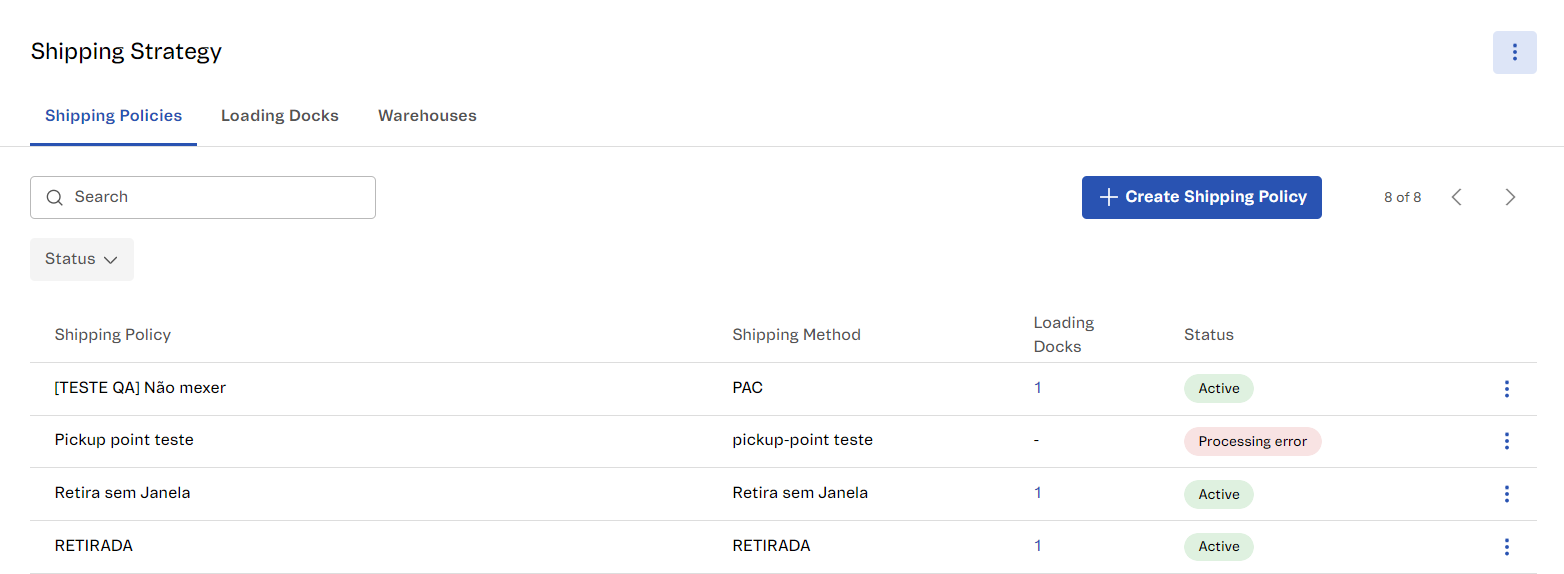\n\nThe information displayed on this page is described in the table below:\n\n| **Column** | **Description** |\n| :---: | :--- |\n| Shipping Policy | Name that identifies your [shipping policy](/en/docs/tutorials/shipping-policy) for users with access to your VTEX Admin. Learn more in the [Creating a shipping policy](/en/docs/tutorials/creating-a-shipping-policy) article. |\n| Shipping Method | [Shipping method](/en/docs/tutorials/how-does-the-type-of-delivery-work) is the name you set in the shipping policy displayed to customers at checkout. Thus, you should use intuitive names when creating a shipping policy.Example: `Express shipping` and `Standard shipping`. |\n| Loading Docks | Identifies which [loading docks](/en/docs/tutorials/loading-dock) are associated with the [shipping policy](/en/docs/tutorials/shipping-policy). When you hover over the number in this column, you will see the names of all the loading docks associated with the shipping policy. |\n| Status | Shipping policy activation status, which can be:- **Active:** The shipping policy is activated and valid for the order shipping [calculation](/en/docs/tutorials/how-shipping-calculation-works).
- **Inactive:** The shipping policy is deactivated and not valid for shipping.
|\n| Carrier (Brazil only) | This field only appears in the VTEX Admin for stores that have activated the [VTEX Shipping Network Correios](/en/docs/tutorials/vtex-shipping-network-correios-activation) or requested the [VTEX Shipping Network](/en/docs/tutorials/ready-to-dispatch). It uniquely identifies Correios. |\n| Contract (Brazil only) | This field only appears in the VTEX Admin for stores that have activated the [VTEX Shipping Network Correios](/en/docs/tutorials/vtex-shipping-network-correios-activation).Possible values are:- **VTEX:** The store has requested a Correios price list intermediated by VTEX.
- **Store:** The store requested a price list on its own before activating the VTEX Shipping Network Correios.
|\n\n## Searching for shipping policies\n\nIn the search box with the magnifying glass icon , you can search for shipping policies by name. Typing a character into the search bar immediately initiates the search. To clear the search, click the close icon .\n\n> ℹ️ If the search does not return any results, check the spelling used in the search and if a filter has been selected.\n\n## Filtering shipping policies\n\nYou can filter shipping policies by their status, which can be `Active` or `Inactive`. See the steps below:\n\n1. In the VTEX Admin, go to **Shipping > Shipping Strategy** or type **Shipping Strategy** in the search bar at the top of the page.\n2. In the **Shipping policies** tab, click `Status`.\n3. Select one of the status options:\n * **Active:** The shipping policy is activated and valid for the order shipping [calculation](/en/docs/tutorials/how-shipping-calculation-works).\n * **Inactive:** The shipping policy is deactivated and not valid for shipping. \n4. Click `Apply`.\n\nTo remove the applied filter, click `Status` and then `Clear`.\n\n### Filter for contract types (Brazil only)\n\nStores that have requested the [VTEX Shipping Network](/en/docs/tutorials/ready-to-dispatch) or activated the [VTEX Shipping Network Correios](/en/docs/tutorials/vtex-shipping-network-correios-activation) can search by contract type:\n\n * `VTEX`: The store has requested a Correios price list intermediated by VTEX.\n * `Store`: The store has directly requested the Correios price list.\n\n## Viewing the carrier dashboard (optional)\n\nStores that have requested the [VTEX Shipping Network](/en/docs/tutorials/ready-to-dispatch) or activated the [VTEX Shipping Network Correios](/en/docs/tutorials/vtex-shipping-network-correios-activation) will see the \"Carriers Dashboard\" button on the **Shipping Policies** page. By clicking it, the user will be redirected to the [VTEX Shipping Network](/en/docs/tutorials/vtex-shipping-network-dashboard) dashboard, where they can manage the carrier operations for their products.\n\n## Editing shipping policies\n\nTo edit a shipping policy, follow the steps below:\n\n1. In the VTEX Admin, go to **Shipping > Shipping Strategy** or type **Shipping Strategy** in the search bar at the top of the page.\n2. In the **Shipping Policies** tab, in the row for the shipping policy you want, click the menu icon . You can [search](#searching-for-shipping-policies) for policies or [filter by](#filtering-shipping-policies) certain criteria.\n3. Click `Edit`.\n4. Make the desired changes. For more information on the fields, read the [Creating a shipping policy](/en/docs/tutorials/creating-a-shipping-policy) article.\n5. Click `Save Changes`.\n\n## Activating or deactivating shipping policies\n\nTo activate or deactivate a shipping policy, follow the steps below:\n\n1. In the VTEX Admin, go to **Shipping > Shipping Strategy** or type **Shipping Strategy** in the search bar at the top of the page.\n2. In the **Shipping Policies** tab, in the row for the shipping policy you want, click the menu icon . You can [search](#searching-for-shipping-policies) for policies or [filter by](#filtering-shipping-policies) certain criteria.\n3. Click `Activate` or `Deactivate`.\n4. In the modal that opens, click `Activate` or `Deactivate` again.\n\n## Deleting shipping policies\n\nTo delete a shipping policy, follow the steps below:\n\n> ❗ Deleting a shipping policy is permanent and cannot be undone.\n\n1. In the VTEX Admin, go to **Shipping > Shipping Strategy** or type **Shipping Strategy** in the search bar at the top of the page.\n2. In the **Shipping Policies** tab, in the row for the shipping policy you want, click the menu icon . You can [search](#searching-for-shipping-policies) for policies or [filter by](#filtering-shipping-policies) certain criteria.\n3. Click `Delete`.\n4. In the modal that opens, click `Delete` again."}