{"section":"tutorials","requestedLocale":"en","requestedSlug":"how-to-use-the-shareable-cart-app","locale":"en","slug":"how-to-use-the-shareable-cart-app","path":"docs/en/tutorials/omnichannel/omnichannel-settings/how-to-use-the-shareable-cart-app.md","branch":"main","content":"The [Shareable Cart](https://apps.vtex.com/vtex-social-selling/p) app allows sales assistants to select products for their customers and share the cart through channels such as WhatsApp, Facebook Messenger and email (Social Selling).\n\n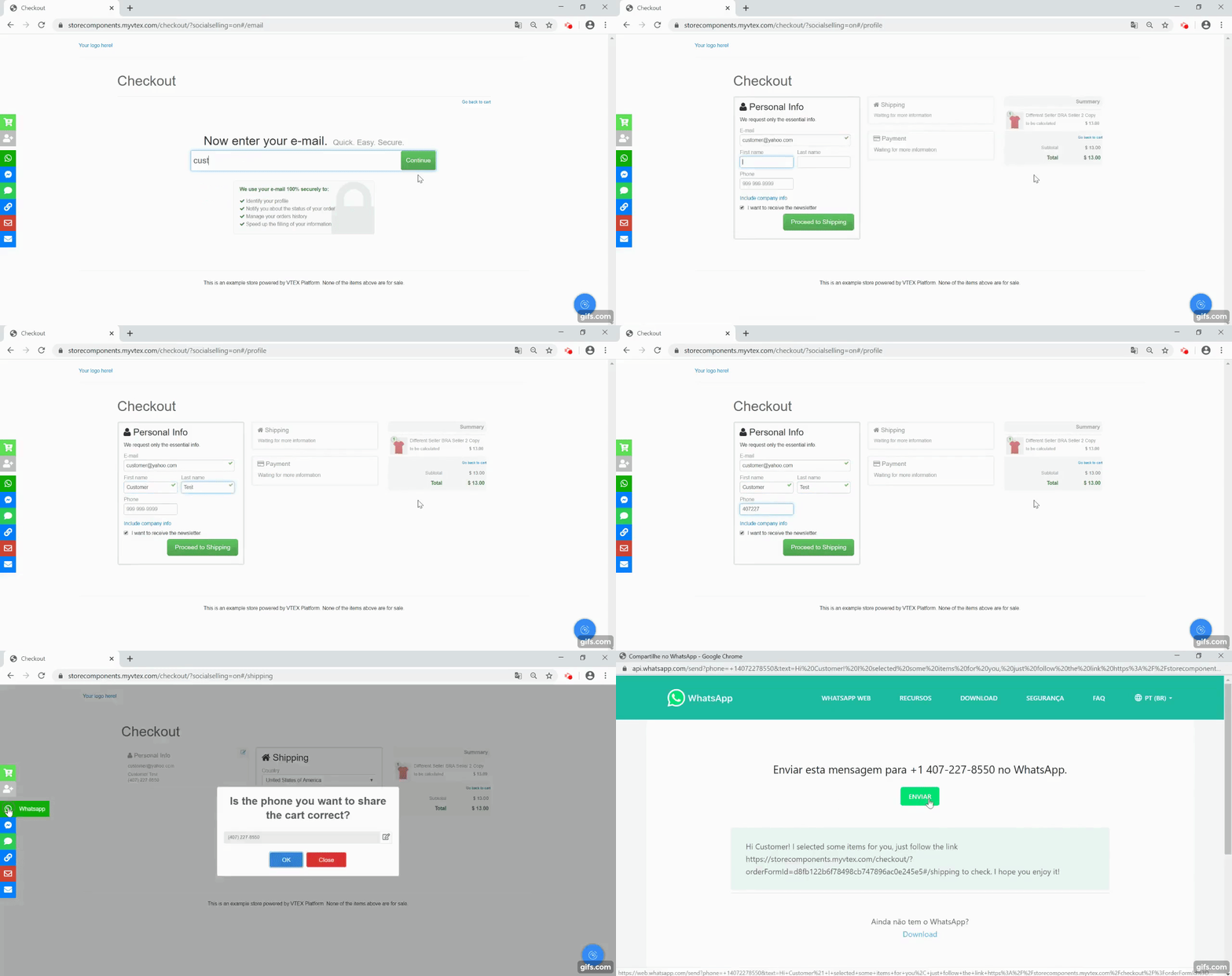\n\nThis article details the steps needed to use this feature: activate the app, choose products, add sales assistant code, share and create a new cart. Before you start, you need to [activate this feature in your store](/en/docs/tutorials/how-to-activate-the-shareable-cart-app).\n\n## Activating the app\n\nYou must activate the app in your first access, by accessing the store from the link:\n\n`https://{Your store web address}/checkout/?socialselling=on`\n\n`{Your store web address}` should be replaced with the address of the store's website. This activation must be done whenever you change devices or clear browsing data.\n\nThe cart sharing interface should appear on the screen, including some of the icons below. The options available depend on the configuration chosen by the store.\n\n\n\n## Choosing products\n\nOnce the app is activated, it is not necessary to log in to start browsing and to select products. Just browse the store as usual, as if you were making an online purchase. After choosing all products for the customer, open the cart and follow the next steps in the cart sharing interface.\n\n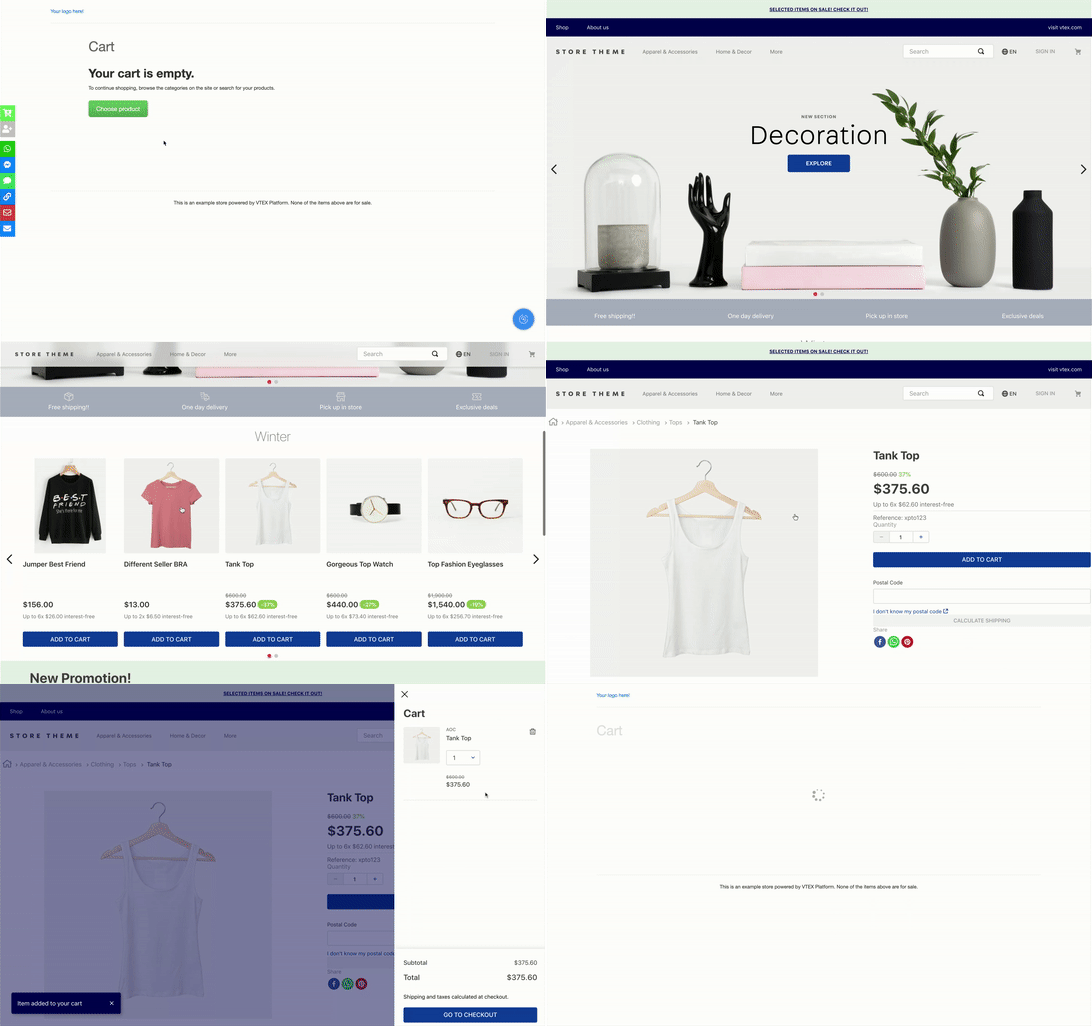\n\n## Adding a sales assistant code\n\nAfter selecting the products, click on the  button to add your sales assistant code. Follow the store's instructions for filling out, as each store can choose different ways to identify sales assistants and add discounts to their carts.\n\n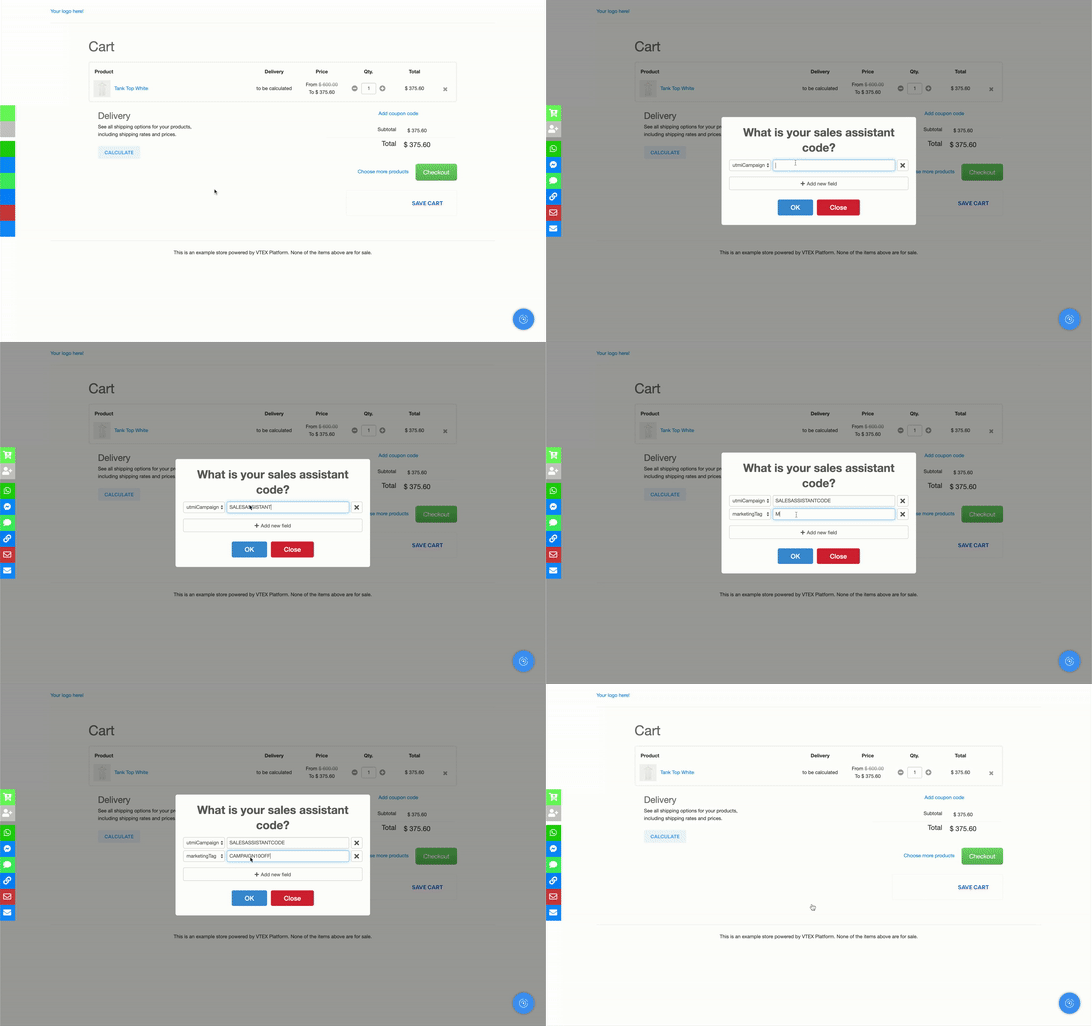\n\n## Filling in personal data and address (optional)\n\nDepending on the customer's preference and your store’s guidelines, you can fill in the personal and shipping data for the order. Payment data must always be filled in by the customer.\n\n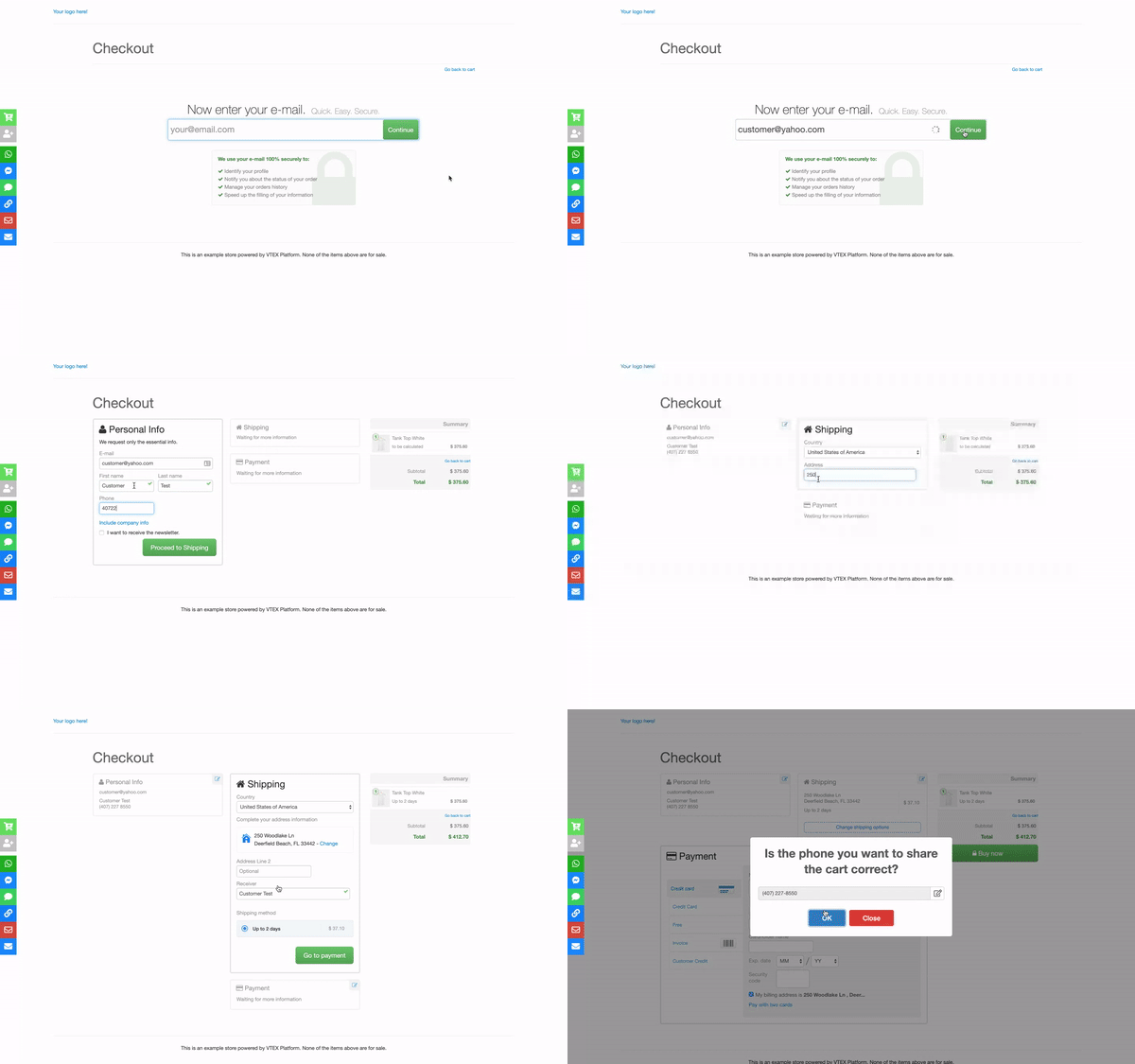\n\n> ❗ **Never ask for payment details when sending the cart.** Even if the customer insists, explain that they should fill in the payment details for security reasons.\n\n## Sharing the cart\n\nAfter adding your sales assistant code, click on the button corresponding to the desired option. See below the steps for each sharing option.\n\n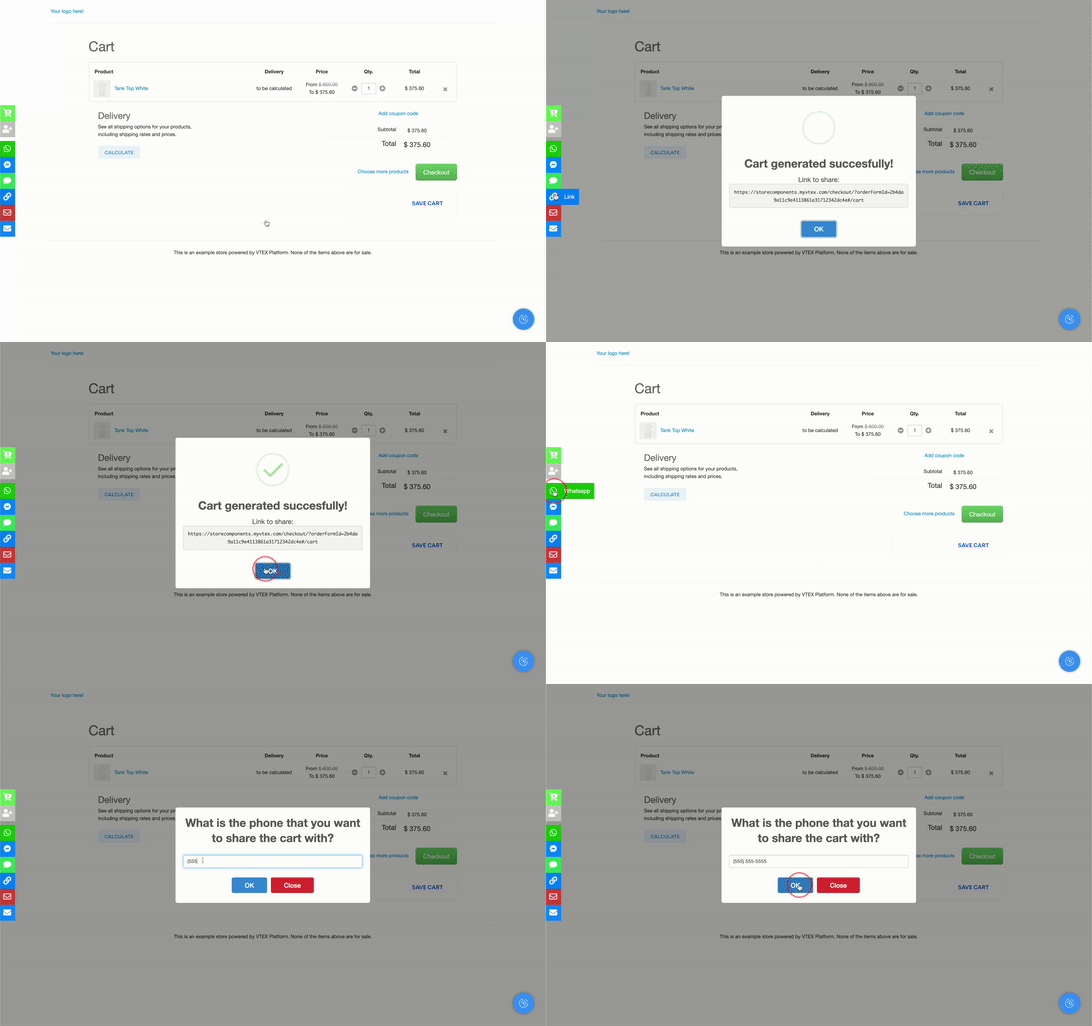\n\n### Whatsapp\n\nTo share the cart via WhatsApp:\n\n1. Click on the
button to add your sales assistant code. Follow the store's instructions for filling out, as each store can choose different ways to identify sales assistants and add discounts to their carts.\n\n\n\n## Filling in personal data and address (optional)\n\nDepending on the customer's preference and your store’s guidelines, you can fill in the personal and shipping data for the order. Payment data must always be filled in by the customer.\n\n\n\n> ❗ **Never ask for payment details when sending the cart.** Even if the customer insists, explain that they should fill in the payment details for security reasons.\n\n## Sharing the cart\n\nAfter adding your sales assistant code, click on the button corresponding to the desired option. See below the steps for each sharing option.\n\n\n\n### Whatsapp\n\nTo share the cart via WhatsApp:\n\n1. Click on the  button\n2. Enter the **customer’s phone number** and click on OK\n3. (Optional) Customize the message on WhatsApp\n4. Send the message via WhatsApp\n\n> ⚠️ Before sharing a cart via WhatsApp, you need to configure an account on your phone or [computer](https://faq.whatsapp.com/pt_br/web/26000012/?category=5245235&lang=en). If you prefer, you can instal [WhatsApp Business](https://faq.whatsapp.com/pt_br/general/26000092/?category=5245246&lang=en) to separate your personal account from the store account.\n\n### Facebook Messenger\n\nTo share the cart via Facebook Messenger:\n\n1. Click on the
  button\n2. Enter the **client’s name** on Facebook Messenger\n3. Customize the message on Facebook Messenger\n4. Send the message via Facebook Messenger\n\n> ℹ️ You cannot share carts in Messenger with people you’re not friends with on Facebook. If the customer's profile does not appear in step 2, you can use the sharing via link option and send a [message request](https://www.facebook.com/help/208160052556047?helpref=uf_permalink) to the customer profile.\n\n> ⚠️ Before sharing a cart via Facebook Messenger, you need to [configure an account](https://www.facebook.com/help/messenger-app/218228001910904?helpref=search&sr=2&query=install&search_session_id=ebf3a38e8eb0ff10297f2b0629ad97ef) on your phone or computer. If you prefer, you can use [Messenger for business](https://www.facebook.com/business/help/499491430453591?helpref=search&sr=2&query=messenger) to separate your personal account from the store account.\n\n### SMS\n\nTo share the cart via SMS: \n\n1. Click on the
  button\n2. Enter the **customer’s phone number** and click on OK\n3. (Optional) Customize the message on your SMS app\n4. Send the message via SMS\n\n### Link\n\nTo share the cart via Link:\n\n1. Click on the
  button\n2. Copy the link highlighted in **Link to share**\n3. (Optional) Write a custom message with the link\n4. Send the link to the customer on your contact channel\n\n### Gmail\n\nTo share the cart via Gmail:\n\n1. Click on the
  button\n2. Enter the **customer's email address** and click on OK\n3. (Optional) Customize the message in Gmail\n4. Send the message via Gmail\n\n> ⚠️ Before sharing a cart via Gmail, you need to [sign in](https://support.google.com/mail/answer/8494?co=GENIE.Platform%3DDesktop&hl=en) on your phone or computer. Alternatively, you can [switch between account](https://support.google.com/accounts/answer/1721977?co=GENIE.Platform%3DDesktop&hl=en) and send the message using your personal account or the store account.\n\n### Email\n\n1. Click on the
  button\n2. Enter the **customer's email address** and click on OK\n3. (Optional) Customize the message in your email app \n4. Send the message via email\n\n> ⚠️ Before sharing a cart via email, you must have an application configured to open and send emails on your phone or computer.\n\n## Clearing the cart\n\nAfter finishing assisting a customer, click on the
  button to empty your cart and choose new products for another customer.\n\n> ℹ️ **Each salesperson can serve multiple customers!** We recommend keeping the links you’ve shared in a spreadsheet or notepad. This way you keep your carts organized and can make changes whenever a customer requests.\n\n> ⚠️ The customer will need to refresh the page or access the link again to view the changes you’ve made to the cart."}