{"section":"tutorials","requestedLocale":"en","requestedSlug":"how-to-modify-orders","locale":"en","slug":"how-to-modify-orders","path":"docs/en/tutorials/orders/all-orders/how-to-modify-orders.md","branch":"main","content":"The [Order modifications](/en/docs/tutorials/how-order-modification-works) feature allows you to edit an order in different ways, either due to customer requests, product unavailability, or other reasons.\n\nThis article explains how an order can be modified and how to do so. It comprises the following sections:\n\n- [Conditions](#conditions)\n- [Types of order modifications](#types-of-order-changes)\n- [Common aspects](#common-aspects)\n- [Processing errors](#processing-errors)\n\n> ⚠️ To learn about the [general characteristics](/en/docs/tutorials/how-order-modification-works#general-characteristics) of order modifications scenarios, including aspects like reservation, inventory update, and franchise accounts, or to understand details related to [pricing, payment, and invoicing](/en/docs/tutorials/how-order-modification-works#price-changes), read the [How Order modifications works](/en/docs/tutorials/how-order-modification-works) article.\n\n## Conditions\n\nThere are some conditions for modifying orders related to the order status. See the details below.\n\n### Status of the order to be modified\n\nIn the [order flow](/en/docs/tutorials/order-flow-and-status), `Handling shipping` is the only status valid for **Order modifications** in the VTEX Admin. Read the [How Order modifications works](/en/docs/tutorials/how-order-modification-works) article to learn more about API modifications.\n\n### License Manager permission\n\nFor a user to be able to modify orders, their [role](/en/docs/tutorials/roles) must be associated with at least one of the following [Licence Manager resources](/en/docs/tutorials/license-manager-resources):\n\n- `Orders Full Access`\n- `Change order`\n\n## Types of order modifications\n\nThese are the main order modifications that can be made through the VTEX Admin:\n\n- **Add:** Increase the number of items or add new products.\n- **Remove:** Remove the partial or total number of items.\n- **Weight change:** Adjust the weight assigned to items.\n- **Replace items:** Replace items, including those priced by weight.\n- **Price change:** [Change the order total amount](/en/docs/tutorials/changing-the-total-cost-of-the-order).\n\nAll these actions are done on the [order details](/en/docs/tutorials/order-details-page) page, which you can access in two ways, as described below.\n\n### Viewing orders on the All orders page\n\nIn the VTEX Admin, go to **Orders >** [All Orders](/en/docs/tutorials/all-orders) and click the desired order, or type **All Orders** in the search bar at the top of the page. Then click the order you want to view. If necessary, you can use [filters](/en/docs/tutorials/filtering-all-orders) to narrow your search.\n\n### Viewing orders using the global search bar\n\nFrom any VTEX Admin page, search for the order using the search bar at the top of the page. Select the `Orders` option in the right corner of the bar and use one of the following criteria:\n\n- Order ID\n- Customer name\n- Customer email\n- Customer document\n\nOn the order details page, you can do the following:\n\n- [Add items](#adding-items)\n- [Add a new product](#adding-a-new-product)\n- [Remove items](#removing-items)\n- [Remove a product](#removing-a-product)\n- [Replace items](#replacing-items)\n- [Change weight](#changing-weight)\n\n> ℹ️ You can make a single modification to the order or combine several at once. There is no limit to how many times an order can be modified. Read the [How Order modifications works](/en/docs/tutorials/how-order-modification-works) article to learn more.\n\n### Adding items\n\nTo add one or more items to the order, follow these steps:\n\n1. In the VTEX Admin, go to the order details page through **Orders >** [All Orders](#viewing-orders-on-the-all-orders-page) or by using the [global search bar](#viewing-orders-using-the-global-search-bar).\n2. In the **Pending invoicing** section, click `Change Items`.\n3. On the **Manage order items** page, click the up arrow to the number you want, or enter the number in the field. Then, the page will display the price and the previous number with a strikethrough, followed by the message: _\"Item edited\"_.\n\n 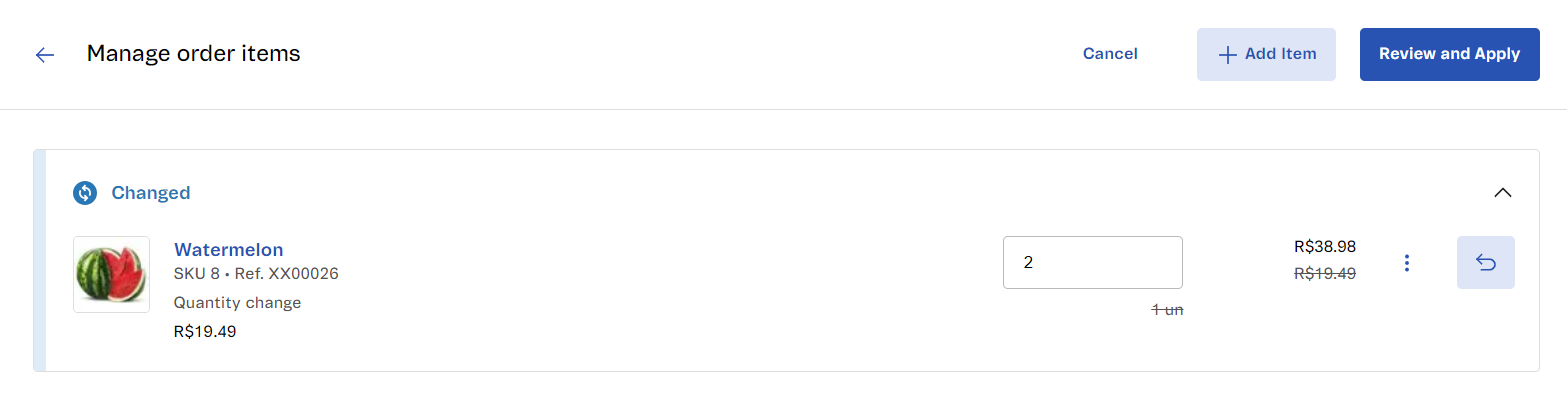\n\n4. Review the [details of the amount modification](#viewing-details-of-the-amount-change). You can [undo a modification](#undoing-actions) if necessary.\n5. Click `Review and Apply`.\n6. In the **Reason for Changes** field, briefly explain why the order is being modified. If you wish, review the modifications again.\n7. Click `Apply`. The following confirmation message will be displayed: _\"Change request completed\"._\n\nAfter doing so, you will be redirected back to the order details page. In the **Pending invoicing** section, you will see the updated number of items.\n\n### Adding a new product\n\nTo add one or more products to an order, follow these steps:\n\n1. In the VTEX Admin, go to the order details page through **Orders >** [All Orders](#viewing-orders-on-the-all-orders-page) or by using the [global search bar](#viewing-orders-using-the-global-search-bar).\n2. In the **Pending invoicing** section, click `Change Items`.\n3. On the **Manage order items** page, click `+ Add Item`.\n4. On the **Add items** page, use the search bar to enter the name of the desired product.\n5. Click `Select`. You can add as many products as you like by repeating the procedure. For each new addition, the following message will be displayed: _\"Item selected\"_.\n > If you click the product name, you will be redirected to the product page on the store's website.\n6. Then click `Add Selected Items`, and the following message will be displayed: _\"Items added\"_.\n\n 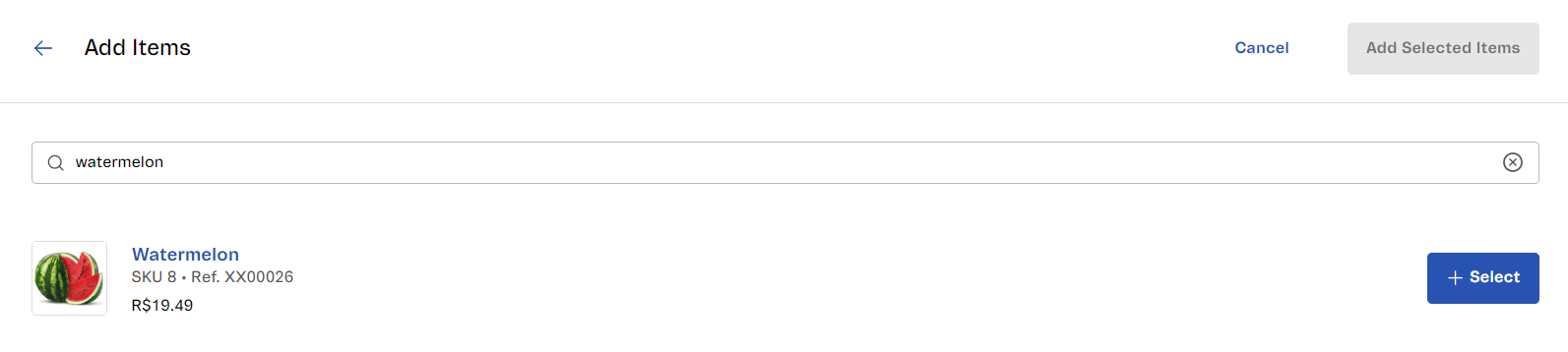\n\n4. Review the [details of the amount modification](#viewing-details-of-the-amount-change). You can [undo a modification](#undoing-actions) if necessary.\n5. Click `Review and Apply`.\n6. In the **Reason for Changes** field, briefly explain why the order is being modified. If you wish, review the modifications again.\n7. Click `Apply`. The following confirmation message will be displayed: _\"Change request completed\"_.\n\nAfter doing so, you will be redirected back to the order details page. In the **Pending invoicing** section, you will see the recently added products.\n\n### Removing items\n\nTo remove one or more items from an order, follow these steps:\n\n1. In the VTEX Admin, go to the order details page through **Orders >** [All Orders](#viewing-orders-on-the-all-orders-page) or by using the [global search bar](#viewing-orders-using-the-global-search-bar).\n2. In the **Pending invoicing** section, click `Change Items`.\n3. On the **Manage order items** page, click the down arrow to the number you want, or enter the number in the field. Then, the page will display the price and the previous number with a strikethrough, followed by the message: _\"Item edited\"_.\n\n 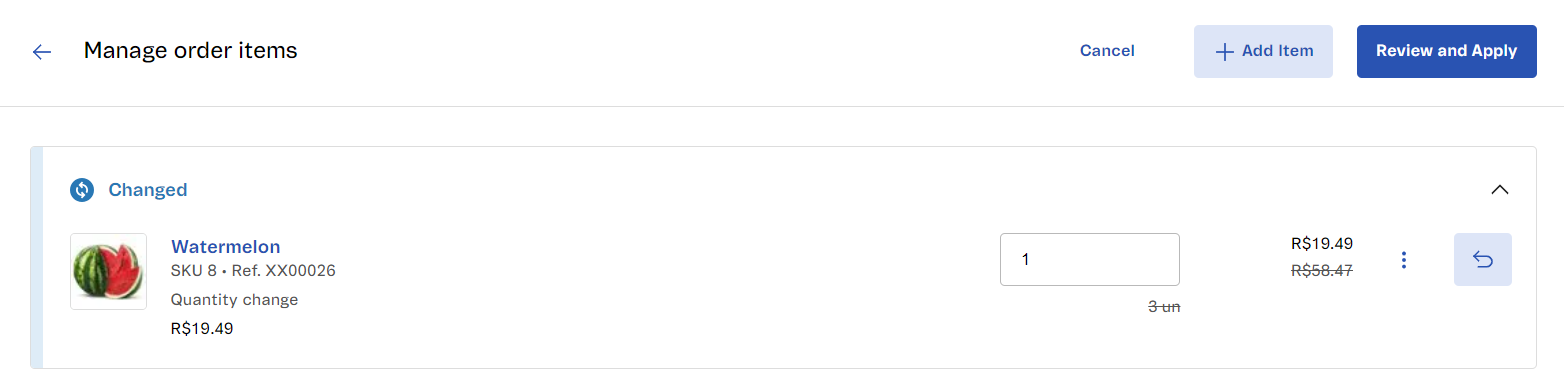\n\n4. Review the [details of the amount modification](#viewing-details-of-the-amount-change). You can [undo a modification](#undoing-actions) if necessary.\n5. Then click `Review and Apply`.\n6. In the **Reason for Changes** field, briefly explain why the order is being modified. If you wish, review the modifications again.\n7. Click `Apply`. The following confirmation message will be displayed: _\"Change request completed\"._\n\nAfter doing so, you will be redirected back to the order details page. In the **Pending invoicing** section, the number of items will reflect the recent removal.\n\n### Removing a product\n\nTo remove a product from an order, follow these steps:\n\n1. In the VTEX Admin, go to the order details page through **Orders >** [All Orders](#viewing-orders-on-the-all-orders-page) or by using the [global search bar](#viewing-orders-using-the-global-search-bar).\n2. In the **Pending invoicing** section, click `Change Items`.\n3. On the **Manage order items** page, click the trash can icon and `Remove Item`. The following confirmation message will appear: _\"Item removed\"_.\n\n 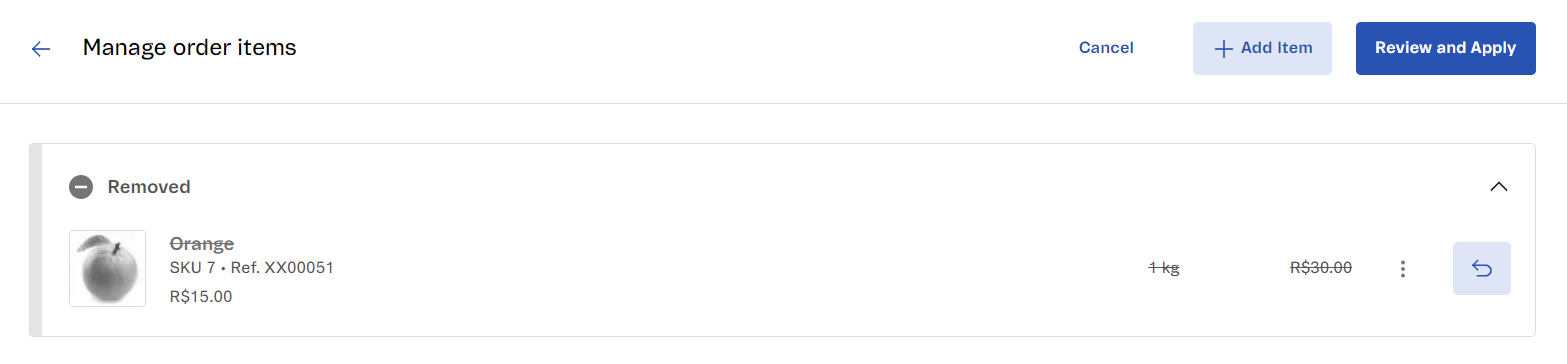\n\n4. Review the [details of the amount modification](#viewing-details-of-the-amount-change). You can [undo a modification](#undoing-actions) if necessary.\n5. Then click `Review and Apply`.\n6. In the **Reason for Changes** field, briefly explain why the order is being modified. If you wish, review the modifications again.\n7. Click `Apply`. The following confirmation message will be displayed: _\"Change request completed\"_.\n\nAfter doing so, you will be redirected back to the order details page. In the **Pending invoicing** section, you will see the order without the recently removed product.\n\n### Replacing items\n\nTo replace items in the order, follow these steps:\n\n1. In the VTEX Admin, go to the order details page through **Orders >** [All Orders](#viewing-orders-on-the-all-orders-page) or by using the [global search bar](#viewing-orders-using-the-global-search-bar).\n2. In the **Pending invoicing** section, click `Change Items`.\n3. On the **Manage order items** page, in the row of the product you want to replace, click the menu and select `Replace Item`.\n4. On the **Order replacement** page, use the <i class=\"fas fa-search\"></i> search bar to enter the name of the product you want to replace it with.\n5. Click `+ Select`. The following message will be displayed: _\"Item selected\"_. If you click the product name, you will be redirected to the product page on the store's website.\n6. Then click `Apply`. The following message will appear: _\"Changes applied\"_.\n7. Review the [details of the amount modification](#viewing-details-of-the-amount-change). You can [undo a modification](#undoing-actions) if necessary.\n8. Click `Review and Apply`.\n9. In the **Reason for Changes** field, briefly explain why the order is being modified. If you wish, review the modifications again.\n10. Click `Apply`. The following confirmation message will be displayed: _\"Change request completed\"_.\n\nAfter doing so, you will be redirected back to the order details page. In the **Pending invoicing** section, you will see the item that replaced the previous product.\n\n### Changing weight\n\nTo change the weight of an item, follow these steps:\n\n1. In the VTEX Admin, go to the order details page through **Orders >** [All Orders](#viewing-orders-on-the-all-orders-page) or by using the [global search bar](#viewing-orders-using-the-global-search-bar).\n2. In the **Pending invoicing** section, click `Change Items`.\n3. On the **Manage order items** page, enter the new weight in the row of the desired product. The unit of measure will be specified based on the Catalog settings.\n4. Then, the page will display the previous price and weight number with a strikethrough, followed by the message _\"Item edited\"_.\n\n 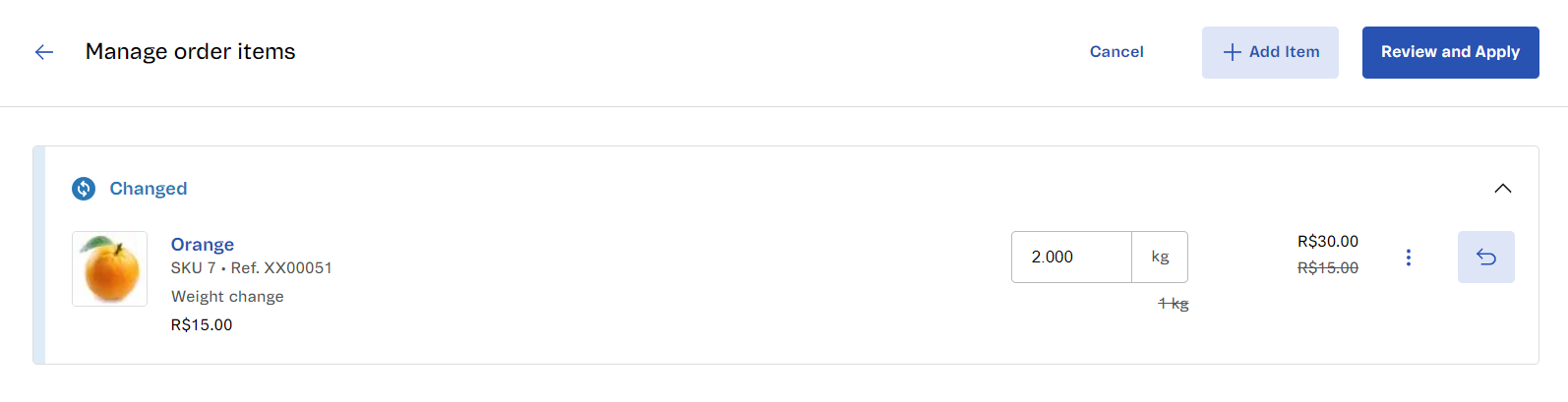\n\n5. Review the [details of the amount modification](##viewing-details-of-the-amount-change). You can [undo a modification](#undoing-actions) if necessary.\n6. Click `Review and Apply`.\n7. In the **Reason for Changes** field, briefly explain why the order is being modified. If you wish, review the modifications again.\n8. Click `Apply`. The following confirmation message will be displayed: _\"Change request completed\"._\n\nAfter doing so, you will be redirected back to the order details page. In the **Pending invoicing** section, you will see the updated item weight.\n\n## Common aspects\n\nWhen making any [type of modification](#types-of-order-modifications) to an order, some steps are the same, and you can check them in this section.\n\n### Viewing details of the amount modification\n\nOn the **Manage order items** page, as you modify the order, the **Total amount** is automatically updated at the bottom of the page. In addition, you can view the price variation resulting from each operation. To view price details, click the arrow icon next to the total amount.\n\n### Undoing actions\n\nOn the **Manage order items** page, you can undo a modification if you want. To do this, click the curved arrow icon `Undo Action`. After this, a confirmation message will be displayed: _\"Change undone\"_, indicating that the action has been successfully reversed.\n\n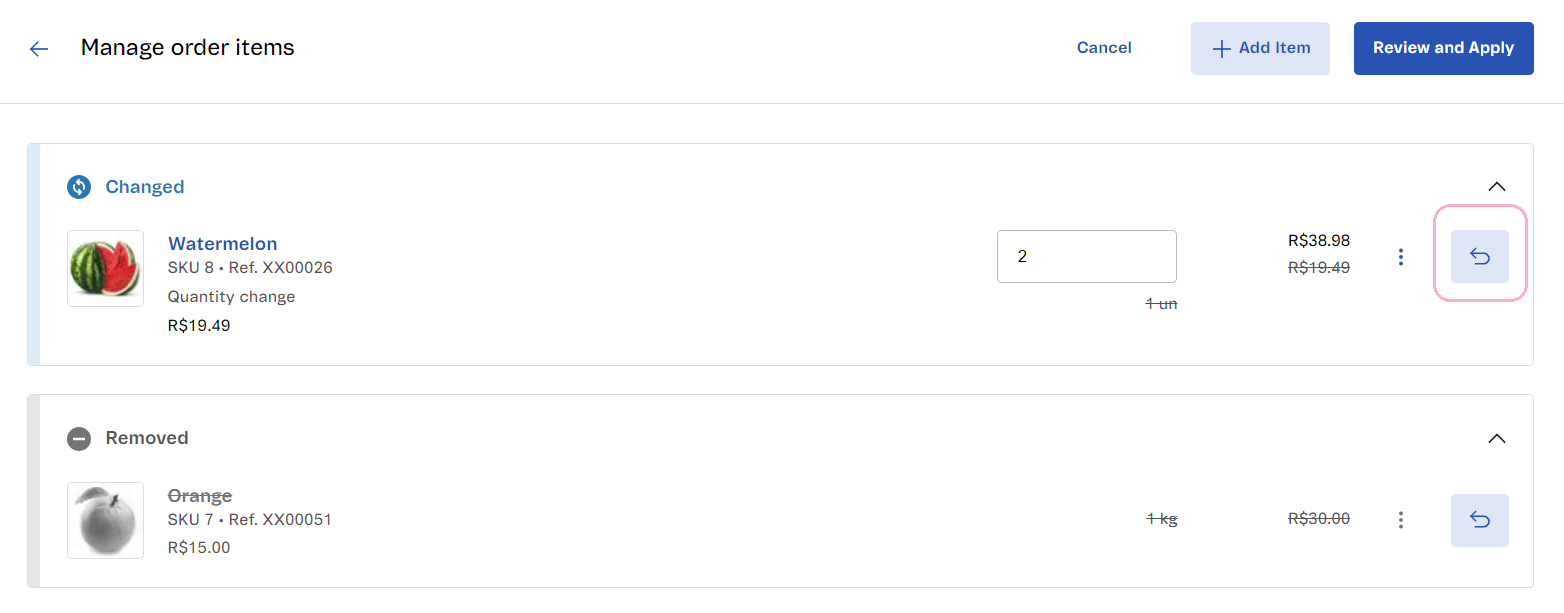\n\n## Processing errors\n\nIn any [type of order modification](#types-of-order-modifications) on the **Manage order items** page, when you click `Review and Apply,` the modification may not be approved, which redirects you back to the order details page. Some of the reasons for modifications being rejected are:\n\n- **Unavailable item:** The SKU may [not be displayed on the store's website](/en/faq/why-is-the-product-not-visible-on-the-website) or may be unavailable due to an error or missing catalog, price, or logistics settings.\n- **Insufficient inventory:** The number of items added or replaced in the modification may be greater than the number of items available for sale in your [inventory](/en/docs/tutorials/managing-stock-items).\n\nIf the Catalog and inventory settings are correct and modifications to orders return errors, this might indicate a problem with the platform's processing. In this case, we recommend contacting our [support team](https://supporticket.vtex.com/support)."}