{"section":"tutorials","requestedLocale":"en","requestedSlug":"generated-keys","locale":"en","slug":"generated-keys","path":"docs/en/tutorials/account-management/api-keys/generated-keys.md","branch":"main","content":"Internal API keys are credentials generated in and managed by your VTEX account. This means you should have access to all pairs of API keys and tokens, which is akin to usernames and passwords for API integrations. \n\nThe **Generated** tab lists the API keys created by your account. You can use the search bar to find keys by name or by the **Key identifier** used when it was generated.\n\n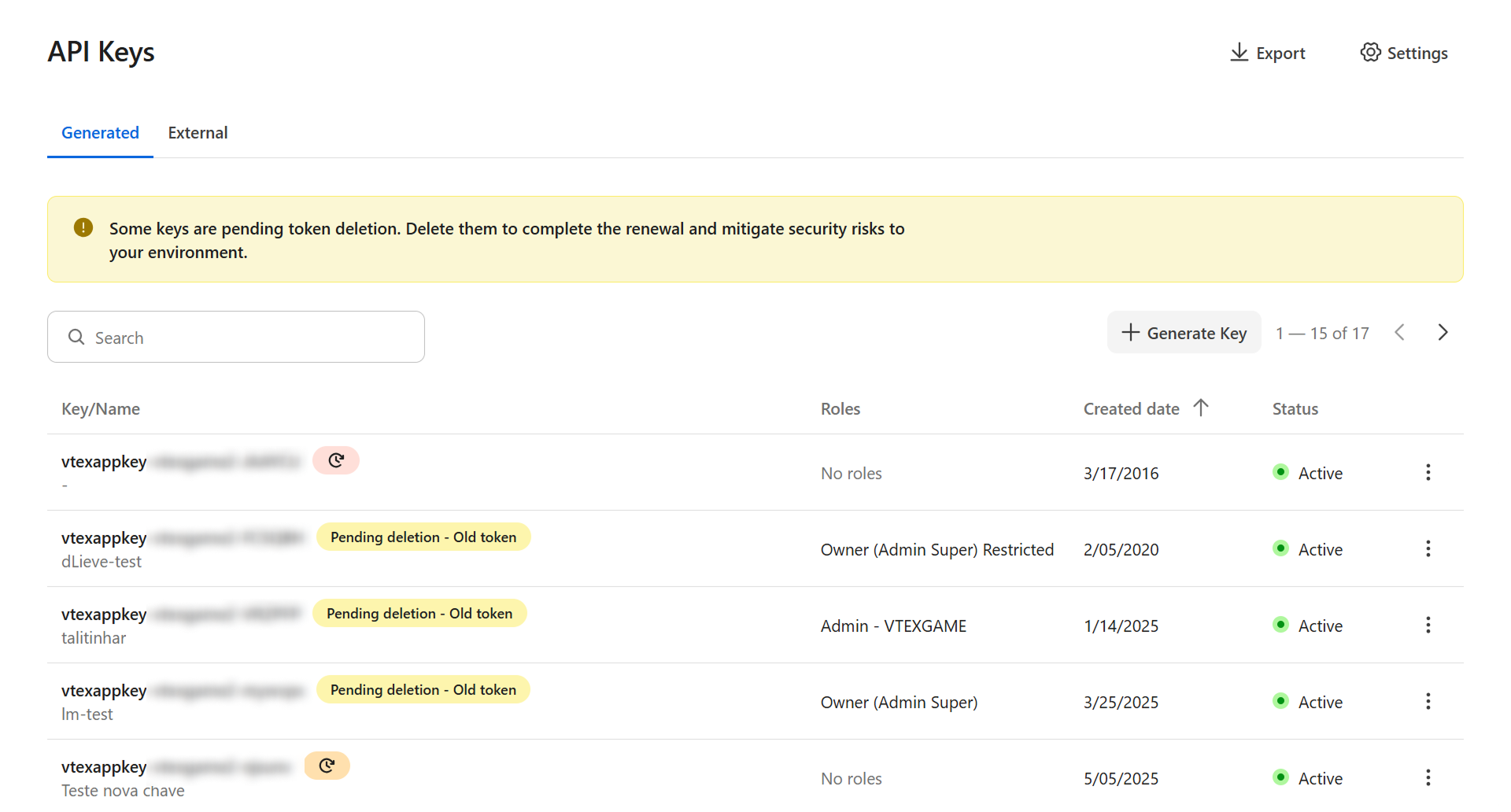\n\nThe page displays the following information in a table: \n\n| Column | Description |\n| :---- | :---- |\n| **Key/Name** | API key, followed by the name defined when creating the key. If the token has exceeded the recommended renewal period (3 months, by default), a renewal alert icon is displayed next to the key. Learn more in [Configuring alerts to renew API tokens](/en/docs/tutorials/configuring-alerts-to-renew-api-tokens). |\n| **Roles** | Roles associated with the API key. |\n| **Created date** | API key created date. |\n| **Status** | API key status, which can be **Active** or **Inactive**. |\n\nThis page allows you to:\n\n* [Generate keys](#generated-keys) \n* [Edit generated keys](#edit-generated-keys)\n* [Deactivate or activate generated keys](#deactivate-or-activate-generated-keys) \n* [Renew tokens](#renew-tokens) \n* [Delete keys](#delete-keys)\n\n## Generating keys\n\nFollow the instructions below to create a new API key: \n\n1. In the top bar of the VTEX Admin, click your **profile avatar** — indicated by the first letter of your email — and then click *Account Settings > API Keys*. \n2. Make sure you are in the **Generated** tab. \n3. Click `+ Generate Key`. \n4. Complete the **Key identification** field with a name to identify the API key. This field is required. \n5. Select the [roles](/en/docs/tutorials/roles) that will be associated with the key. By default, no role is pre-selected. \n\n > ℹ️ Select only the roles required for the integration that will use the API key. Unrestricted use of overly permissive roles increases the risk of store attacks through leaked login credentials.\n\n6. Click `Generate`.\n\n You can view the new token from a single-access link, which is valid for 24 hours unless it is accessed.\n\n7. Click `Copy` to copy the single-access link to the new token to the clipboard. This link will only be displayed once. Save it in a safe place. At this step, the key is already active and available for use.\n8. Click `Close`.\n9. Access the copied link or share it with the person that will use the new token. The link can only be accessed once and is valid for 24 hours if not accessed. \n10. Click `Copy` to copy the API token to the clipboard. This secret will only be displayed once. Save it in a safe place.\n\n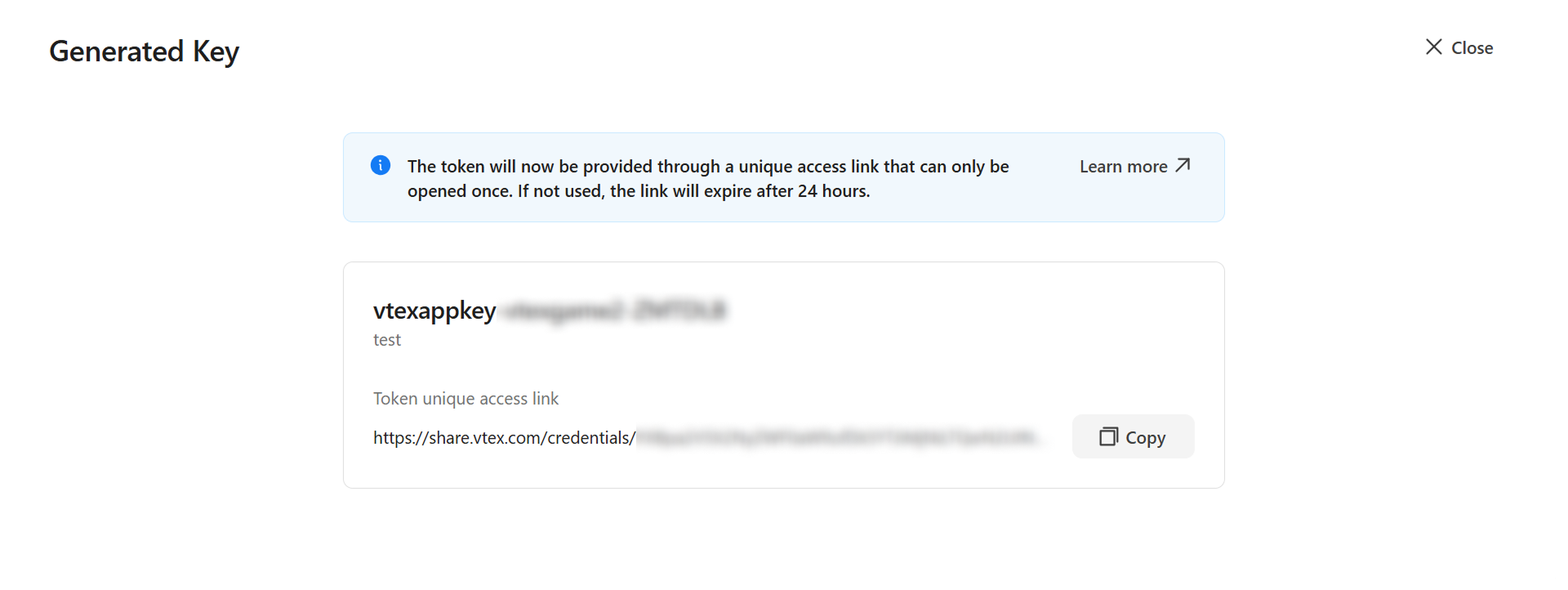\n\n> ⚠️ The official URL for accessing the token always follows the format `share.vtex.com/credentials/{token}`. The `{token}` is a random identifier generated when the key is created or renewed. Check the link format before accessing it to avoid phishing attempts or malicious pages.\n\n## Editing generated keys\n\nFollow the steps below to change an API key: \n\n1.\tIn the top bar of the VTEX Admin, click your **profile avatar** — indicated by the first letter of your email — and then click *Account Settings > API Keys*.\n2.\tMake sure you are in the **Generated** tab.\n3.\tIn the row of the desired API key, click the kebab menu (⋮) and then `Edit`. \n4.\tApply the desired changes from the options below:\n\n * Change the role selection associated with the API key. \n * Check or uncheck the **Activate** option to deactivate or activate the generated key. \n5.\tClick `Save`. \n\n## Deactivating or activating generated keys\n\nIf an API that has access to your account is compromised, you should immediately revoke its access to your account. You can generate a new key to replace the previous one if necessary. \n\nIf you make a mistake, you can reactivate the API key to reestablish the impacted integration. \nFollow the steps below to change an API key: \n\n1. In the top bar of the VTEX Admin, click your **profile avatar** — indicated by the first letter of your email — and then click *Account Settings > API Keys*. \n2. Make sure you are in the **Generated** tab. \n3. In the row of the desired API key, click the kebab menu (⋮) and choose one of the following actions: \n\n * **Deactivate:** If the key is **active**, click `Deactivate` to deactivate it. This action will interrupt integrations using the key, so use it with caution. You need to click `Deactivate` again to confirm the action. \n * **Activate:** If the key is **inactive**, click `Activate` to activate it.\n\n> ℹ️ You should only reactivate an API key if you are sure it has not been compromised. Anyone with the associated API token can access your account when the key is active.\n\n## Renewing tokens\n\nRenewing your API token regularly is crucial for maintaining store security. To ensure continuous protection, renew your token before getting the [alert](/en/docs/tutorials/configuring-alerts-to-renew-api-tokens). Follow the instructions in [Renewing API tokens](/en/tutorial/renovar-token-de-api).\n\n## Deleting keys\n\nAPI keys that will no longer be used can be deleted. By deleting these keys, you can keep the list organized and make it easier to manage the keys in use.\n\n> ⚠️ Ensure the API key is no longer in use by any integration before deleting it. This action cannot be undone.\n\nTo delete an API key permanently, follow the steps below: \n\n1. In the top bar of the VTEX Admin, click your **profile avatar** — indicated by the first letter of your email — and then click *Account Settings > API Keys*. \n2. Make sure you are in the **Generated** tab. \n3. In the row of the desired API key, click the kebab menu (⋮) and then `Delete Key`. \n4. Check the option *I understand that this action cannot be undone*. \n5. Click `Delete` to confirm. \n\n## Learn more\n\n* [API Keys](/en/docs/tutorials/api-keys)\n* [Renewing API tokens](/en/docs/tutorials/renewing-api-tokens)\n* [Configuring alerts to renew API tokens](/en/tutorial/configuring-the-duration-of-the-api-keys)\n* [External keys](/en/docs/tutorials/external-keys)"}