{"section":"tutorials","requestedLocale":"en","requestedSlug":"frequently-asked-questions-new-orders-module-interface","locale":"en","slug":"frequently-asked-questions-new-orders-module-interface","path":"docs/en/tutorials/orders/orders-overview/frequently-asked-questions-new-orders-module-interface.md","branch":"main","content":"The VTEX Admin **All Orders** module has been redesigned to provide a more intuitive and complete experience. Among the latest improvements, you can now [search for orders without date limitation](/en/docs/tutorials/filtering-all-orders), no longer restricted to searching only within the last six months. \n\nFrom February 1st, 2023, the new interface will be the default for all VTEX stores, and you will not be able to switch back to the old version. We have created this documentation, answering the following questions to help you through this transition:\n\n* [What happened to the six-month search filter?](#what-happened-to-the-six-month-search-filter)\n* [How to view the order flow diagram?](#how-to-view-the-order-flow-diagram)\n* [How do I invoice an order?](#how-do-i-invoice-an-order)\n* [How to resend an email to the customer?](#how-to-resend-an-email-to-the-customer)\n\nYou can see the sections and fields correspondence between the old version of the **Order Details** page and the new version in the image below:\n\n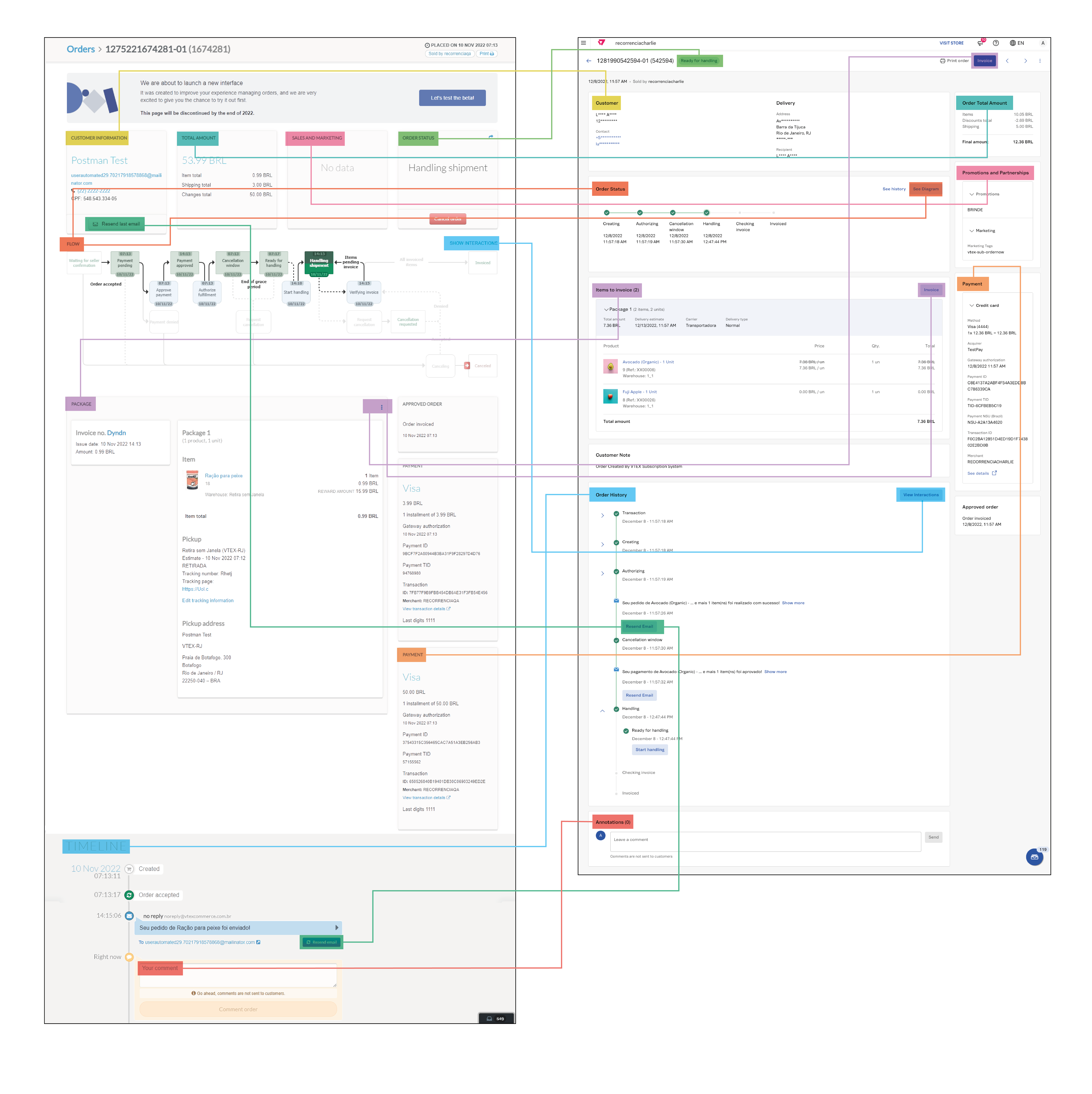\n\n## What happened to the six-month search filter?\n\nThe six-month filter is now replaced by an unlimited date search that returns all orders related to the criteria used, regardless of their creation date. You can, for example, view a customer's full purchase history using the customer's name, email, or document. Read the article [Filter orders on All Orders](/en/docs/tutorials/filtering-all-orders) to learn more. \n\n> ℹ️ The search in All Orders cannot be combined with other filters. So, once you remove the date limit from the search, any active filters become inactive. However, you can combine filters and select the custom period of six months, for example.\n\nEnter the desired term in the search bar to search all orders. This will make the `Remove date limit` option visible. Then, activate it to search.\n\n\n\n## How to view the order flow diagram?\n\nBy default, in the new interface, a timeline with the **Order status** events is displayed, as in the image below:\n\n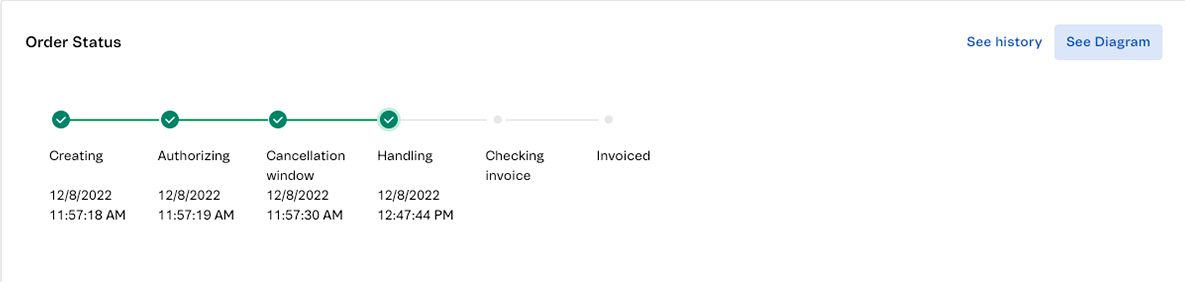\n\nIf you want to see the **Order diagram** as in the old interface, click `View diagram` and a modal like the one in the image below will display: \n\n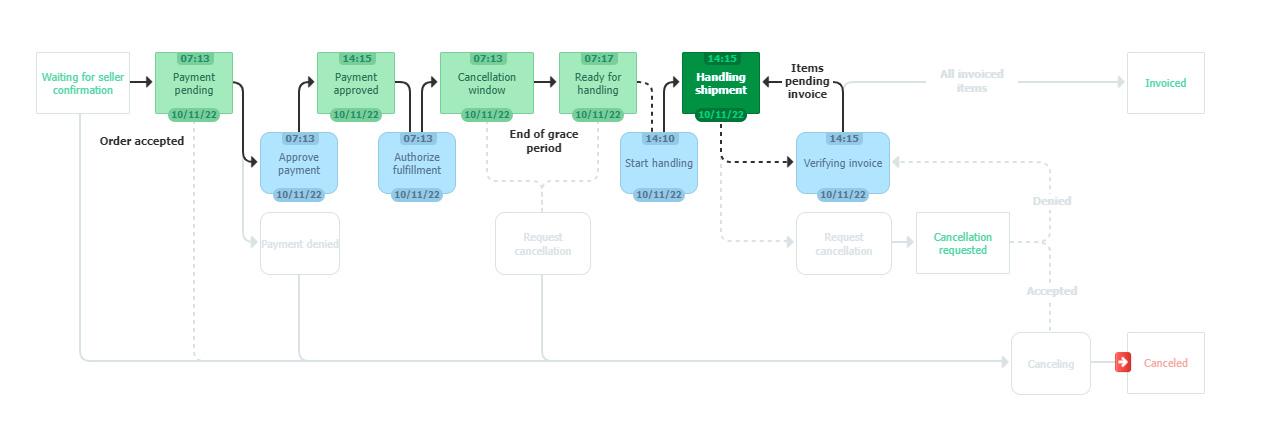\n\n## How do I invoice an order?\n\nIn the **Items to invoice** section of the new interface, you can access all invoicing-related actions through the `Invoice` button, displayed in this section and at the top of the screen. When you click `Invoice`, the following options are shown:\n\n* **Submit invoice referencing items:** This option is exclusive to the new interface. It allows you to issue the invoice for all or specific items identified by SKU, inventory, and price. The following image shows an example:\n\n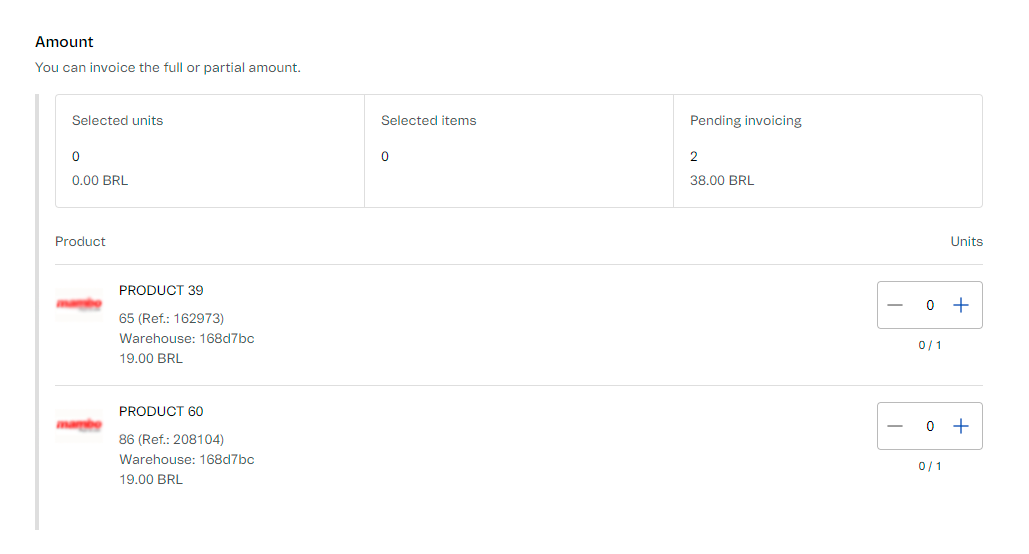\n\n* **Submit single invoice:** This option corresponds to the old _Submit invoice_ and allows you to invoice the full or partial order amount. The page layout is different, but the fields remain the same.\n\nFollow the steps below to invoice an order:\n\n1. In the **Items to invoice** section or at the top of the **Order Details** page, click `Invoice`. \n2. Select an option:\n * Submit invoice referencing items\n * Submit single invoice\n3. Fill in the fields.\n4. Click `Save invoice`.\n\n## How to resend an email to the customer?\n\nIn the new interface, in the **Order history** section, there is a timeline with events related to the order, including sent emails, which are identified with the icon. \n\nTo resend an email to the client, click the sent email event or the arrow icon to see the event details, which will display as in the following image:\n\n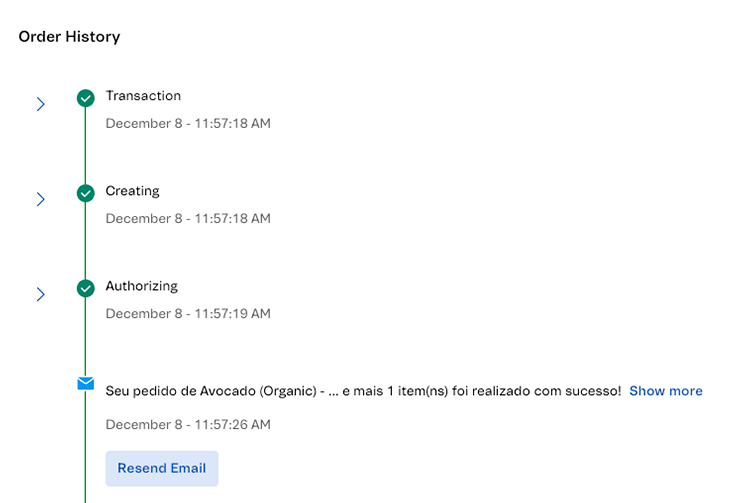\n\nClick the `Resend Email` button, and it will be immediately sent to the customer, and the following confirmation message should be displayed: _Email was successfully resent to the customer_.\n\n> ⚠️ Due to safety measures, you can only resend emails for up to 15 minutes after the order has been invoiced."}