{"section":"tutorials","requestedLocale":"en","requestedSlug":"delivery-options-beta","locale":"en","slug":"delivery-options-beta","path":"docs/en/tutorials/beta/shipping-beta/delivery-options-beta.md","branch":"main","content":"> ℹ️ This feature is in beta, which means we're working on improving it. If you have any questions, contact [our Support team](https://supporticket.vtex.com/support).\n\n**Delivery Options** is a page in the VTEX Admin that allows you to configure flexible and accurate delivery options during the buying journey, such as defining different types of delivery availability and geographic zones and controlling how and when these options are displayed to the customer.\n\nThis gives merchants autonomy to create, configure, and manage delivery options as strategic content on the VTEX platform. This approach provides more flexibility to align logistical capabilities with business objectives, enhancing the shopping experience for customers.\n\nDelivery Options use the [shipping policies](/en/docs/tutorials/shipping-policy) configured in the store. A single delivery option can group several shipping policies, as long as they meet the criteria defined for that option.\n\nShipping policies are associated with a delivery option when they meet both the defined delivery promise and the configured delivery zones. If no shipping policy meets the configured criteria, or if the shipping policies haven't been properly configured, see the article [Creating a shipping policy](/en/docs/tutorials/creating-a-shipping-policy).\n\n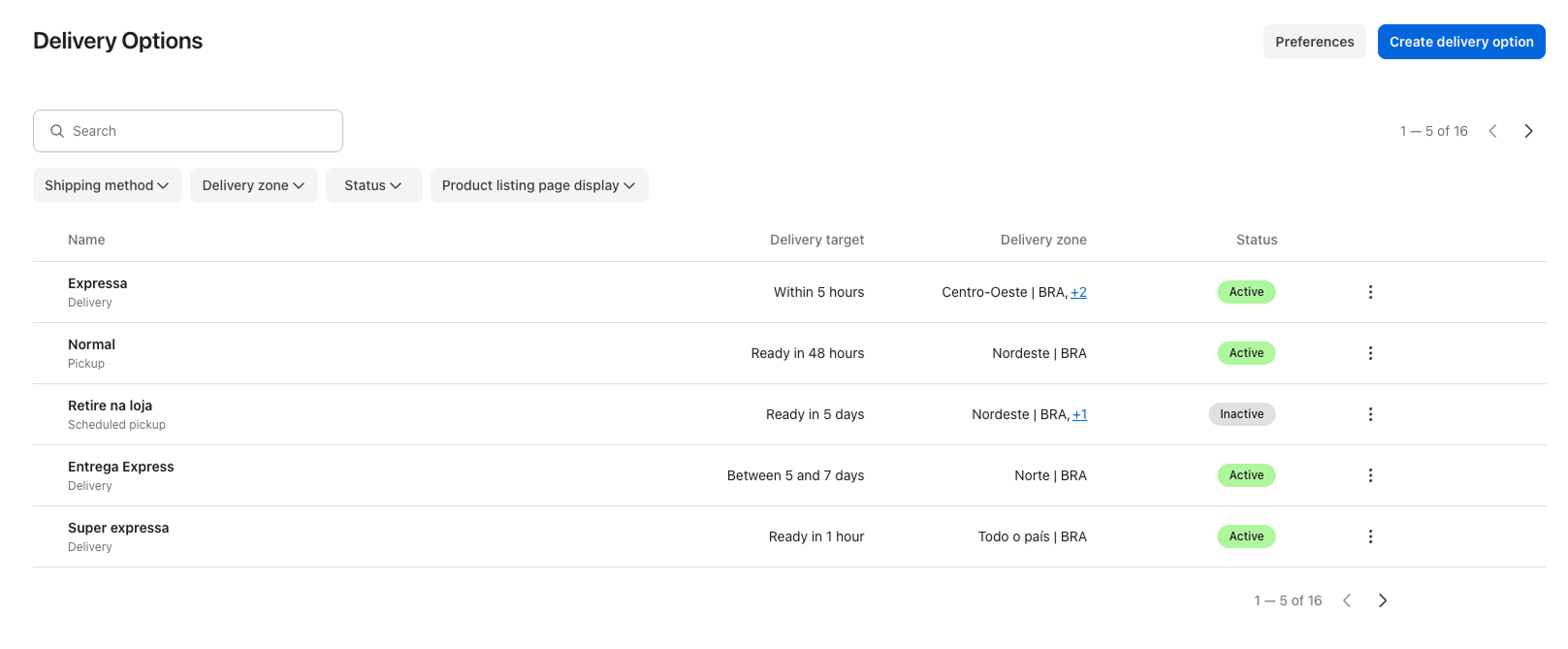\n\nThe page displays the following information in a table:\n\n| Columns | Description |\n| ---|---|\n| Name | Name that identifies the delivery option displayed on the storefront. |\n| Delivery target | Delivery time frame of the delivery option. |\n| Delivery zone | Locations where the delivery option will be available. |\n| Status | Delivery option status, which can be:
- Active: The delivery option is available for the customer.
- Inactive: The delivery option isn't available for the customer.
|\n\n## Creating delivery options\n\nTo create a delivery option, follow the steps below:\n\n1. In the VTEX Admin, go to **Shipping > Delivery Options**, or type **Delivery Options** in the search bar at the top of the page.\n2. Click `Create delivery option`.\n3. Complete the fields in the form:\n 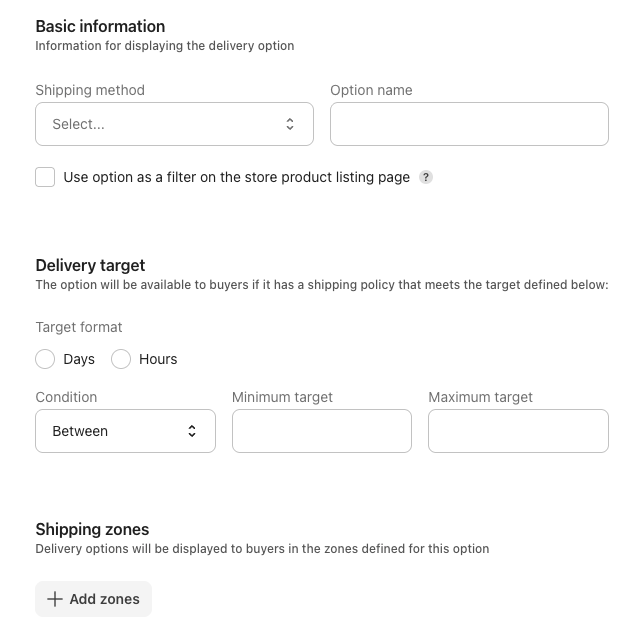\n\n ### Basic information\n\n - **Delivery method:** Select the type of delivery method (**Delivery**, **Scheduled delivery**, **Pickup**, **Scheduled pickup**).\n - **Option name:** Enter the name of the option the customer will see when purchasing.\n\n > ⚠️ Delivery method filters will only be displayed on the product listing page to the customer if this option is enabled. If disabled, the filters won't be displayed.\n\n ### Delivery target\n\n - **Target format**: Select the time unit (**Days** or **Hours**) to be used for shipping.\n - **Condition**: Define the condition (**From**, **Up to**, **Between**) for the delivery target.\n - **Minimum target:** Minimum number of hours or days for the delivery option time frame.\n - **Maximum target:** Maximum number of hours or days for the delivery option time frame.\n\n ### Delivery zones\n\n - **Delivery zones**: Click the `+ Add zones` button, then select the zones you want to cover with the delivery option. You can search for a delivery zone using the search bar. Click `Save` to close the window.\n\n ### Delivery pricing\n\n - **Pricing**: Pricing conditions of the delivery option. The pricing models applied to each segmentation are: **Fixed amount**, a single price applied to all carts; **Markup**, a profit percentage added to the shipping amount; and **Cost pass-through**, where the store bears the cost of the delivery option. You can combine pricing options. The pricing conditions are defined based on the following segmentations:\n - **All carts**: The price will be applied to all carts created in the store.\n - **Sales channels**: The price will be applied to a specific sales channel.\n - **Cart amount**: The price will be applied if the cart total exceeds a certain amount.\n - **Delivery zones:** The price applies to a specific delivery zone. Selecting delivery zones in the previous field is required to use this segmentation.\n4. Click `Create delivery option.`\n\nThe delivery option will then be active and available to customers:\n\n\n\n## Editing delivery options\n\nTo edit a delivery option, follow the steps below:\n\n1. In the VTEX Admin, go to **Shipping > Delivery Options**, or type **Delivery Options** in the search bar at the top of the page.\n2. Find the delivery option you want to edit and click the vertical ellipsis menu .\n3. Click `Edit delivery option`.\n4. Edit the delivery option information.\n5. Click `Save delivery option`.\n\nThe delivery option will then be active and up to date.\n\n## Checking logistics coverage\n\nWhen editing a shipping option, you can check whether the store configuration meets the criteria defined in the option, identifying the sellers, shipping policies, and routes available to fulfill it. This check helps diagnose why a shipping option might not be displayed to the customer.\n\nTo check the logistics coverage of a delivery option, follow the steps below:\n\n1. In the VTEX Admin, go to **Shipping > Delivery Options**, or type **Delivery Options** in the search bar at the top of the page.\n2. Find the delivery option you want to activate and click the vertical ellipsis menu .\n3. Click `Edit delivery option`.\n4. Click `Check logistics coverage`.\n\nThe **Check logistics coverage** modal will open on the right side of the page, displaying the following information:\n\n| Information | Description |\n| ---------------------------- | --------------------------------------------------------------------------------------------------------------------------------------------------------------------------------------------------------------------------------------------------------------------------------------------------- |\n| Sellers | Number of sellers that meet the criteria configured in the delivery option. |\n| Shipping policies | Number of shipping policies that meet the criteria configured in the delivery option. |\n| Delivery zones | List of shipping zones configured in the delivery option, indicating the number of sellers and shipping policies that serve each zone. |\n| Valid routes for this option | List of sellers that fulfill the delivery option, indicating the number of shipping policies and routes for each one. The section title also shows how many sellers are displayed relative to the total found (for example, **showing 2 of 2**). |\n\nIn the **Valid routes for this option** section, click next to a seller name to expand their routes. Each route is presented as the combination of a shipping policy and a loading dock, in the format `Shipping policy + Dock`, as shown in the example below:\n\n- `DHL - FL` + `Main Dock`\n- `DHL - FL` + `Miami`\n- `DHL - NY` + `Main Dock`\n\nThis way, you can identify exactly which combinations of shipping policy and loading dock are enabled to fulfill the delivery option for each seller. To collapse a seller's route list, click .\n\nTo find a specific shipping zone or seller, click in the corresponding section and type the desired name.\n\nIf any store configuration changes while the modal is open, click to update the displayed information. To close the modal, click .\n\n> ℹ️ If a delivery zone has no sellers or shipping policies, the delivery option won't be displayed to the customer in that location. Delivery Options use the [shipping policies](/en/docs/tutorials/shipping-policy) configured in the store.\n\n## Deactivating delivery options\n\nTo deactivate a delivery option, follow the steps below:\n\n1. In the VTEX Admin, go to **Shipping > Delivery Options**, or type **Delivery Options** in the search bar at the top of the page.\n2. Find the delivery option you want to deactivate and click the vertical ellipsis menu .\n3. Click `Deactivate delivery option`.\n4. Click `Deactivate option`.\n\nThe delivery option will then be deactivated.\n\n## Activating delivery options\n\nTo activate a delivery option that is deactivated, follow the steps below:\n\n1. In the VTEX Admin, go to **Shipping > Delivery Options**, or type **Delivery Options** in the search bar at the top of the page.\n2. Find the delivery option you want to activate and click the vertical ellipsis menu .\n3. Click `Activate delivery option`.\n4. Click `Activate option`.\n\nThe delivery option will then be active and available to customers.\n\n## Deleting delivery options\n\nTo delete a delivery option, follow the steps below:\n\n1. In the VTEX Admin, go to **Shipping > Delivery Options**, or type **Delivery Options** in the search bar at the top of the page.\n2. Find the delivery option you want to delete and click the vertical ellipsis menu .\n3. Click `Delete delivery option`.\n4. Click `Delete option`. Note that deletion is irreversible and may impact the shopping experience if the delivery option is active.\n\nThe delivery option will then be deleted.\n\n## Searching for delivery options\n\nTo search for a delivery option, click the search bar and type the name of the delivery option you want.\n\n## Filtering delivery options\n\nTo filter the list of delivery options, click one of the filters described below and select the desired options.\n\n- **Delivery method:** Filters by shipping methods, **Shipping**, **Scheduled delivery**, **Pickup**, and **Scheduled pickup**, as added to the delivery options.\n\n- **Delivery zone:** Filter by the delivery zones configured in the delivery options. You can search for the delivery zone name in the search bar.\n\n- **Status**: Filter by the status (**Active** or **Inactive**) of the delivery options.\n\n- **PLP filter**: Filter the delivery options configured as **Active** or **Inactive** as [filters on the store's product listing page](#filtering-delivery-options).\n\nClick `Apply` to save the selected filter. To remove the filter selection, click `Clear` in each applied filter.\n\n## Setting delivery option preferences\n\nConfigure delivery options on the storefront to customize the customer experience and optimize how they are displayed. Follow these configuration steps to apply your preferences:\n\n1. In the VTEX Admin, go to **Shipping > Delivery Options**, or type **Delivery Options** in the search bar at the top of the page.\n2. Click `Preferences`.\n3. In the **Delivery options as filter** section, set the order in which delivery options will be displayed in navigation filters.\n4. Add the delivery options you want to include in the navigation filters by clicking `+` on the corresponding delivery option.\n5. Select how your options will be displayed in the store:\n - **Always display all available options for the product:** All delivery options available under the shipping conditions will be displayed on the product page and checkout.\n - **Only display the lowest-cost and fastest options:** Only the delivery options with the lowest cost or shortest time will be displayed on the product page and checkout.\n6. Click `Save`."}