{"section":"tutorials","requestedLocale":"en","requestedSlug":"creating-merchandising-rules-visual-editor","locale":"en","slug":"creating-merchandising-rules-visual-editor","path":"docs/en/tutorials/intelligent-search/relevance/creating-merchandising-rules-visual-editor.md","branch":"main","content":"To configure a VTEX Intelligent Search [merchandising rule](/en/docs/tutorials/merchandising-rules) using [Visual Editor](/en/docs/tutorials/merchandising-rules#tipos-de-edicao), follow the steps below.\n\n1.\tIn the VTEX Admin, go to **Storefront**, or type **Storefront** in the search bar at the top of the page.\n2.\tUnder **Intelligent Search**, click **Merchandising Rules**.\n3.\tClick the `+ New` button.\n4.\tComplete the following fields:\n\n\t* **Rule name**: Merchandising rule name. Example: Promote product A when searching for a chocolate cookie.\n\t* **Start date (optional)**: Set a date from which the merchandising rule will apply. The date follows the UTC-0 time zone.\n\t* **End date (optional)**: Set a date when the merchandising rule will no longer apply to store searches. The date follows the UTC-0 time zone.\n\t* **Apply to locales:** Languages to which the merchandising rule will apply. The field is only available for stores using [Multilanguage settings (Beta)](/en/docs/tutorials/vtex-intelligent-search-multilanguage-settings-beta).\n5.\tClick **Visual Editor**. Read the [Types of editing](/en/docs/tutorials/merchandising-rules#tipos-de-edicao) section for more information about each editor.\n6.\tClick `Next`.\n7.\tDefine at least one search term or filter for applying the merchandising rule:\n\n\t* To define a search term, type the term in the search bar (item **II** in the [Actions available in the Visual Editor](#actions-available-in-the-visual-editor) section).\n\t* To create a filter for applying the merchandising rule (item **III** in the [Actions available in the Visual Editor](#actions-available-in-the-visual-editor) section), follow the steps described in the[ Adding filters and conditions](/en/tutorial/criar-regra-de-merchandising-editor-visual-beta--6xteumx9MsDt0uEppbChu3#adicionar-filtros-e-condicoes) section.\n8.\tYou can also perform the following additional actions to customize the search results.\n\n\t* Define the number of items per row in the search results.\n\t* Define the number of items per page in the search results.\n\t* Hide products in the search results.\n\t* Pin products to the top positions of the search results.\n\t* Drag the pinned product to the desired position in the search results.\n\t* Edit the initial settings of the merchandising rule, including the rule name, start and end dates, and the locales to which it will be applied if the store uses the[ Multilanguage settings (Beta)](/en/docs/tutorials/vtex-intelligent-search-multilanguage-settings-beta).\n\n Learn more about these actions in items **IV, V, VI, VIII, IX**, and **XI** of the [Actions available in the Visual Editor](#actions-available-in-the-visual-editor) section.\n9.\tClick `Save`.\n\n> ℹ️ After saving, the changes to merchandising rules will take an average of two minutes to be updated.\n\n## Actions available in the Visual Editor\n\nThe Visual Editor for merchandising rules in VTEX Intelligent Search allows you to perform the actions shown in the image below:\n\n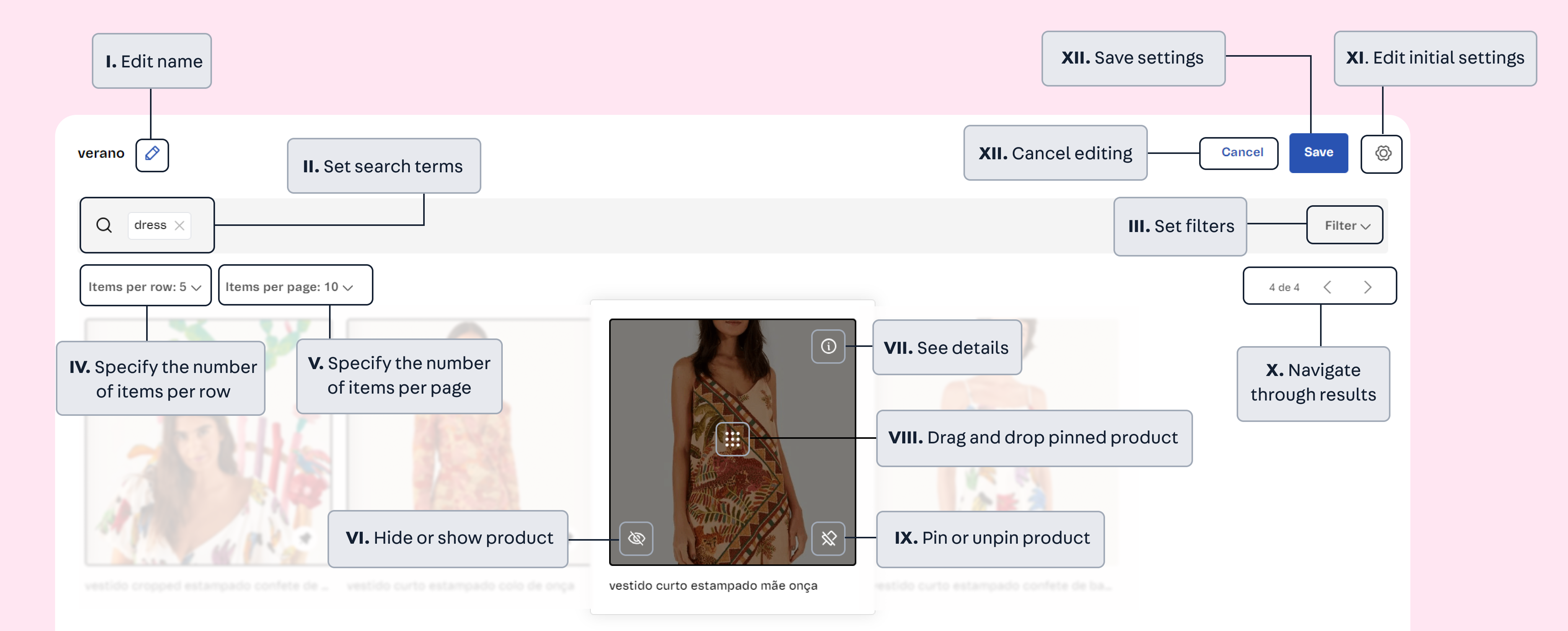\n\n\n - Edit the name of the merchandising rule.
\n - Define search terms to apply the merchandising rule.
\n - Set [filters](#adding-filters-and-conditions)\n to apply the merchandising rule.
\n - Define the number of items per row in the search results.
\n - Define the number of items per page in the search results.
\n - Hide products in the search results. Hidden products appear in gray with the crossed-out eye icon in the Visual Editor. To display a hidden product again, hover over it and click the eye icon .
\n - View product details. The information displayed is:
\n \t \n\t\t\t - **Available:** Indicates whether the product is available in the store.
\n\t\t\t\t- **Clicks:** Number of clicks over the last 90 days.
\n\t\t\t\t- **Orders:** Number of orders containing the product that were placed over the last 90 days.
\n\t\t\t\t- **Revenue:** Revenue the product represented over the last 90 days.
\n\t\t\t\t- **Launch date:** Date on which the product was launched.
\n\t\t\t\t- **Promotion:** Indicates whether the product participates in a promotion.
\n\t\t\t\t- **Discount:** Discount applied to the product.
\n\t\t\t\t- **Available matrix variety:** Represents the percentage of SKUs available for a product. For example, if a product has five SKUs and only three are available, the available matrix variety will be 60%, represented as 0.6 in this field. If all the SKUs are available, the field value will be 1.
\n\t\t
\n\t \n - Drag the pinned product to the desired position in the search results. You can only drag pinned products (action **IX** in this list).
\n - Pin products to the top positions of the search results. By pinning product A and then product B, they will appear in this order in the search results, just before the others. To pin a product, hover over it and click the pin-crossed icon .
\n - Navigate between search result pages.
\n - Cancel editing.
\n - Save settings.
\n
\n\n### Adding filters and conditions\n\nFilters are predefined selectable attributes that narrow the search results, such as filtering for all products in a category or brand, among other conditions. You can add one or more conditions to a filter.\n\nTo add a condition using the Visual Editor, follow the steps below.\n\n1. Click `Filter`.\n2. Click `+ Add condition`.\n3. Fill in the desired conditions. The available options are detailed in [Merchandising rule conditions](/en/docs/tutorials/merchandising-rule-conditions).\n4. Click `Save`.\n\nThe defined conditions can work together (`and`) or alternatively (`or`).\n\nIn the menu of each existing condition, you can `Duplicate` or `Delete` the condition. To deactivate all created conditions, click `Clear filters`."}