{"section":"tutorials","requestedLocale":"en","requestedSlug":"configuring-promotions-with-a-highlightflag","locale":"en","slug":"configuring-promotions-with-a-highlightflag","path":"docs/en/tutorials/promotions-and-taxes/promotions/configuring-promotions-with-a-highlightflag.md","branch":"main","content":"The highlight of a promotion is a visual notification that can be placed on shelves and product pages, informing customers that the item is eligible for a promotion. A common example is the indication of free shipping below the product image.\n\n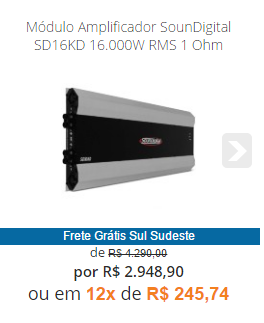\n\nIn this guide, you will find the following sections:\n\n- [Promotions eligible for highlight](#promotions-eligible-for-highlight)\n- [Restrictions](#restrictions)\n- [Configuring a promotion](#configuring-a-promotion)\n- [Promotion highlight in Store Framework](#promotion-highlight-in-store-framework)\n- [Promotion highlight in CMS Portal (Legacy)](#promotion-highlight-in-legacy-cms-portal)\n - [Page template](#page-template)\n - [Shelves template](#Shelves-template)\n\n## Promotions eligible for highlight\n\nPromotion highlighting allows displaying a visual indication on product shelves and product pages, informing that the item is part of an active promotion.\n\nCurrently, the Featured in the product option is available for all promotion types.\n\nHowever, the display of this highlight does not depend on the configured promotion type. In cases where the promotion depends on information that is not yet available at the moment when shelves or product pages are loaded, the highlight is not displayed.\n\n## Restrictions\n\nYou cannot configure the highlight in promotions with restrictions in the cart, such as:\n\n- Postal code range\n- Accumulated purchase value\n- BIN\n- Customer clusters\n- Shipping method\n- Payment method\n- Max installments, first purchase only\n\nThese promotions are not eligible for all customers. This means that customers need to provide additional information (e.g., postal code) for the promotion to be applicable. Therefore, highlights cannot be configured in these cases.\n\n## Configuring a promotion\n\nFollow the instructions below to configure promotions in your store.\n\n1. In the VTEX Admin, go to **Promotions > Promotions**, or type **Promotions** in the search bar at the top of the page.\n2. Search for the promotion you want to configure.\n3. In the **Promotion is highlighted** option, select **Yes**.\n4. Configure the promotion with the desired specifications.\n5. Click the `Save` button.\n6. Follow the instructions corresponding to the frontend technology used by your store:\n\n- [Store Framework](#promotion-highlight-in-store-framework)\n- [CMS Portal (Legacy)](#promotion-highlight-in-legacy-cms-portal)\n\n## Promotion highlight in Store Framework\n\nFor stores developed using Store Framework, after configuring the promotion highlight, follow the instructions in the documentation for the [Product Highlights](https://developers.vtex.com/docs/apps/vtex.product-highlights) component.\n\n## Promotion highlight in CMS Portal (Legacy)\n\nFor CMS Portal (Legacy) stores, after configuring the promotion highlight, configure the [page template](#configure-the-page-template) and [shelves template](#configure-the-shelves-template) in the CMS module. In addition, your CSS must be configured for this function.\n\n### Page template\n\nThis configuration involves editing the page template used for the product page layout and including the `` tag.\n\n1. In the VTEX Admin, go to **Storefront > Layout**, or type **Layout** in the search bar at the top of the page.\n2. Click **CMS > Sites and channels**.\n3. Click the name of the **website** you want.\n4. Click **/ > Product > @Product@**.\n5. Click the layout with a red checkmark.\n\n \n\n6. In the **Template** field, check the name of the template used:\n\n 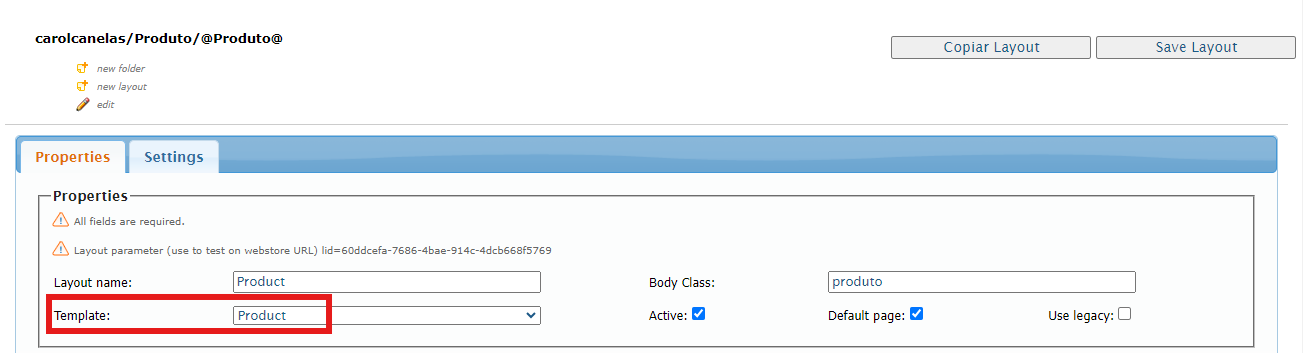\n\n7. In the side menu, click the **HTML Templates** folder.\n8. Click the template found at **@Product@**.\n\n \n\n9. Enter the code `` based on your HTML structure.\n10. Click **Save Template**.\n\n### Shelves template\n\n1. In the VTEX Admin, go to **Storefront > Layout**, or type **Layout** in the search bar at the top of the page.\n2. Click **CMS > Shelves Templtes**.\n\n 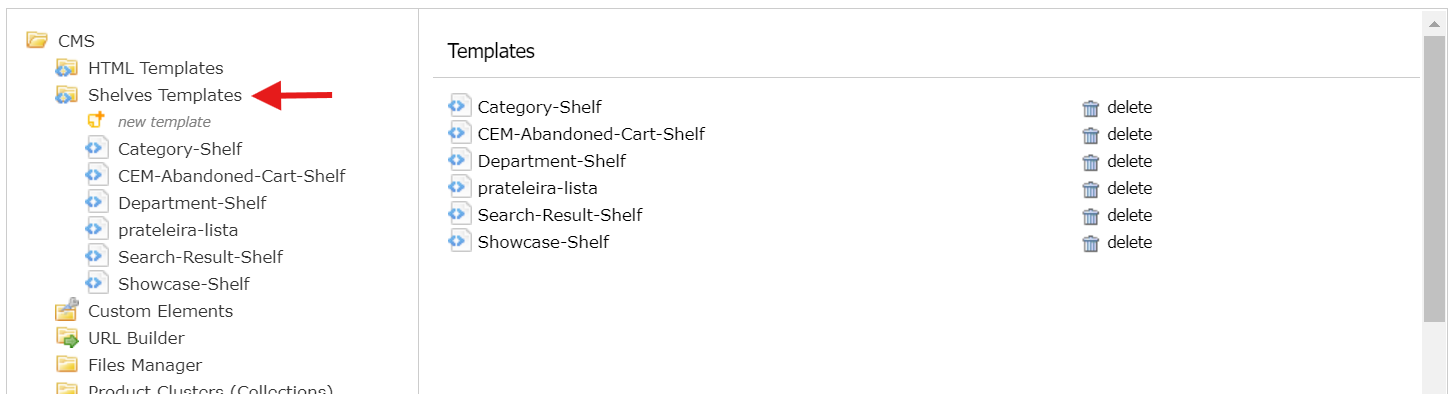\n\n3. Click the desired template.\n4. Enter the `$product.DiscountHightLight` code.\n5. Click **Save Template**.\n\nAfter making the settings in the VTEX Admin and adding the appropriate tags to the templates, a CSS class with the name of each promotion that meets the requirements will be automatically generated in the HTML. For example, if the promotion is called \"BlackFriday,\" a class called `.BlackFriday` will be generated in the HTML of the product or shelf.\n\nOnce the class is generated, you will need to define your CSS styles, customizing a text or image for the flag directly in the templates."}