{"section":"tutorials","requestedLocale":"en","requestedSlug":"banners","locale":"en","slug":"banners","path":"docs/en/tutorials/intelligent-search/banners/banners.md","branch":"main","content":"Banners is the Intelligent Search feature that displays banners, like promotional activities, on the search results page of the customer. The banner display is based on an analysis of the search context, including selected terms and filters, in the buyer’s journey. Banners can also be configured for each existing category in your catalog, as well as for departments and subcategories.\n\nEach customer group in your store, having its own profile, has its own interest. Your marketing campaigns need to take this into account in order to be effective and increase the sales conversion rate. The flexible settings of banners allow you to create marketing campaigns that are more creative, working your brand’s relationship with the public on an individual level.\n\nIt is worth noting that these settings can be configured by terms as well as by filters used during the search. Based upon the context captured by Intelligent Search, the system chooses the content, previously added, that is most relevant in that situation.\n\nFor example, consider that the customer searches for \"running shoes\", and in the search results they can filter by several attributes (\"size\", \"type\" and \"brand\"). When selecting the “nike” filter, in case there is a campaign of this brand in the store, it can be displayed to the customer (filter). The customer can also be directed to a more specific promotion of Nike running shoes (term and filter), if you've created a campaign and linked it to the banner.\n\n## Banners listing page\n\nOn VTEX Admin, the page **Storefront** > **Banners** shows the full list of registered banners and allows you to perform the following actions:\n\n* [Create a banner](#creating-a-banner)\n* [Search for banners](#searching-a-banner)\n* [Edit a banner](#editing-a-banner)\n* [Delete a banner](#deleting-a-banner) \n\n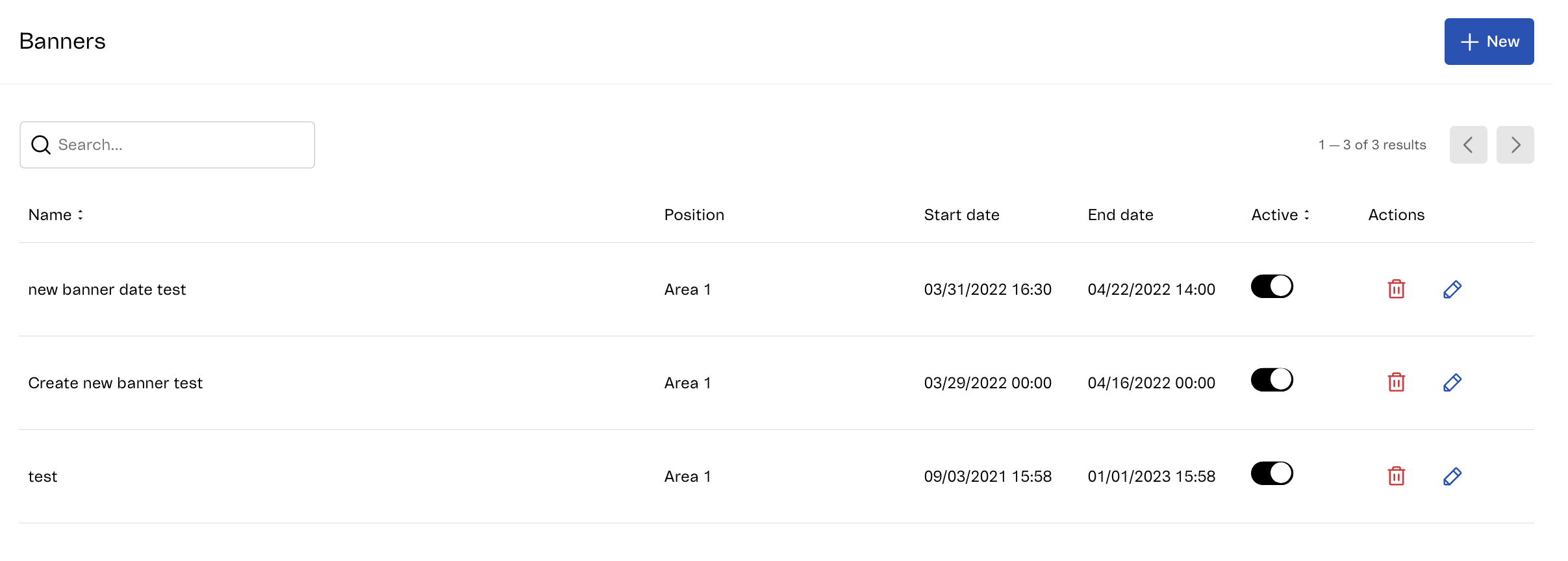\n\nThe page shows the following information:\n\n| Column | Description |\n| ---------- | ------------------------------------------------------------------------------------------------------------------------------------------------------------------------------- |\n| Name | Name that identifies the banner, defined when [Creating a banner](#creating-a-banner). |\n| Position | Position of the banner on the search results page. |\n| Start Date | Date when the banner will start being available. |\n| End Date | Date when the banner will stop being available. |\n| Active | Option that activates or deactivates the banner. |\n| Actions | Ability to delete or edit the banner. |\n\n## Creating a banner\n\nTo add a new banner, click `New`. Learn more about all the information needed to create a Banner in [Configure Banners](/en/docs/tutorials/configuring-banners).\n\n## Searching for banners\n\nTo search for a banner, enter the name of the banner in the search bar.\n\n## Editing a banner\n\nYou can edit the banner details by following the steps below.\n\n1. Click the pencil button.\n2. Change the desired banner details.\n3. Click `Save`.\n\n## Deleting a banner\n\nYou can delete a banner by clicking the trash button."}