{"section":"tutorials","requestedLocale":"en","requestedSlug":"amazon-listing","locale":"en","slug":"amazon-listing","path":"docs/en/tutorials/integrations/integration-settings/amazon-listing.md","branch":"main","content":"**Amazon Listing** allows sellers to add products in the VTEX Admin and list them on Amazon. Once you've completed the [integration with Amazon](/en/docs/tracks/configuring-the-amazon-integration), you'll need to make your store products available for listing on the marketplace. There are two ways to do this:\n\n- If the product already exists on Amazon, follow the instructions in the [Amazon Offer Matching tutorial](/en/docs/tutorials/amazon-offer-matching) to link your product to an Amazon offer.\n- If the product doesn't exist on Amazon yet, follow the steps in this tutorial to add the product and create a new offer.\n\n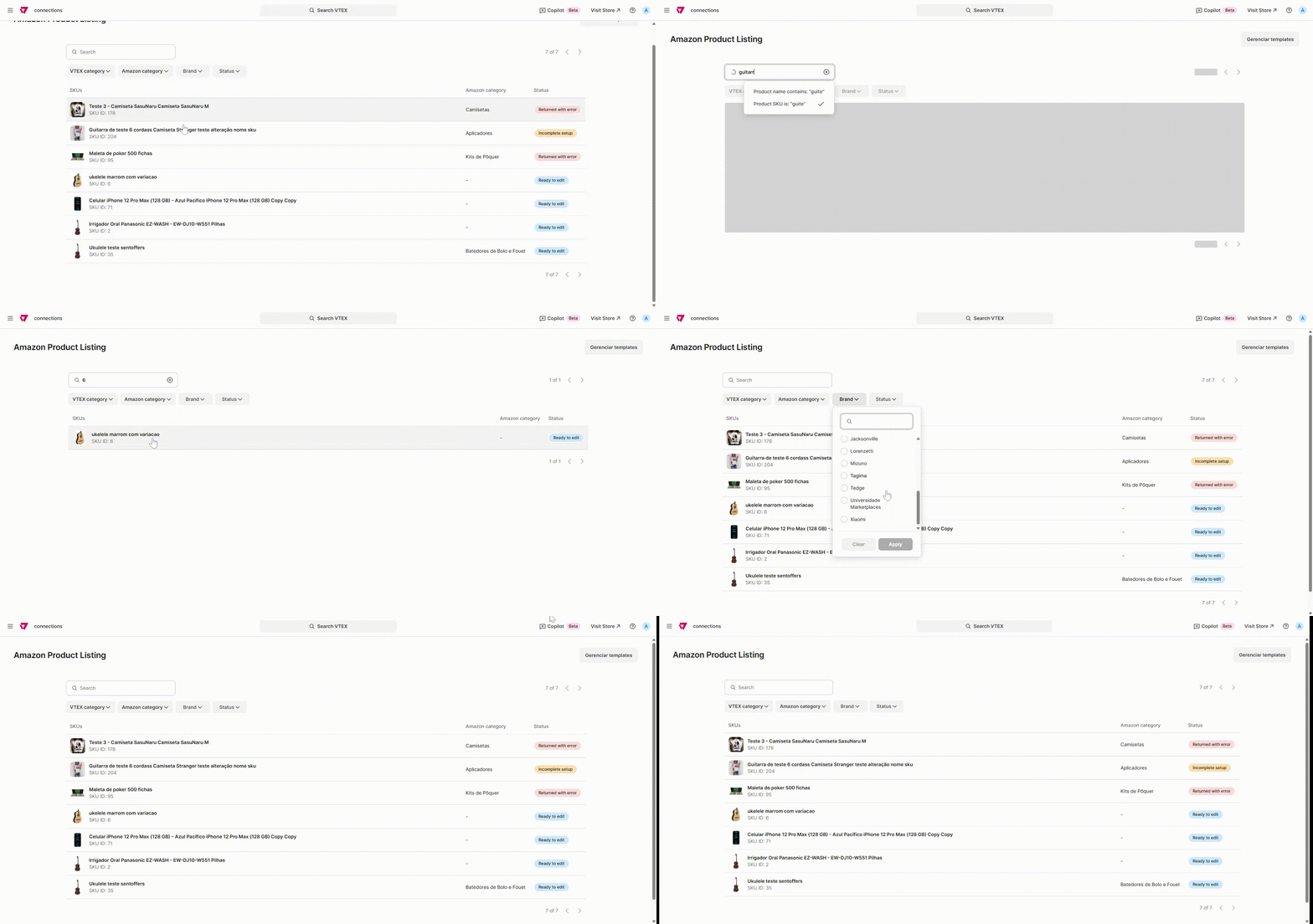\n\n> ℹ️ All products must have [Inventory](/en/docs/tutorials/warehouse) and [Price](/en/tracks/precos-101--6f8pwCns3PJHqMvQSugNfP) configured before being sent to the marketplace.\n\n## Page overview\n\nTo access Amazon Listing, in the VTEX Admin, go to **Marketplace > Connections > Amazon Listing,** or type **Amazon Listing** in the search bar.\n\nThe page consists of the following sections:\n\n- [Search bar](#search-bar) \n- [Filters](#filters) \n- [SKU list](#sku-list) \n\n### Search bar\n\nIn the search bar, you can search SKUs by **name** or **SKU ID.** See some examples below.\n\n\n\n\n\n### Filters\n\nYou can filter SKUs by **VTEX category, Amazon category, Brand**, or **Status.** Filters can be applied individually or combined, depending on the seller's strategy.\n\n#### Filter types\n\n- **VTEX category:** Displays the SKU category options from the VTEX catalog. \n- **Amazon category:** Displays the SKU category options available on Amazon.\n- **Brand:** Displays all the brands listed in the seller's catalog.\n- **Status:** Shows the status of the SKUs in the list of products available in Amazon Listing. Each SKU has a status. See below what each status represents:\n - **Ready to edit:** Indicates the SKU is available for the seller to complete the required attributes before sending it to Amazon.\n - **Incomplete setup:** Indicates the SKU has some attributes partially completed by VTEX and requires additional information from the seller.\n - **Returned with error:** Indicates the SKU was sent to Amazon but contains incorrect information. In this case, Amazon returns the SKU error, and the seller must correct and resend it.\n - **Sent:** Indicates the SKU has been completed correctly and sent to Amazon.\n - **Published:** Indicates the SKU has been sent, accepted by Amazon, and available in the marketplace. \n\n### SKU list\n\nWhen you access **Amazon Listing,** you'll see a list of SKUs from your VTEX catalog that are available for integration with Amazon. Each SKU in the list displays the following information: **SKU Name, SKU ID, Amazon category**, and **Status.** \n\n## Adding SKUs\n\nThe process for adding SKUs is done exclusively via **Amazon Listing.** You can edit products on this page manually, one by one, or by using previously created [templates](#template-for-adding-products). \n\nSKUs with previously mapped attributes will appear in the list with the status **Incomplete setup**.\nHere's how you can add new SKUs via Amazon Listing:\n\n1. In the VTEX Admin, go to **Marketplace > Connections > Amazon Listing,** or type **Amazon Listing** in the search bar. \n2. Select the SKU you want to add. \n3. Complete the fields **Title, Description, Keywords**, and **Category.** \n4. Click the `Save and send` button to validate the SKU and send it to Amazon, or click the `Finish later` button to save and finish later. \n\nOnce the SKU is complete and sent, it enters a processing queue. The status changes to **Sent** while awaiting approval or rejection from Amazon. If accepted, the SKU status changes to **Published**. If rejected, the status changes to **Returned with error** for corrections.\n\n## Template for adding products\n\nTo streamline the process, you can create templates to apply the same attributes to all the SKUs in the same Amazon category. See below how to create and manage templates.\n\n### Creating a template\n\n1. In the VTEX Admin, go to **Marketplace > Connections > Amazon Listing,** or type **Amazon Listing** in the search bar. \n2. Click a product with the status **Sent** or **Published.** \n3. Click the `Create template` button and a modal will open. \n4. Select the attributes you want to apply to other SKUs in the same Amazon category. \n5. Click the `Confirm` button. \n\n### Managing templates\n\nOn the Template management page, you can filter templates by Amazon category, delete a template, and edit a template. \n\n#### Editing templates \n\n1. In the VTEX Admin, go to **Marketplace > Connections > Amazon Listing,** or type **Amazon Listing** in the search bar. \n2. Click the `Manage templates` button. \n3. Select the template you want to edit. \n4. Make the necessary changes. \n5. Click the `Save` button to proceed with the changes, or `Discard` to delete the changes made. \n\nWhen editing a template, you can add new attributes and delete attributes from the existing template. To do this, follow the steps below:\n\n1. In the **Attributes** section, click the button.\n2. Select the checkbox for the attributes you want to include or remove.\n3. Click the `Confirm` button.\n\nWhen you edit a template, an option to view the changes will be displayed in the page footer.\n\n> ℹ️ All changes made to the template will apply to SKUs in the same category that haven't been sent yet.\n\n#### Deleting templates\n\n1. In the VTEX Admin, go to **Marketplace > Connections > Amazon Listing,** or type **Amazon Listing** in the search bar.\n2. Click the `Manage templates` button\n3. In the template you want to delete, click the `trash can` button.\n4. In the modal displayed on the screen, click the `Finish` button."}