{"section":"tracks","requestedLocale":"en","requestedSlug":"setting-up-the-app","locale":"en","slug":"setting-up-the-app","path":"docs/en/tracks/payment-solutions/customer-credit-getting-started/setting-up-the-app.md","branch":"main","content":"After installing the Customer Credit app, you must perform the following settings:\n\n- [First access](#first-access)\n- [App](#app-settings) \n- [Payment conditions](#payment-conditions)\n\n## First access\n\nTo perform the initial Customer Credit settings, follow the steps below:\n\n1. In the VTEX Admin, go to __Apps > Customer Credit > Settings__, or type __Settings__ in the search bar at the top of the page.\n2. In the __Pending__ section, one or more of the settings listed below may be displayed:\n
\n\n
\n \t- **Enable transactional emails on Message Center**: click in **Enable** to install the transactional email templates related to Customer Credit in [Message Center](/en/docs/tutorials/understanding-the-message-center).
\n \t- **Setting checkout payment conditions**: click in **Setting** to allow the definition of the store's deadline and installment rules.
\n \t- **Affiliation not authenticated**: click in **Authenticate** to be redirected to the configuration screen where you must fill in the information **Application Key** and **Application Token**. This action will allow payments made through Customer Credit to be processed in your store. Find out more at [Authentication](https://developers.vtex.com/docs/guides/authentication).
\n
\n\n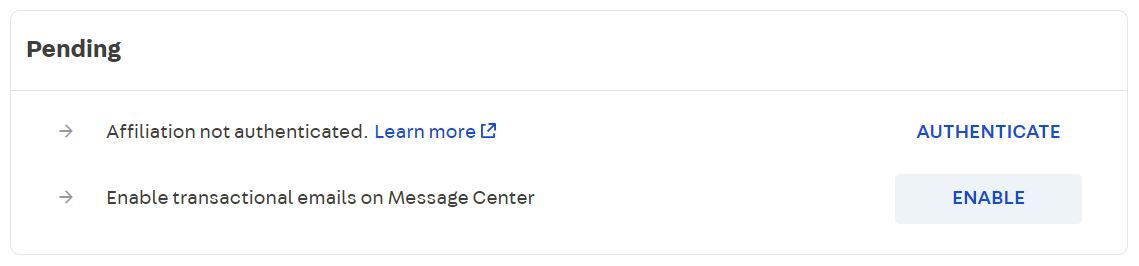\n\n## App settings\n\nThen, still on the same VTEX Admin screen(__Apps > Customer Credit > Settings__), you should check the following settings options:\n\n- [Tolerance](#tolerance)\n- [Automatic account creation](#automatic-account-creation) \n- [My Credits page](#my-credits-page)\n- [Payment instructions](#payment-instructions)\n- [Identifying Information](#identifying-information)\n\n### Tolerance\n\nActivating this option allows a purchase to be completed even if its value exceeds the customer's available credit limit. When creating an account, it is possible to register an excess credit percentage (tolerance) for each customer.\n\nFor example, for an account created with a credit limit of $1,000.00 and a tolerance of 10%, the customer will be able to place an order with a maximum value of $1,100.00 using Customer Credit as a payment method. If the customer wishes to use the credit to pay for an order worth $1,250.00, the system will not allow the purchase to be completed.\n\n> ⚠️ Tolerance values are configured in decimal numbers, with 0 representing 0% and 1 representing 100%. Example: to use a tolerance of 5%, the value to be configured is 0.05.\n\n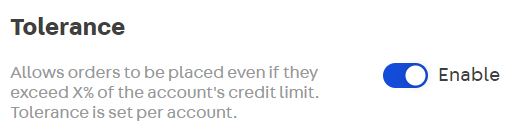\n\n### Automatic account creation\n\nThis option allows any store customer to use Customer Credit as a payment method, even if you have not previously created an account for them in the Customer Credit app. When activating this functionality, you must also define the initial credit limit that can be used for orders placed by customers without a Customer Credit account.\n\n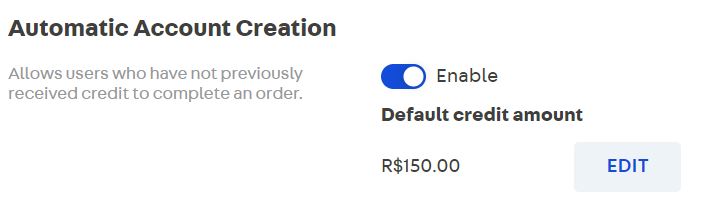\n\n### My Credits page\n\nBy installing the __My Credits__ page, you will allow customers to view and manage information about the credits and titles available in their account.\n\nThe customer can access this page on your store's website at __My account > My Credits__.\n\n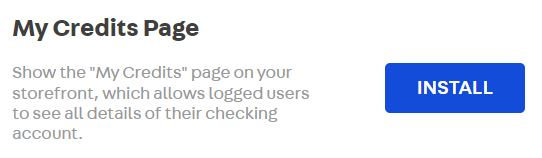\n\n### Payment Instructions \n\nThis configuration allows you to insert instructions related to payment in the invoices issued by Customer Credit. To edit the message to be displayed in the invoice, enter the information in the test box and click `Update`.\n\n> ⚠️ The message registered in this configuration will be replicated on all invoices issued for all Customer Credit accounts. It is not possible to configure a unique message for each specific customer or invoice.\n\n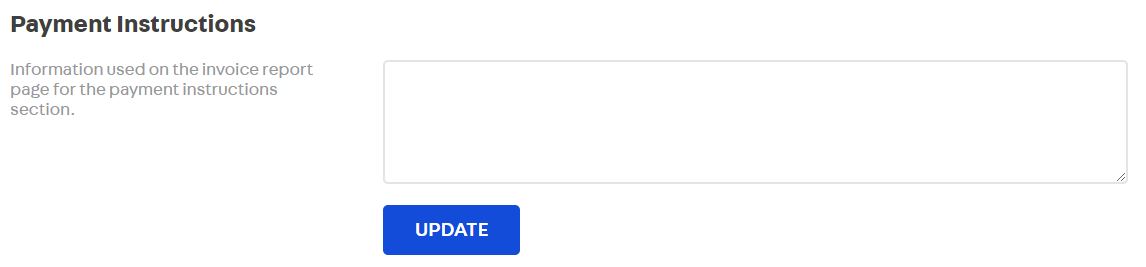\n\n### Identifying Information\n\nThis option allows you to select which store identification information should be displayed at the top of issued invoices.\n\n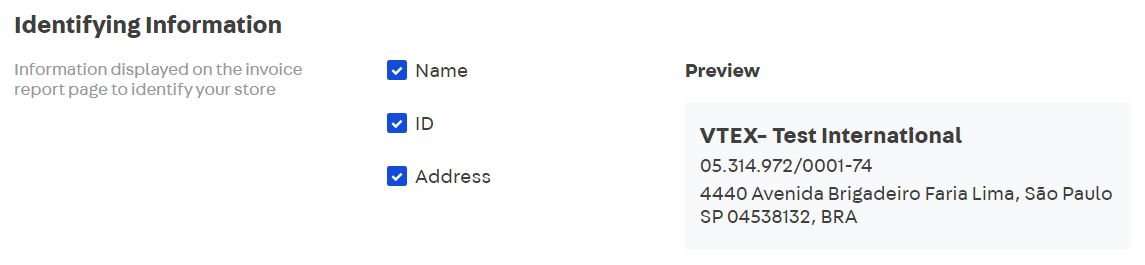\n\n\n\n## Payment conditions\n\nOnce the Customer Credit settings are completed, it is necessary to indicate which term and installment options will be available to be displayed to customers on the Checkout screen.\n\nTo create payment conditions for Customer Credit invoices, follow the steps below:\n\n1. In the VTEX Admin, go to __Store Settings > Payment > Settings__, or type __Settings__ in the search bar at the top of the page.\n2. On the __Payment Conditions__ tab, click the `+` button.\n3. Select the option __Customer Credit__.\n4. Fill in the field __Condition name__ with a name of your choice for identification.\n5. Enable the condition in the __Status__ field.\n6. In __Configure Due Date and Installment Rules__, indicate the number of installments, due period (in days) and the simple interest rate to be applied to each installment. To create more than one payment condition, click `Add new condition`.\n\n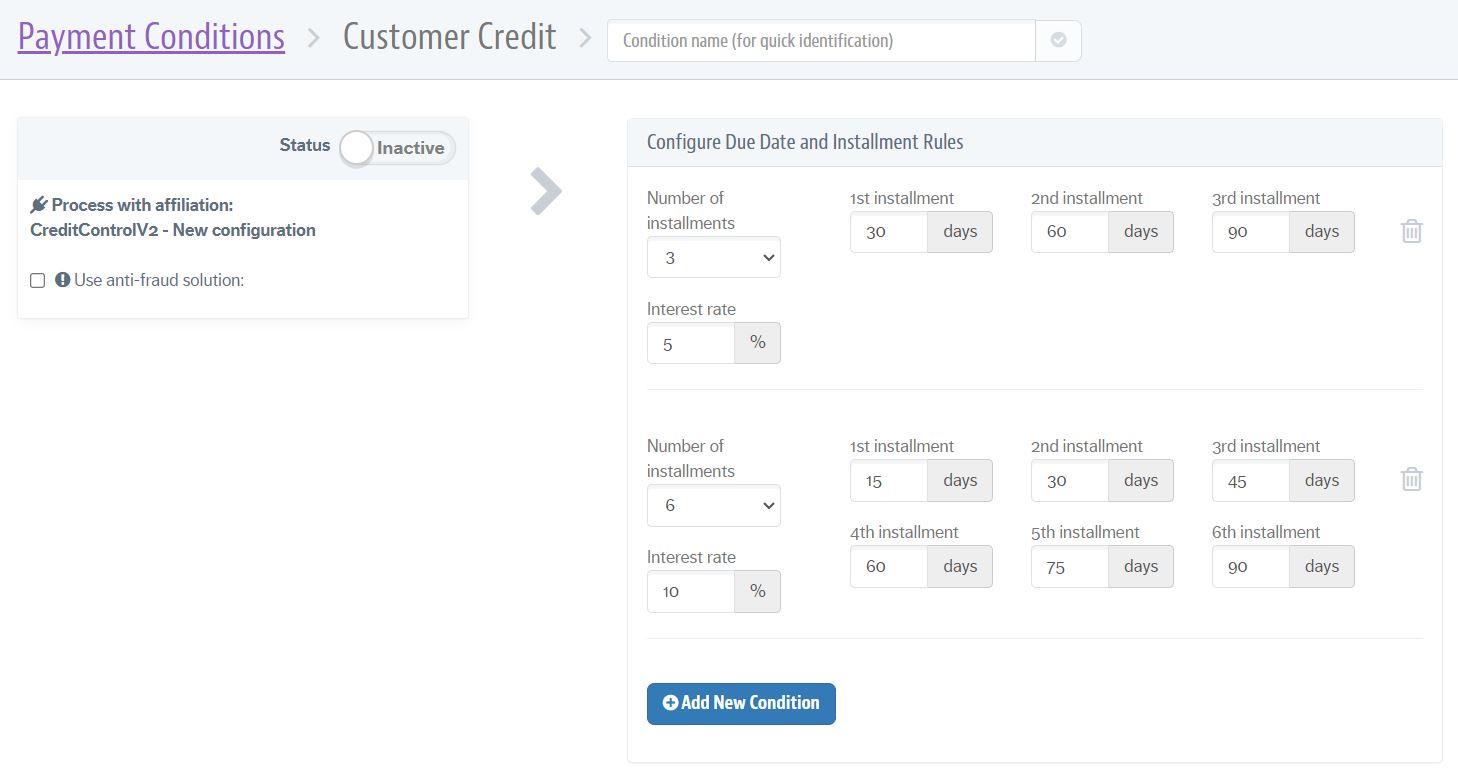\n\n7. If you wish, you can also configure [payment special conditions](/en/docs/tutorials/special-conditions).\n\n8. Click **Save**.\n\n> ⚠️ It is not possible to set an interest rate for a payment condition created with just a single installment."}