{"section":"tracks","requestedLocale":"en","requestedSlug":"managing-customer-credit-invoices","locale":"en","slug":"managing-customer-credit-invoices","path":"docs/en/tracks/payment-solutions/customer-credit-getting-started/managing-customer-credit-invoices.md","branch":"main","content":"The __Invoices__ screen in the VTEX Admin (__Apps > Customer Credit > Invoices__), allows you to access information on all invoices issued by customers registered with Customer Credit in your store. Through this functionality, you can perform the following actions:\n\n- [Filter invoice view](#invoice-filter) \n- [Check details of each invoice](#invoice-details)\n- [Settle invoices](#settle-invoices)\n
\n
\n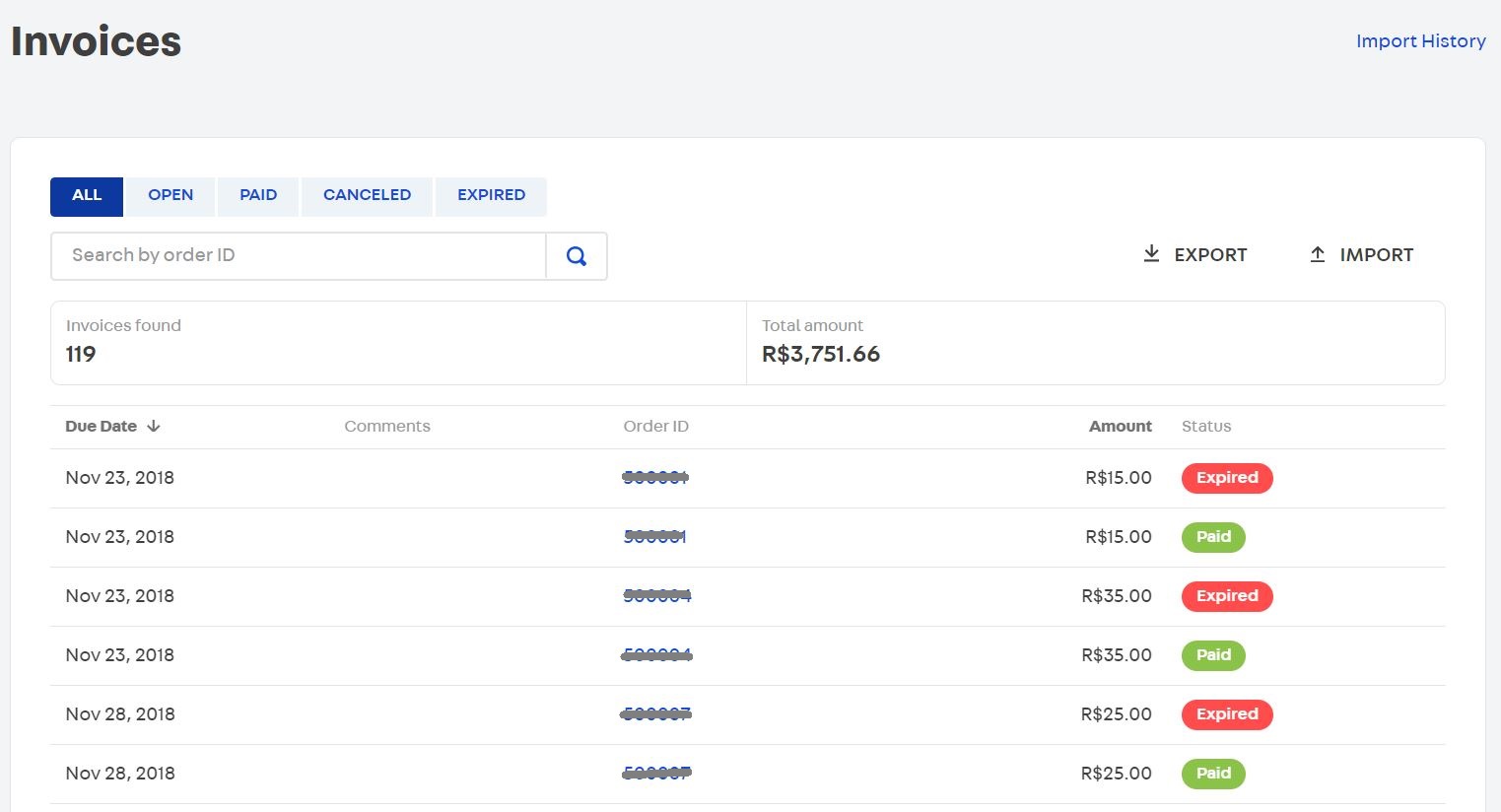\n\n## Invoice filter\n\nTo select the list of invoices to be displayed, you can click on one of the four statuses (Open, Paid, Canceled or Expired), or enter the identification number of the order for which the invoice was issued.\n\n> ⚠️ In Customer Credit, all invoices are created with the status **Open**.\n\n## Invoice details\n\nWhen clicking on a specific invoice, the __Invoice Summary__ page displays the following information: value of the invoice issued, due date, payment link (if there is one), identification of the account where it was issued, identification of the order and observations (specific messages about the invoice).\n\n## Settle invoices\n\nTo facilitate the payment process for a invoice, it is possible to provide a payment link directly to the customer. This link can be added to the title in two ways:\n\n- Use the `IMPORT` function to insert data from a .csv spreadsheet.\n- Via [PUT Change Invoice](https://developers.vtex.com/docs/api-reference/customer-credit-api#put-/api/creditcontrol/accounts/-creditAccountId-/invoices/-invoiceId-) endpoint of the Customer Credit API.\n\n> ℹ️ After carrying out one of the procedures above, the customer will have access to the **PAY** button that is available in their customer area on the store's website (**My Account > My Credits**).\n\n### Individual settlement\n\nAfter confirming payment for a invoice, you can settle it as follows:\n\n1. In the VTEX Admin, access __Apps > Customer Credit > Invoices__, or type __Invoices__ in the search bar at the top of the page.\n2. Click on the desired invoice.\n3. On the __Invoice Summary__ page, click on __Mark as Paid__.\n4. On the __Invoices__ page, confirm that the invoice status is indicated as __Paid__.\n\n### Bulk settlement\n\nIf you want to confirm the payment of several invoices at the same time, follow the steps below:\n\n1. In the VTEX Admin, access __Apps > Customer Credit > Invoices__, or type __Invoices__ in the search bar at the top of the page.\n2. Click on the `EXPORT` button.\n3. Access the downloaded .csv spreadsheet and modify the information in the `Status` field to `Paid` in the lines corresponding to the invoices you want to settle. Save the spreadsheet.\n4. Click on the `IMPORT` button.\n5. Select or insert the .csv spreadsheet in the space __Drop your CSV here or choose a file__.\n6. Click on the `IMPORT FILE` button.\n7. After the spreadsheet is loaded into Admin, check on the __Invoices__ screen if the updated invoices are described as __Paid__.\n\n### API settlement\n\nYou can also settle a invoice through the [PUT - Change invoice](https://developers.vtex.com/docs/api-reference/customer-credit-api#put-/api/creditcontrol/accounts/-creditAccountId-/invoices/-invoiceId-). For more information about Customer Credit API endpoints, visit [Customer Credit API - Overview](https://developers.vtex.com/docs/api-reference/customer-credit-api#overview)."}