{"section":"tracks","requestedLocale":"en","requestedSlug":"creating-accounts","locale":"en","slug":"creating-accounts","path":"docs/en/tracks/payment-solutions/customer-credit-getting-started/creating-accounts.md","branch":"main","content":"The next step is to create accounts for the customers you want to offer credit to in your store. Accounts can be created in three different ways:\n\n- [Individual account (Admin VTEX)](#create-accounts-individually)\n- [Multiple Accounts (Admin VTEX)](#create-multiple-accounts-bulk-import)\n- [Individual account (Customer Credit API)](#create-account-via-api)\n\n> ℹ️ Accounts created in the Customer Credit app have no relationship or share data with the customer base registered in the store's [Master Data entities](/en/docs/tutorials/master-data#data-entities). For a customer to be able to use Customer Credit as a payment method, their account must be registered by the merchant in the app even if the customer already has an account in the store.\n\n## Create accounts individually\n\nTo register a new customer in Customer Credit, follow the steps below:\n\n1. In the VTEX Admin, access __Apps > Customer Credit > Accounts__, or type __Accounts__ in the search bar at the top of the page.\n2. On the __Accounts__ screen, click the `NEW` button.\n3. In __Identification__, select the __Document type__ and fill in the __Document__ and __Email__ fields with the information of the customer you want to register.\n4. In __Credit__, enter the __Credit Limit (BRL)__ and __Tolerance__ values that you want to make available to the customer.\n5. Click `Confirm`.\n\n> ⚠️ Filling in the **Email** field is mandatory, as the VTEX platform uses this information to authenticate the customer's access to the credit limits of their account. For more information about data protection, visit [SmartCheckout Security](/en/docs/tutorials/smartcheckout-security).\n\nFrom this moment on, the new account created will be displayed on the __Accounts__ screen.\n\n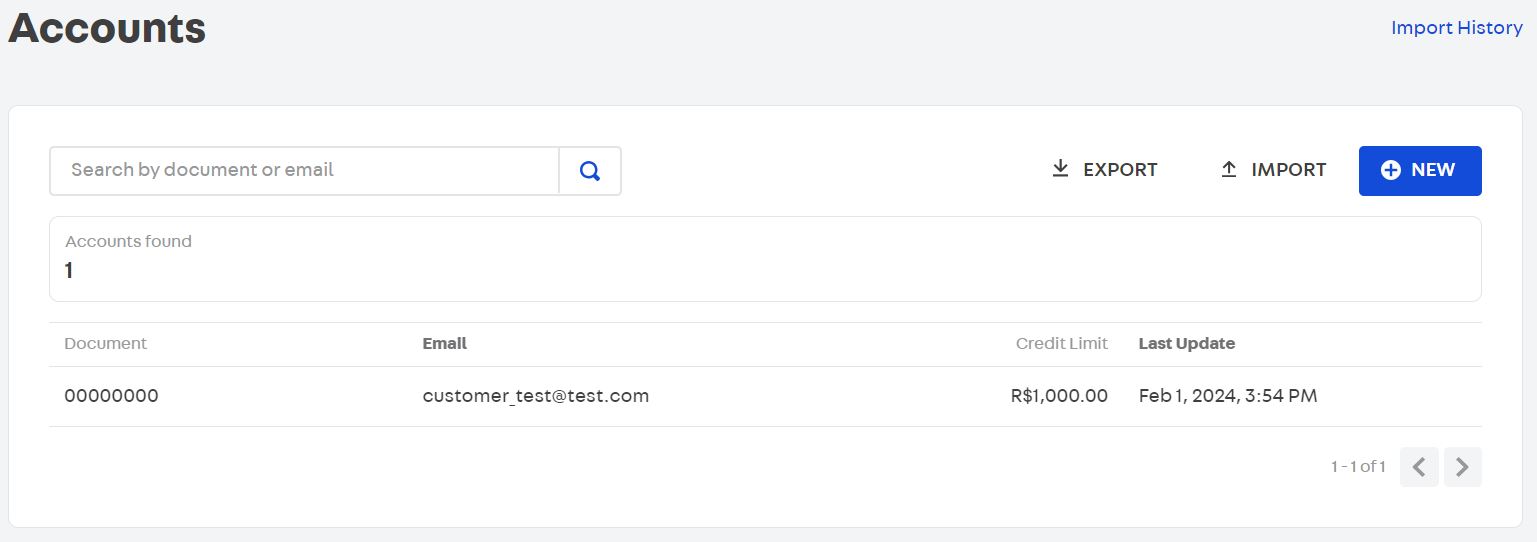\n\n## Create multiple accounts (bulk import)\n\nTo create multiple accounts at the same time (in bulk) in Customer Credit, you can use a template spreadsheet in CSV (Comma Separated Value) format containing each customer's information. Follow the steps below to create multiple accounts:\n\n1. In the VTEX Admin, access __Apps > Customer Credit > Accounts__, or type __Accounts__ in the search bar at the top of the page.\n2. On the __Accounts__ screen, click the `IMPORT` button.\n3. In __Do you want to create or update accounts?__, select the __Create__ option and click `CONTINUE`.\n4. Click on `DOWNLOAD TEMPLATE`. A spreadsheet template in .csv format will be sent to your device (computer, cell phone or tablet).\n5. Fill in each line:\n
\n\n - Columns **Email**, **Document** and **Document Type**: customer information.
\n - Columns **Credit limit** and **Tolerance rate**: values available to each customer. The **Tolerance rate** must be entered in decimal format, for example, a tolerance of 5% must be indicated as 0.05.
\n
\n\n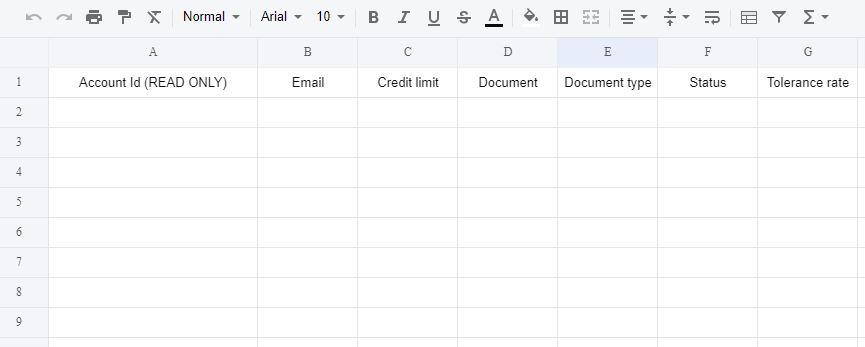\n\n6. Save the .csv spreadsheet.\n\n7. Return to the **Accounts** screen and click the **IMPORT** button again.\n\n8. In **Do you want to create or update accounts?**, select the **Update** option and click **CONTINUE**.\n\n9. Insert or select the .csv spreadsheet in the space **Drop your CSV here or choose a file**.\n\n10. Click on the **IMPORT FILE** button.\n\nFrom this moment on, new accounts created via the .csv spreadsheet will be available on the __Accounts__ screen.\n\n> ⚠️ It is also possible to track previous processes of creating multiple accounts, identifying whether the accounts were created correctly. To check this information, click on **Import History** on the **Accounts** screen. \n\n### Update multiple accounts (bulk import)\n\nTo update information, such as document, document type, email, credit limit and tolerance, in multiple accounts at the same time, you can also use the bulk import functionality.\n\nThe procedure is similar to [create multiple accounts](#create-multiple-accounts-bulk-import). However, you must already have the .csv spreadsheet downloaded and filled out on your device (computer, cell phone or tablet). Follow the steps below to update customer information: \n\n1. In the VTEX Admin, access __Apps > Customer Credit > Accounts__, or type __Accounts__ in the search bar at the top of the page.\n2. On the __Accounts__ screen, click the `IMPORT` button.\n3. In __Do you want to create or update accounts?__, select the __Update__ option and click `CONTINUE`.\n4. Insert or select the .csv spreadsheet in the space __Drop your CSV here or choose a file__ here.\n5. Click on the IMPORT FILE button.\n6. After the spreadsheet is loaded into Admin, check on the __Accounts__ screen whether the information was updated correctly in each customer's accounts. \n\n## Create account via API\n\nYou can also create accounts for your customers in Customer Credit through the endpoint [POST - Open an account](https://developers.vtex.com/docs/api-reference/customer-credit-api#post-/api/creditcontrol/accounts).\n\nFor more information about Customer Credit API endpoints, visit [Customer Credit API - Overview](https://developers.vtex.com/docs/api-reference/customer-credit-api#overview)."}