{"section":"tutorials","requestedLocale":"en","requestedSlug":"security-monitor","locale":"en","slug":"security-monitor","path":"docs/en/tutorials/security/vtex-shield/security-monitor.md","branch":"main","content":"> ℹ️ This feature is part of [VTEX Shield](/en/docs/tutorials/vtex-shield). If you are already a VTEX customer and want to adopt VTEX Shield for your business, please contact [Commercial Support](/en/docs/tracks/commercial-support). Additional fees may apply. If you are not yet a customer but are interested in this solution, please complete our [contact form](https://vtex.com/pt-br/contato/).\n\nSecurity Monitor is a dashboard that helps merchants identify and manage potential risks in their environment in real time. The tool identifies configuration risks and the behavior of admin users, then notifies merchants via email, enabling them to take preventive action against security vulnerabilities.\n\nTo access the dashboard, follow the steps below:\n\n1. In the VTEX Admin, go to **Dashboards**, or type **Dashboards** in the search bar.\n2. Under **Security Monitor**, click **Security Monitor Dashboard**.\n\n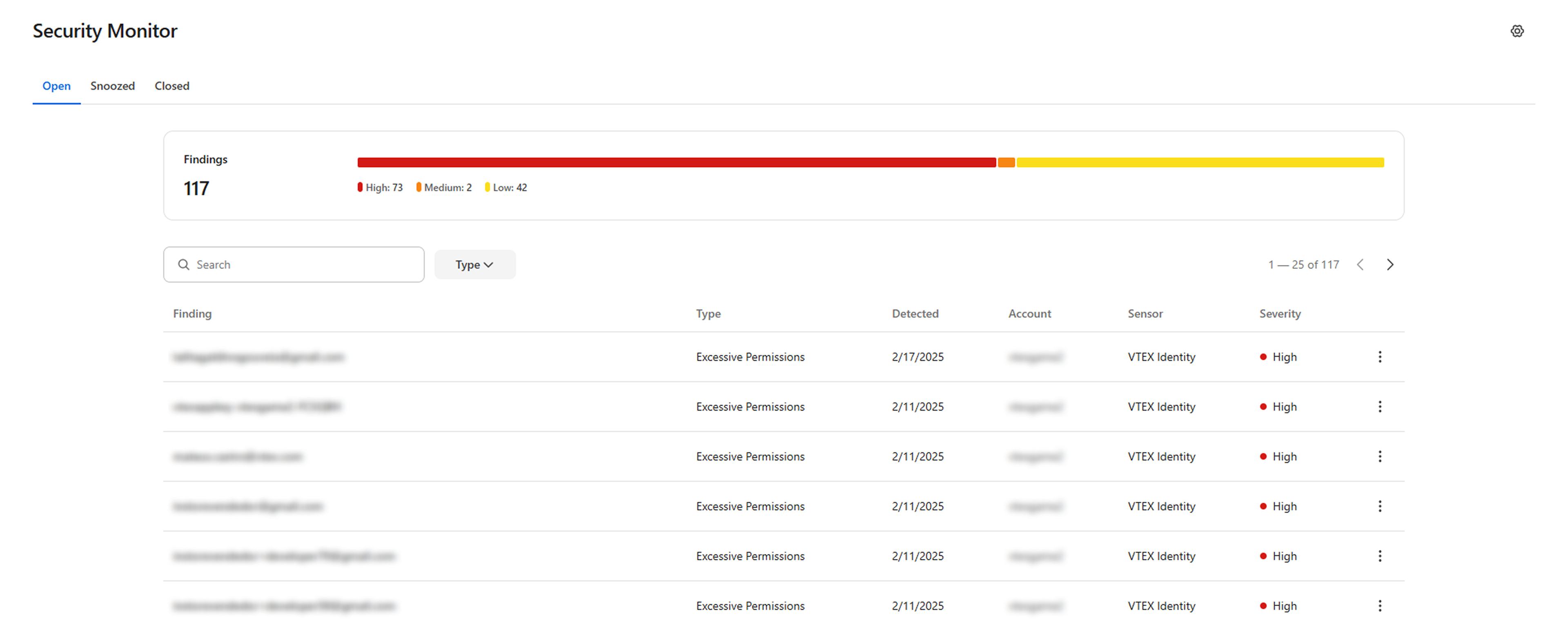\n\nSecurity Monitor displays the findings in three tabs based on their status:\n\n- [Open](#open)\n- [Snoozed](#snoozed)\n- [Closed](#closed)\n\nIn all tabs, you can:\n\n- [Search for findings](#searching-for-findings)\n- [Filter findings by type](#filtering-findings-by-type)\n- [Export findings](#exporting-findings)\n- [Edit notification settings](#editing-notification-settings)\n\nBelow, you will find specific details about the information available in each tab and their related actions.\n\n## Open\n\nThe **Open** tab displays the threats detected by the Security Monitor that have not yet been managed or snoozed.\n\nThe top bar displays the total number of findings and the number of threats by severity level (high, medium, or low).\n\n\n\nThe tab displays the full list of open findings in a table, from the most recent to the oldest:\n\n| Column fields | Description |\n| --- | --- |\n| Finding | User email or API key related to the finding. |\n| Type | Type of finding detected:
- **Old app keys:** [API keys](/en/docs/tutorials/api-keys) that were created more than 6 months ago.
- **Excessive Super Admins:** Users or API keys with the **Owner (Admin Super)** [role](/en/docs/tutorials/roles).
- **Leaked App Keys:** [API keys](/en/docs/tutorials/api-keys) that have been leaked on the web and identified by the VTEX Security team.
- **Inactive Users:** Users who have not accessed the Admin in the last 30 days.
- **Excessive Permissions:** Users or API keys with access to resources they did not use in the last 30 days.
|\n| Detected | Date the finding was detected. |\n| Sensor | Sensor that detected the threat:
|\n| Severity| Level of threat severity, determined by the impact or potential risk associated with the threat:
- **High**
- **Medium**
- **Low**
|\n| Action menu ⋮ | Menu of possible actions for the finding:
- [Manage findings](#managing-findings)
- [Snoozing findings](#snoozing-findings)
|\n\n### Managing findings\n\nTo manage a finding, follow the instructions below:\n\n1. In the finding row, click the ⋮ menu.\n2. Select `Manage`.\n\n You will be redirected to the **Users** screen in **Account Management** to edit the roles associated with the specific user or API key.\n\n### Snoozing findings\n\nTo move a finding to the **Snoozed** tab, removing it temporarily from the **Open** tab, follow the instructions below:\n\n1. In the finding row, click the ⋮ menu.\n2. Select `Snooze`.\n3. Choose the number of days you want the finding to remain in the **Snoozed** tab. The options available are: **7**, **90**, or **120** days.\n4. Click `Snooze`.\n\n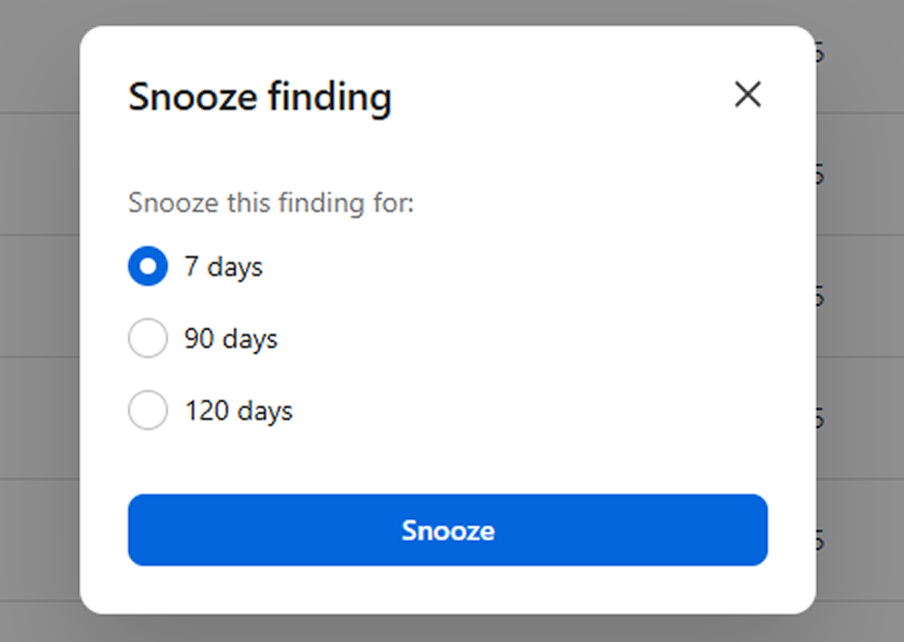\n\n## Snoozed\n\nThe **Snoozed** tab lists the findings that have been snoozed in a table, with the same information as described in the [Open](#open) tab.\n\nIn the **Snoozed** tab, the actions menu in each finding's row only displays the `Unsooze` option, which allows you to undo the snooze action and send the finding back to the **Open** tab.\n\n## Closed\n\nThe **Closed** tab displays a list of findings that have been managed and are therefore closed. It displays the following information in a table:\n\n| Column fields | Description |\n| --- | --- |\n| Finding | User email or API key related to the finding. |\n| Type | Type of finding detected:
- **Old app keys:** [API keys](/en/docs/tutorials/api-keys) that were created more than 6 months ago.
- **Excessive Super Admins:** Users or API keys with the **Owner (Admin Super)** [role](/en/docs/tutorials/roles).
- **Leaked App Keys:** [API keys](/en/docs/tutorials/api-keys) that have been leaked on the web and identified by the VTEX Security team.
- **Inactive Users:** Users who have not accessed the Admin in the last 30 days.
|\n| Detected | Date the finding was detected. |\n| Closed | Date the finding was closed. |\n| Closed By | Indicates that the finding was automatically closed after being managed by an admin user. |\n| Severity | Level of threat severity, determined by the impact or potential risk associated with the threat:
- **High**
- **Medium**
- **Low**
|\n\n## Searching for findings\n\nIn the search bar, enter the user's email address or the name of the API key to find related findings.\n\n## Filtering findings by type\n\nBy clicking `Type` , you can choose one of the finding types to filter the results displayed in the list. Click `Apply` to confirm the chosen filter, and the list will be updated.\n\n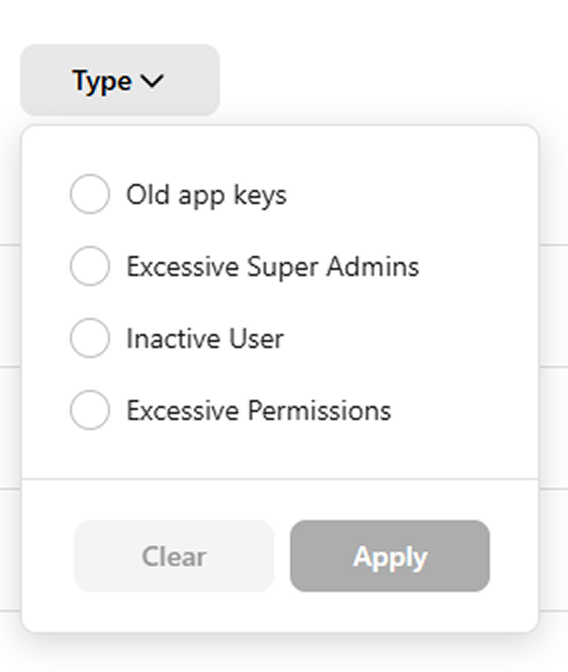\n\n## Exporting findings\n\nTo export findings to a CSV file, follow the steps below:\n\n1. Click the `Export` button in the top right corner of the screen. \n2. Select which findings to include in the exported file: \n * All findings \n * Open \n * Snoozed \n * Closed \n3. Click `Export`. The generated file will be sent to your email once it's ready. \n4. Open the email you received and click `Download` to download the file.\n\n### Information in the exported file\n\nThe exported CSV file includes the following information about each finding:\n\n| Column | Description |\n| :---- | :---- |\n| *Id* | ID of the finding. |\n| *Type* | Type of finding detected. |\n| *Finding* | User email or API key related to the finding. |\n| *Sensor* | Sensor that detected the threat (VTEX Identity). |\n| *Account* | Account where the threat was detected. |\n| *Severity* | Level of threat severity, determined by the impact or potential risk: |\n| *Detected* | Date and time of the finding, in the format DD/MM/YYYY hh:mm:ss. |\n| *Description* | Recommended action based on the finding. |\n| *Status* | Status of the threat, which can be: |\n| *Snoozed Until* | Date until which the finding is snoozed, in the format DD/MM/YYYY hh:mm:ss. This field is only populated if the finding is snoozed. |\n| *Closed* | Date and time when the finding was closed, in the format DD/MM/YYYY hh:mm:ss. |\n| *Closed By* | User responsible for closing the finding. |\n\n## Editing notification settings\n\nTo edit the admin users who will be notified about the findings, follow the steps below:\n\n1. Click the gear button in the top right corner of the screen.\n2. Enter the email address of the user that will receive notifications and press `Enter`. Repeat this step for as many users as you want.\n\n To remove a user, click the `X` next to their email.\n3. Click `Save`.\n\n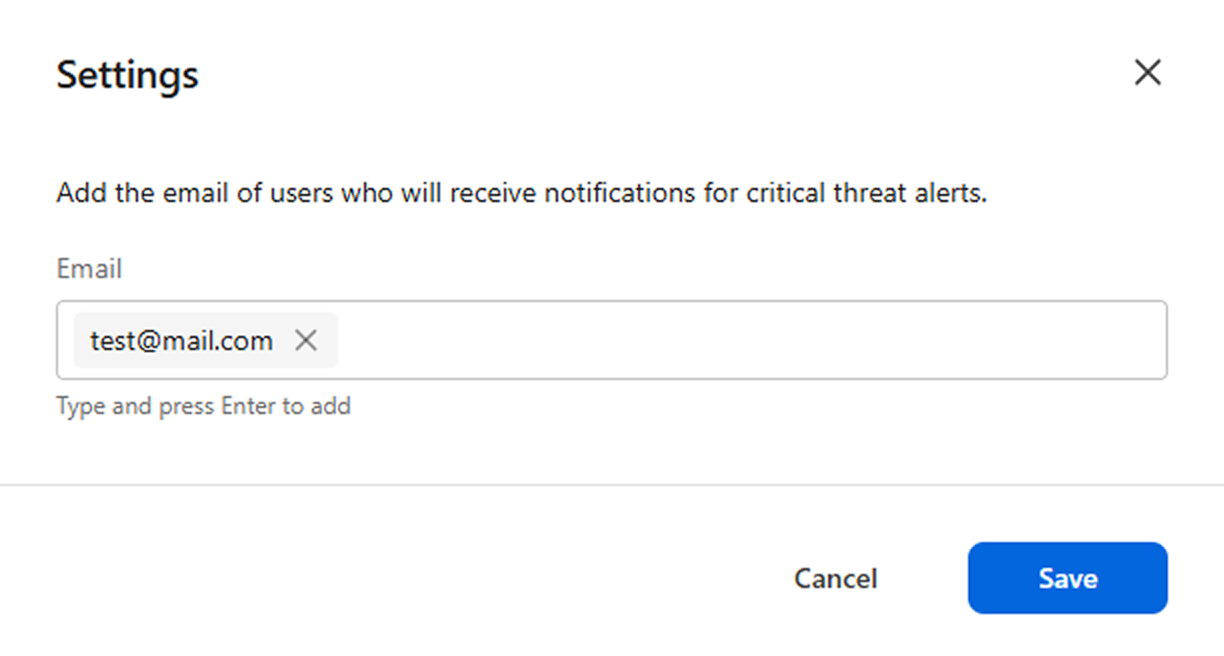\n\n## Learn more\n\n* [VTEX Shield](/en/docs/tutorials/vtex-shield)\n* [Roles](/en/docs/tutorials/roles)\n* [Users](/en/docs/tutorials/managing-admin-users)\n* [API keys](/en/docs/tutorials/api-keys)"}