{"section":"tutorials","requestedLocale":"en","requestedSlug":"install-visa-checkout-in-the-extension-store","locale":"en","slug":"install-visa-checkout-in-the-extension-store","path":"docs/en/tutorials/payments/payment-settings/install-visa-checkout-in-the-extension-store.md","branch":"main","content":"The purpose of this article is a step-by-step demonstration of how to install the Visa Checkout extension in the VTEX App Store.\n\n---\n\nFirst, on the **Explore** screen, click on the **Visa Checkout** extension.\n\n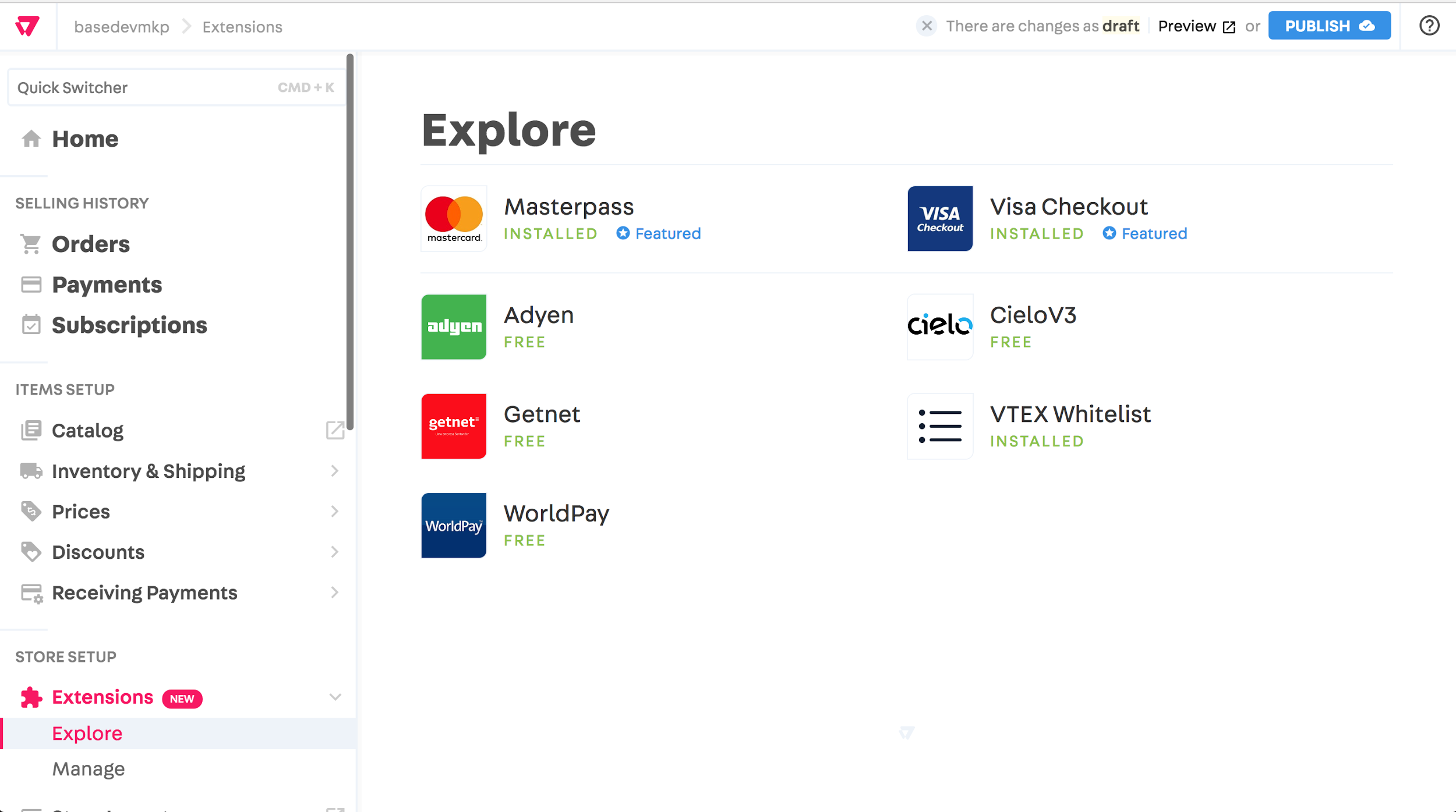\n\nYou will then have access to the page with the extension details, where the following information is displayed:\n\n- **Description**: explanation of what the extension does;\n- **Screenshots**: show how the extension modifies your store and your admin;\n- **Specs**: technical specifications of the extension, showing, for example, what version it is in;\n- **Setup**: shows the steps required for installing the extension.\n\nTo install the Visa Checkout, just click on the green button to the right of the extension icon.\n\n## Permissions\n\nThe installation button leads to the permissions screen where one can view all the information and locations to which the extension wishes to have access.\n\n\n\nOnce you accept the permissions, the extension will be installed.\n\n\n\n## Setup\n\nFor the extension to function correctly you need to complete a setup phase. Just fill out the fields as shown in the diagram below and click on **Criar conta**.\n\n\n\n### Preview\n\nYou should then see a successful installation message. \n\nIn addition, the VTEX App Store displays a preview environment of the Visa Checkout, where you can test whether the extension functions.\n\n\n\nThis environment functions as a draft. No changes made to it affect your store in the production environment.\n\n## Publication\n\nTo move the Visa Checkout to the production environment (where you customers can in fact use it), you need to publish the modification.\n\nTo do this, just click on the **Publish** button of the top bar.\n\n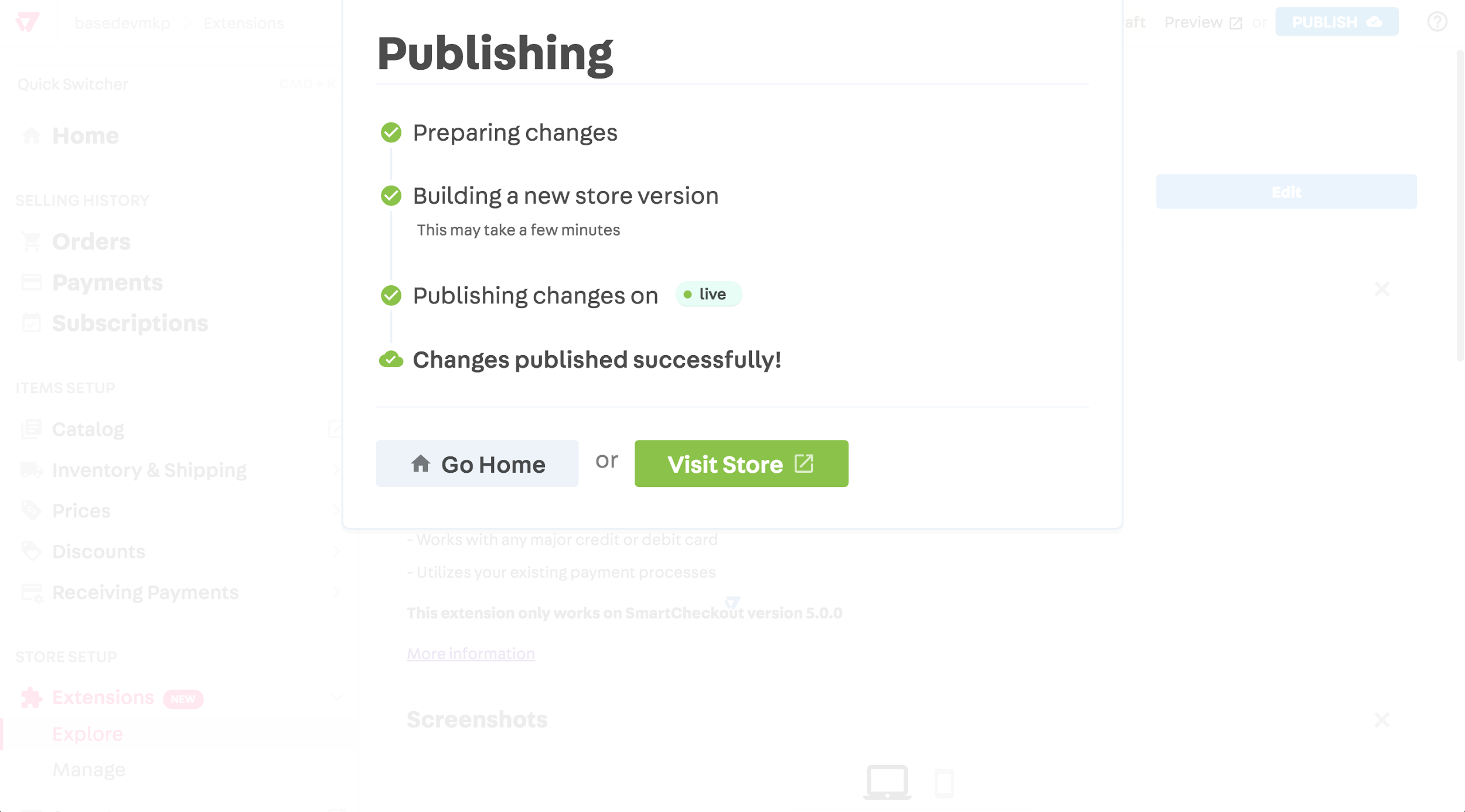"}