{"section":"tutorials","requestedLocale":"en","requestedSlug":"how-to-manually-invoice-an-order","locale":"en","slug":"how-to-manually-invoice-an-order","path":"docs/en/tutorials/orders/orders-overview/how-to-manually-invoice-an-order.md","branch":"main","content":"The [Order Details](/en/docs/tutorials/order-details-page) page gathers the data of a particular order and allows the retailer to follow the detailed order flow. \n\nIt is also on this page that the store can manually add and check the [order invoice](/en/docs/tracks/invoicing-an-order). You can also send a [partial invoice](/en/docs/tracks/partial-invoices) when there is a change in the order's cost, items, or when items are returned.\n\nTo invoice the order on the VTEX platform, you need to add the items' invoice to the **Orders** module. You must invoice the order so that the invoice is available to the customer and the [order flow](/en/docs/tutorials/order-flow-and-status) is complete. The invoice can be sent:\n\n* Via [API](https://developers.vtex.com/docs/api-reference/orders-api#post-/api/oms/pvt/orders/-orderId-/invoice).\n* Via VTEX Admin.\n\n> ℹ️ You can change the [carrier](/en/docs/tutorials/carriers-on-vtex) associated with the order when invoicing it. To do so, in the **Order Tracking** section, click *Carrier* and select the desired option.\n\nTo send the invoice via VTEX Admin, follow the steps below:\n\n1. In the VTEX Admin, go to **Orders > All orders**, or type **All orders** in the search bar at the top of the page. \n2. Search for the order by using the search bar [or the filters](/en/docs/tutorials/filtering-all-orders). \n3. Click the desired order. \n4. Scroll down to the Invoice to items section, and click on the arrow icon to expand. \n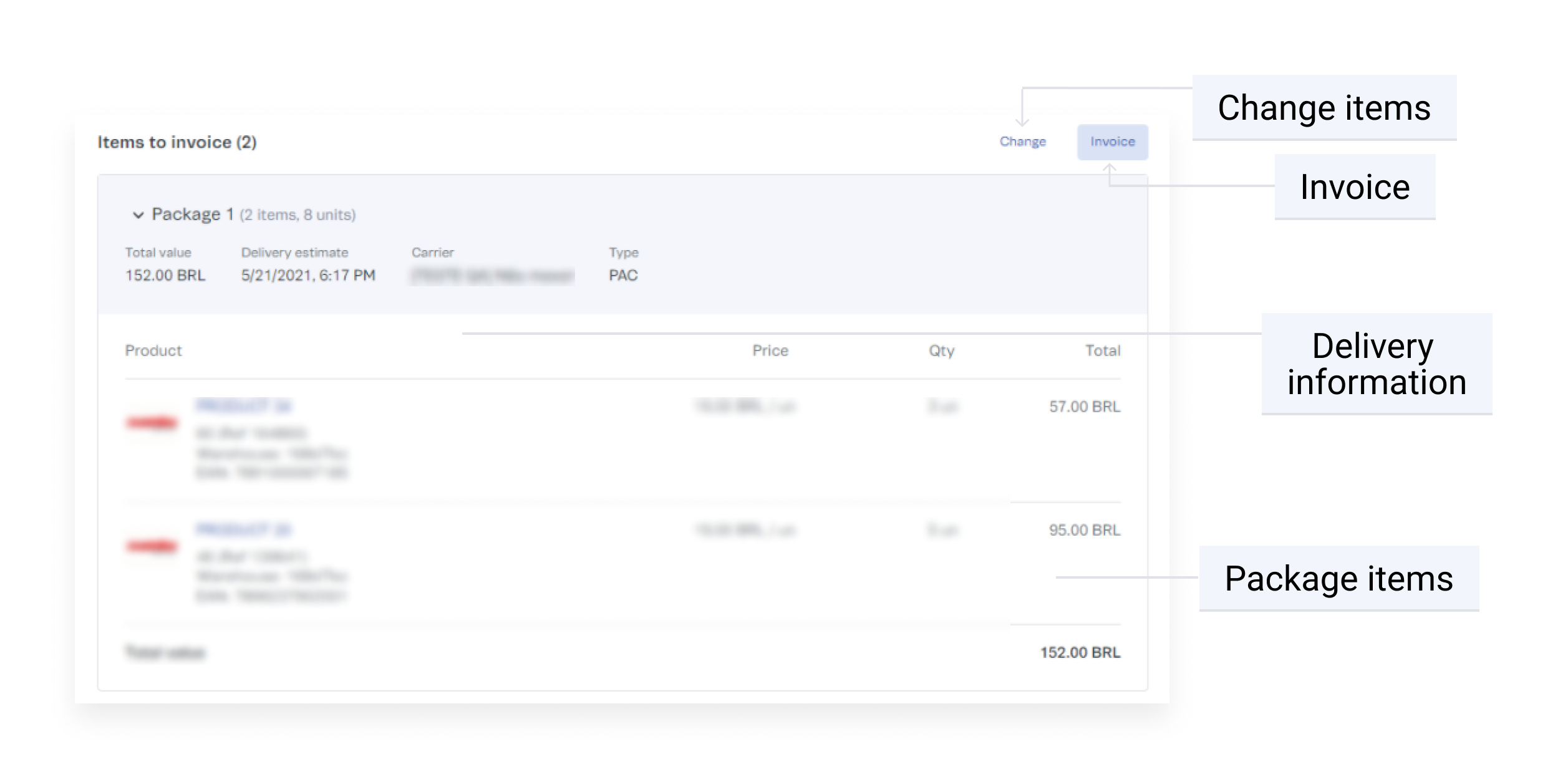\n5. Click the `Invoice` button. \n6. Click the desired billing option: \n * **Submit invoice referencing items:** to invoice the order referencing the package items. \n * **Submit single invoice:** to invoice specific items of the package. If any [changes are made to the order](/en/docs/tutorials/changing-items-from-a-complete-order), you need to enter partial invoices. \n * **Request Invoice:** allows you to notify your store's ERP to generate an invoice. \n7. Fill in the corresponding form fields:\n * Fields of the **Submit invoice referencing items** form.\n * Invoice Number: numerical identifier of the invoice. Do not enter more than one invoice with the same number.\n * Invoice URL: web address of the invoice.\n * Access key: for consulting the electronic invoice (NF-e) on the internet. This field must be filled in only for NF-e cases.\n * Issue date: Issue date of the invoice.\n * Order tracking: tracking identification code.\n * Extra values: extra values of the invoice, such as interest, taxes, and shipping prices.\n * Value: full amount of the invoice.\n * Use the plus and minus icons to add/remove invoice items.\n * Fields of the **Submit single invoice** form.\n * Value: full amount of the invoice.\n * Invoice Number: numerical identifier of the invoice. Do not enter more than one invoice with the same number.\n * Invoice URL: web address of the invoice.\n * Access key: for consulting the electronic invoice (NF-e) on the internet. This field must be filled in only for NF-e cases.\n * Issue date: Issue date of the invoice.\n * Order tracking: tracking identification code.\n * Fields of the **Request invoice** form. This form should only be used for stores that use inStore.\n * Observations: field used to notify an external billing system.\n * Value: full amount of the invoice.\n8. After adding all the information, click `Save Invoice` or `Request invoice`, depending on the option you chose.\n\nAfter the order is `Invoiced`, go to the **Invoice** section to check the invoices added, as shown in the image below:\n\n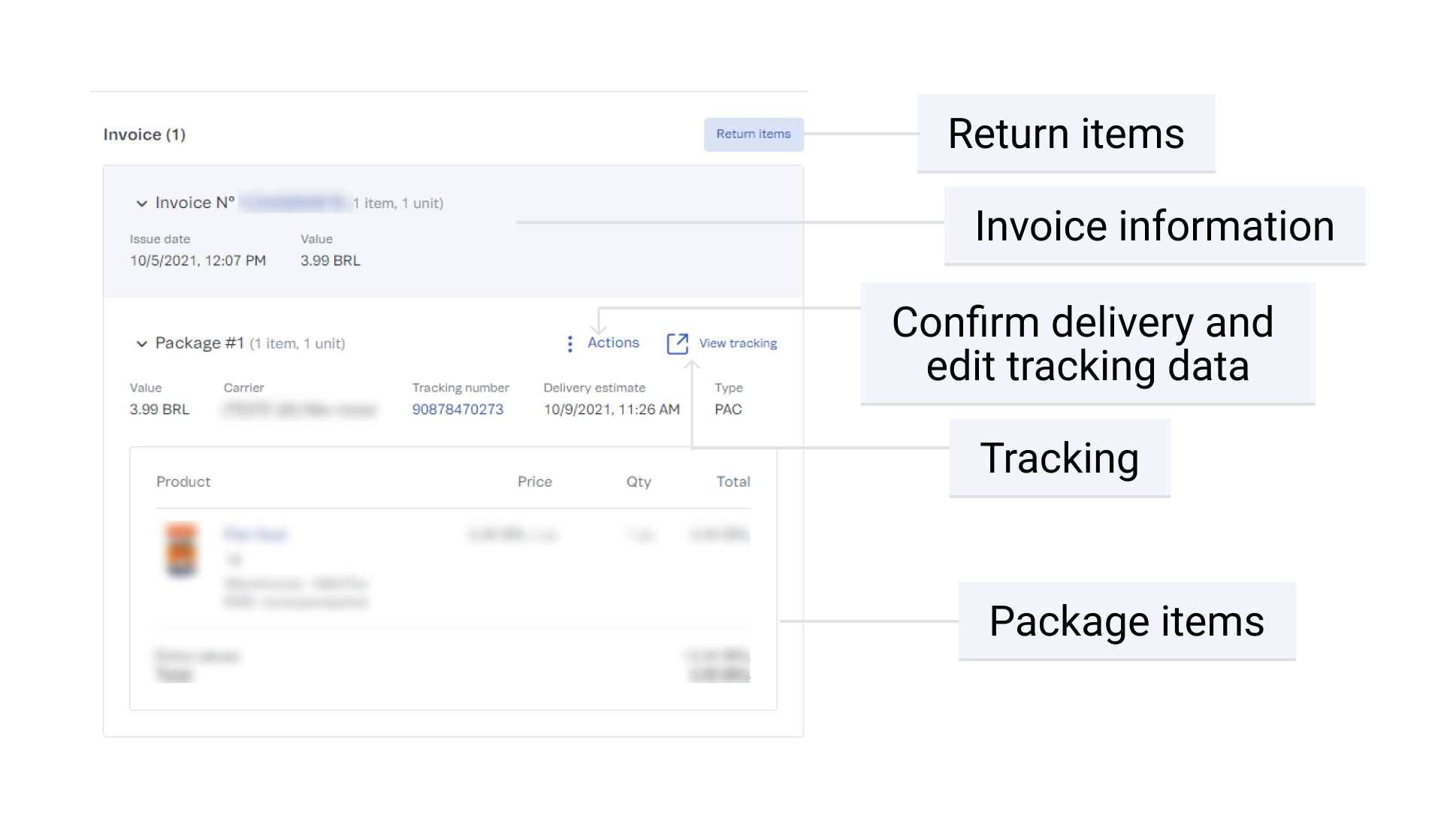\n\nFor [partial invoices](/en/docs/tracks/partial-invoices), when [changing or removing items from an order](/en/docs/tutorials/changing-items-from-a-complete-order), the order total will be updated after invoicing and will correspond to what is settled by the VTEX payment gateway.\n\nOrders with [partial invoices](/en/docs/tracks/partial-invoices) cannot be [canceled](/en/docs/tutorials/canceling-orders). If the customer wants to replace or remove items from the order, it is possible to [change the order](/en/docs/tutorials/changing-items-from-a-complete-order)."}