{"section":"tutorials","requestedLocale":"en","requestedSlug":"how-to-identify-promotions-applied-to-the-cart","locale":"en","slug":"how-to-identify-promotions-applied-to-the-cart","path":"docs/en/tutorials/promotions-and-taxes/promotions/how-to-identify-promotions-applied-to-the-cart.md","branch":"main","content":"There are three ways to understand which promotions are being applied to the cart. Check out the following sections to understand them:\n\n* [Orders management](#orders-management)\n* [Cart](#cart)\n* [orderForm](#orderform)\n* [Promotions Simulator (Beta)](#promotions-simulator-beta)\n\n## Orders management\n\nYou can place a test order in the store and then check in **Orders Management** which promotions have been applied.\n\nExample: Imagine an order in which free shipping has been applied, but you don't know the reason. By clicking on an order in **Orders Management**, you would find the name of the promotion registered in the **Sales and Marketing** or **Promotions and Partnerships** section.\n\n Order details\n\n\n
 Order details\n (Beta)\n\nIf no promotion is listed, it indicates that the free shipping is not caused by a promotion, i.e. the shipping calculation in the **Inventory & shipping** module has resulted in zero. In this case, you have to use the **Shipping Simulator** to understand why shipping had zero value.\n\n## Cart\n\nIn the cart, you can move your mouse over the question mark icon below the price of each item to view the applied discounts, as shown below.\n\nHowever, if more than one promotion is applied, what appears will be the sum of the discounts, making it difficult to analyze the scenario.\n\n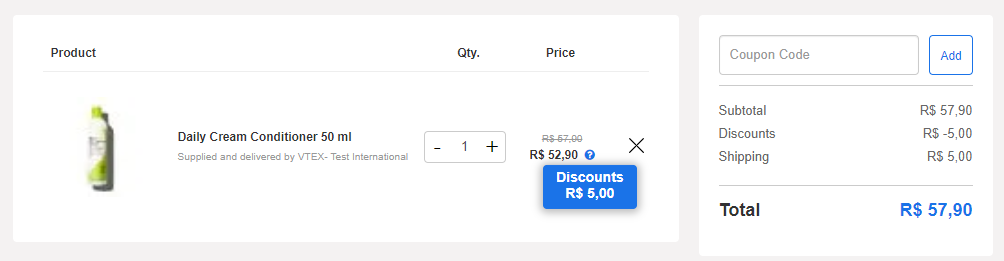\n\n## orderForm\n\n> ⚠️ To conduct the investigation documented in this section, you must use Google Chrome. Because it is a tool external to VTEX, it can be updated without prior notice.\n\nOn the cart page, you can check the `orderForm`, which is a file in JSON format with all the information corresponding to the order being created.\n\nFollow the step-by-step instructions to find the `orderForm` and identify the promotions applied:\n\n1. At the cart, click the right button of the mouse on the screen, and then on **Inspect**. Another option is to directly access **Developer Tools** using the `Ctrl+Shift+I` shortcut.\n2. Click on `Network`.\n3. Check the **Preserve log** option.\n4. Reload the page.\n5. After loading, press `Ctrl+F` to perform the search in the **Developer Tools**. Type `orderForm` in the search bar. 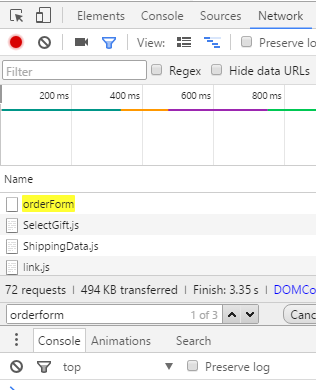\n6. Click on the `orderForm` line. A new window will open next to it.\n7. Click on `Preview`.\n8. Search for `ratesAndBenefitsData` and click on the item.\n9. Click on the `ratesAndBenefitsIdentifiers` subitem.\n10. There will be an index for each promotion that is being applied.\n\n Within this index information, the `name` field shows the name of the promotion registered in the **Promotions & Taxes** module.\n\n The `ID` field shows the unique identifier of the promotion registered in the **Promotions & Taxes** module. You can access the promotion settings directly from the URL `https://{accountName}.vtexcommercestable.com.br/admin/rnb/#/benefit/{id}`, replacing `{accountName}` with your account name and `{id}` with the promotion ID.\n\n## Promotions Simulator (Beta)\n\nThe Promotions Simulator is a tool that allows you to see not only the promotions created in the VTEX platform and which were applied to the shopping cart, but also their activation conditions. Since there are multiple configurations for the promotions, it is important to be able to see the [competition](/en/docs/tutorials/how-promotion-competition-works), the combination of promotions during the purchase and the causes that trigger them.\n\nFor more information, read the [Promotions Simulator (Beta)](/en/docs/tutorials/promotions-simulator-beta) article.\n\n## Learn more\n\n* [How promotions work](/en/docs/tracks/how-promotions-work)\n* [How to identify promotions attributed to an SKU?](/en/docs/tutorials/how-to-identify-promotions-attributed-to-an-sku)"}
Order details\n (Beta)\n\nIf no promotion is listed, it indicates that the free shipping is not caused by a promotion, i.e. the shipping calculation in the **Inventory & shipping** module has resulted in zero. In this case, you have to use the **Shipping Simulator** to understand why shipping had zero value.\n\n## Cart\n\nIn the cart, you can move your mouse over the question mark icon below the price of each item to view the applied discounts, as shown below.\n\nHowever, if more than one promotion is applied, what appears will be the sum of the discounts, making it difficult to analyze the scenario.\n\n\n\n## orderForm\n\n> ⚠️ To conduct the investigation documented in this section, you must use Google Chrome. Because it is a tool external to VTEX, it can be updated without prior notice.\n\nOn the cart page, you can check the `orderForm`, which is a file in JSON format with all the information corresponding to the order being created.\n\nFollow the step-by-step instructions to find the `orderForm` and identify the promotions applied:\n\n1. At the cart, click the right button of the mouse on the screen, and then on **Inspect**. Another option is to directly access **Developer Tools** using the `Ctrl+Shift+I` shortcut.\n2. Click on `Network`.\n3. Check the **Preserve log** option.\n4. Reload the page.\n5. After loading, press `Ctrl+F` to perform the search in the **Developer Tools**. Type `orderForm` in the search bar. \n6. Click on the `orderForm` line. A new window will open next to it.\n7. Click on `Preview`.\n8. Search for `ratesAndBenefitsData` and click on the item.\n9. Click on the `ratesAndBenefitsIdentifiers` subitem.\n10. There will be an index for each promotion that is being applied.\n\n Within this index information, the `name` field shows the name of the promotion registered in the **Promotions & Taxes** module.\n\n The `ID` field shows the unique identifier of the promotion registered in the **Promotions & Taxes** module. You can access the promotion settings directly from the URL `https://{accountName}.vtexcommercestable.com.br/admin/rnb/#/benefit/{id}`, replacing `{accountName}` with your account name and `{id}` with the promotion ID.\n\n## Promotions Simulator (Beta)\n\nThe Promotions Simulator is a tool that allows you to see not only the promotions created in the VTEX platform and which were applied to the shopping cart, but also their activation conditions. Since there are multiple configurations for the promotions, it is important to be able to see the [competition](/en/docs/tutorials/how-promotion-competition-works), the combination of promotions during the purchase and the causes that trigger them.\n\nFor more information, read the [Promotions Simulator (Beta)](/en/docs/tutorials/promotions-simulator-beta) article.\n\n## Learn more\n\n* [How promotions work](/en/docs/tracks/how-promotions-work)\n* [How to identify promotions attributed to an SKU?](/en/docs/tutorials/how-to-identify-promotions-attributed-to-an-sku)"}